Overview
The SoftwareDistribution folder stores temporary Windows Update files. Clearing it can fix stuck or failing updates and free space. This guide explains what it is, when to clean it, and how to do so safely.
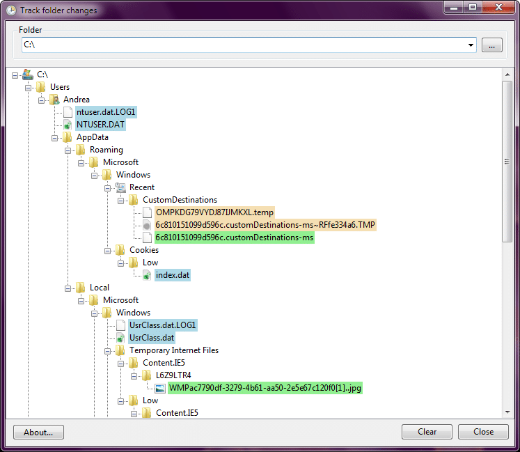
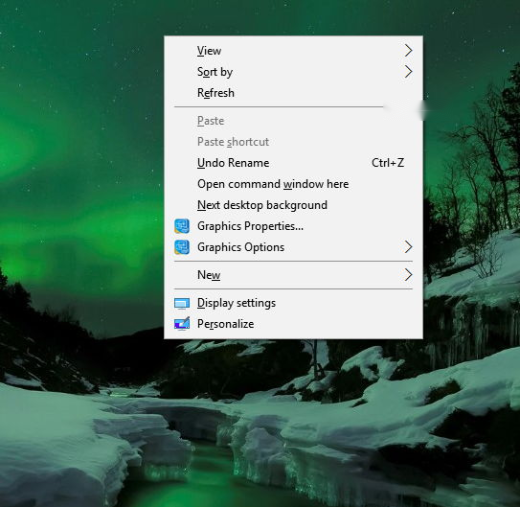
Cleaning up the SoftwareDistribution folder.
Key Takeaways
- SoftwareDistribution caches Windows Update downloads.
- Clearing it is safe — Windows rebuilds it automatically.
- Stop the update services before deleting the contents.
- Useful for fixing stuck downloads and update errors.
What the Folder Is
Located at C:\Windows\SoftwareDistribution, it temporarily holds update files before installation. If an update gets corrupted, this cache can cause repeated failures.
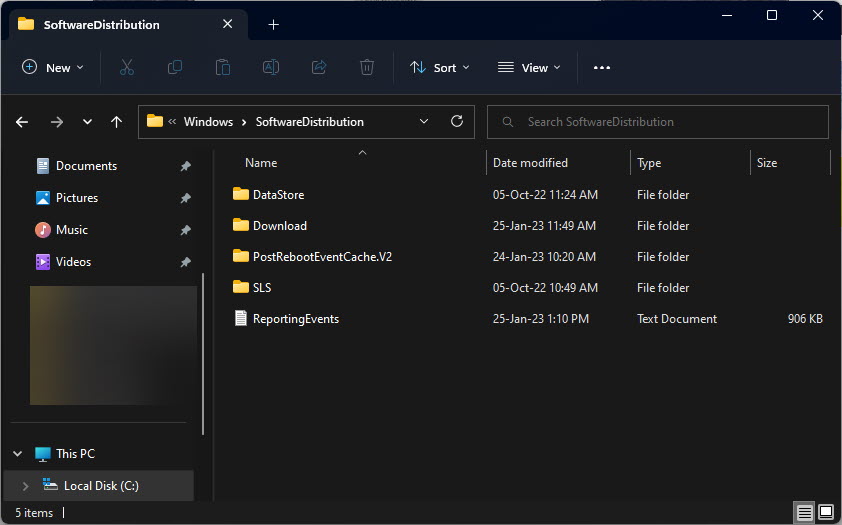
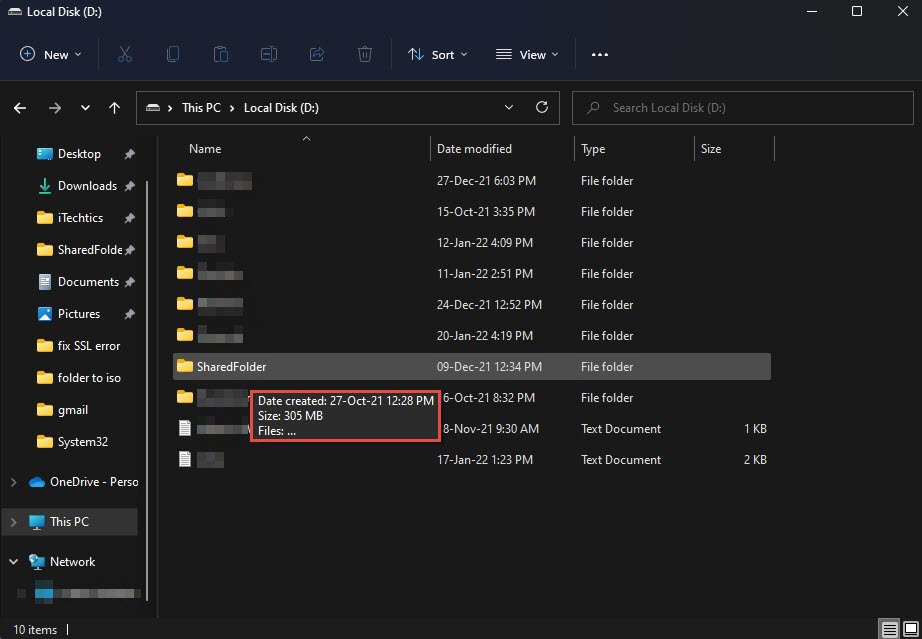
The SoftwareDistribution folder.
When to Clean It
- Updates are stuck downloading or won’t install.
- You see Windows Update errors.
- The folder has grown very large.
How to Clean It Safely
1. Open Services (services.msc).
2. Stop "Windows Update" (wuauserv) and "Background Intelligent Transfer Service" (BITS).
3. Open C:\Windows\SoftwareDistribution and delete the contents of the Download folder (not the folder itself).
4. Restart both services you stopped.
5. Recheck Windows Update — it will re-download what it needs.
Note: Alternatively, rename SoftwareDistribution to SoftwareDistribution.old (with the services stopped) to keep a fallback; Windows creates a fresh folder.
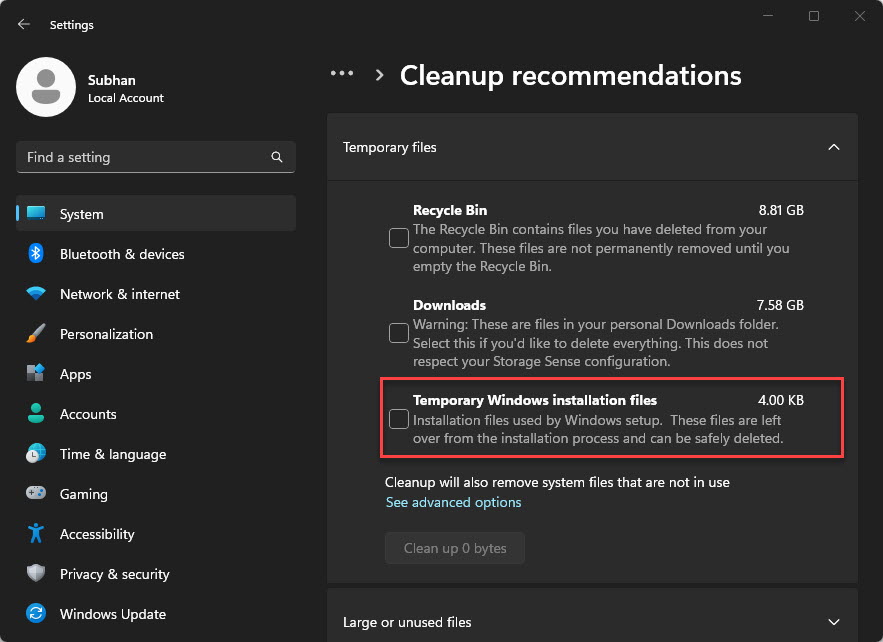
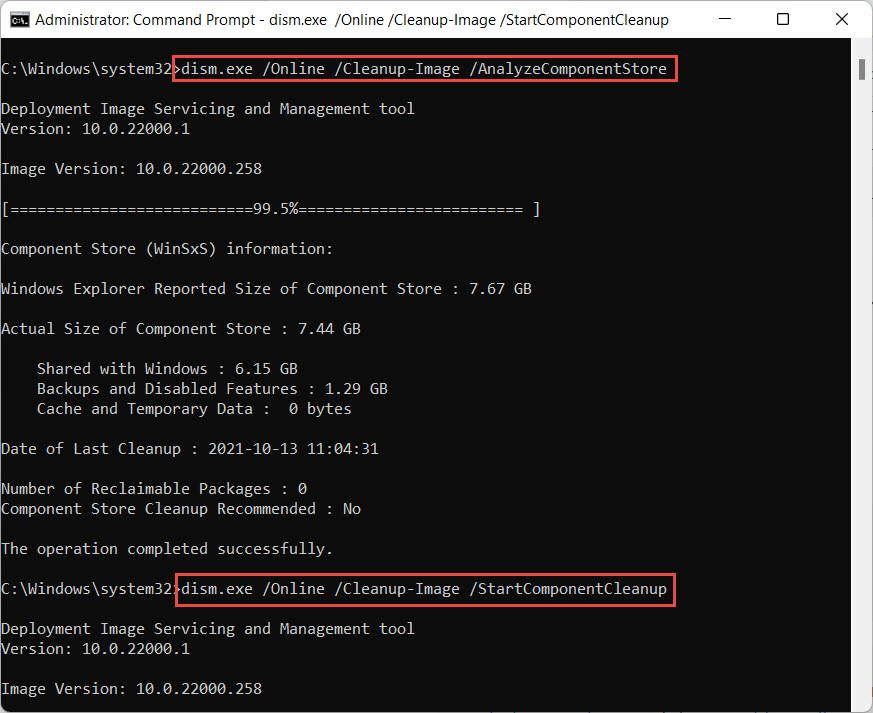
Clearing temporary Windows installation files.
Troubleshooting
Problem: "Folder in use" when deleting.
Solution: Make sure Windows Update and BITS services are stopped first; reboot and retry if still locked.
Problem: Updates still fail after cleanup.
Solution: Run the Windows Update troubleshooter, then sfc /scannow and DISM /Online /Cleanup-Image /RestoreHealth.
Problem: Update history disappeared.
Solution: That’s expected — clearing the cache resets pending update state; history rebuilds over time.
Problem: Services won’t restart.
Solution: Set them to Manual/Automatic in services.msc and start them, then reboot.
Conclusion
Clearing the SoftwareDistribution download cache is a safe, effective fix for stuck Windows Updates. Stop the update services, delete the cached files (or rename the folder), restart the services, and let Windows rebuild the cache cleanly.
</w:pBdr><w:spacing w:before="220" w:after="40"/></w:pPr><w:r><w:rPr><w:b/><w:bCs/><w:color w:val="0B5394"/><w:sz w:val="21"/><w:szCs w:val="21"/><w:rFonts w:ascii="Calibri" w:cs="Calibri" w:eastAsia="Calibri" w:hAnsi="Calibri"/></w:rPr><w:t xml:space="preserve">About TechHub
This guide is part of the TechHub Knowledge Base. For more step-by-step IT guides and support, visit techhub.com.lk.