4 Ways to Open a Command Prompt Window in a Folder in Windows
Launch Command Prompt already pointed at the current folder using the address bar, shortcuts, and the context menu.
Overview
Opening Command Prompt directly in a folder saves you from typing cd paths. This guide shows four ways to do it, including adding "Open command window here" back to the right-click menu.
Opening Command Prompt in a folder.
Key Takeaways
- Type "cmd" in File Explorer’s address bar to open it in that folder.
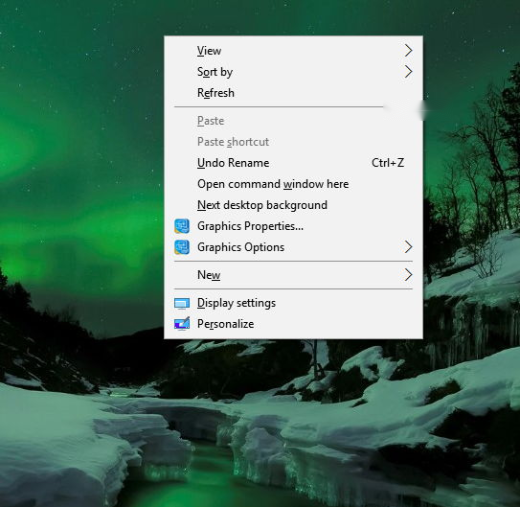
- Shift + right-click may show "Open PowerShell/command window here".
- A Registry tweak restores "Open command window here".
- Windows 11 offers "Open in Terminal" from the folder menu.
Method 1: Address Bar (Easiest)
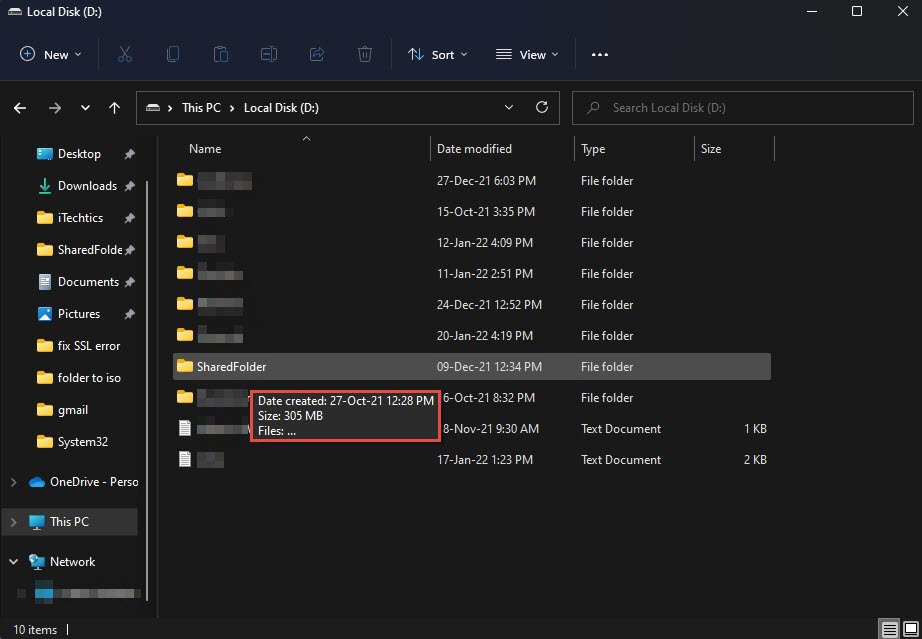
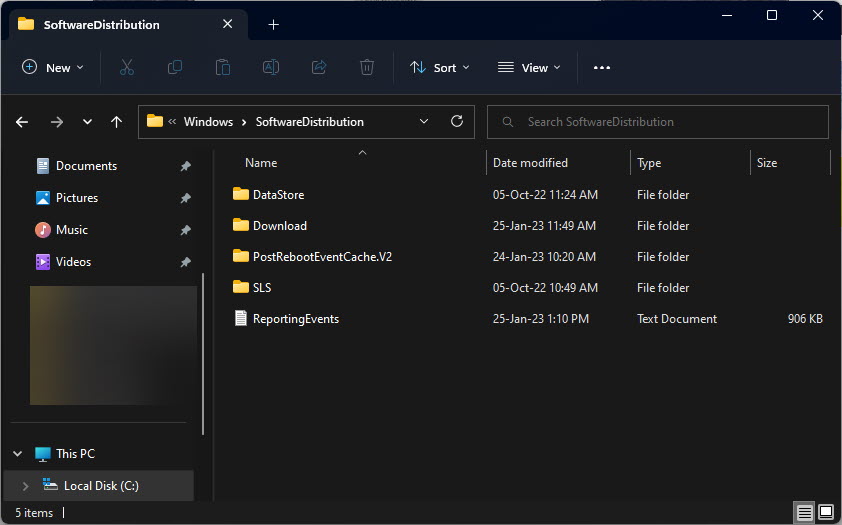
1. Open the target folder in File Explorer.
2. Click the address bar and type: cmd
3. Press Enter — Command Prompt opens in that folder.
4. Type "powershell" instead for PowerShell.
Method 2: Shift + Right-Click
1. Hold Shift and right-click inside the folder (or on it).
2. Choose "Open PowerShell window here" (or command window, depending on version).
3. On Windows 11, choose "Open in Terminal".
Method 3: Restore "Open command window here" (Registry)
Warning: Editing the Registry incorrectly can cause problems. Back up the Registry first.
1. Windows replaced this with PowerShell; a Registry tweak (taking ownership of the cmd context-menu key and clearing HideBasedOnVelocityId) restores it.
2. Alternatively, use a trusted .reg file to add "Open command window here".
3. Restart Explorer to apply.
Method 4: Add Admin Command Prompt Here
1. A .reg tweak can add "Open command window here as administrator".
2. Apply it, then Shift + right-click to see the elevated option.
3. Confirm the UAC prompt when using it.
Troubleshooting
Problem: Only PowerShell/Terminal appears.
Solution: Use the address-bar "cmd" trick, or apply the Registry tweak to add the command-window option.
Problem: Address-bar cmd opens the wrong folder.
Solution: Ensure the folder is open/focused before typing cmd in its address bar.
Problem: Registry edit didn’t work.
Solution: You may need to take ownership of the relevant HKCR key; restart Explorer after applying.
Problem: Need admin here.
Solution: Add the admin variant via a trusted .reg file, or open cmd normally then run as admin.
Conclusion
The quickest way is typing "cmd" in File Explorer’s address bar to open Command Prompt in the current folder. Shift + right-click and the Windows 11 "Open in Terminal" option also work, and a Registry tweak restores the classic "Open command window here" entry.