Overview
System uptime tells you how long your PC has been running since the last boot — useful for troubleshooting stability and confirming a reboot took effect. This guide shows six ways to check uptime on Windows 10 and 11.
Check how long your Windows PC has been running.
Key Takeaways
- Task Manager shows uptime on the Performance tab.
- Command-line tools (systeminfo, wmic, net statistics) report last boot time.
- PowerShell can calculate exact uptime.
- Fast Startup can make uptime look longer than the last full shutdown.
Method 1: Task Manager
1. Right-click the taskbar and choose Task Manager (or press Ctrl + Shift + Esc).
2. Open the Performance tab and select CPU.
3. Read the Up time value at the bottom (days:hours:minutes:seconds).
Method 2: Network Adapter
1. Open Settings > Network & Internet > Advanced network settings.
2. View the adapter’s status; its duration reflects time since connection (an approximation of uptime).
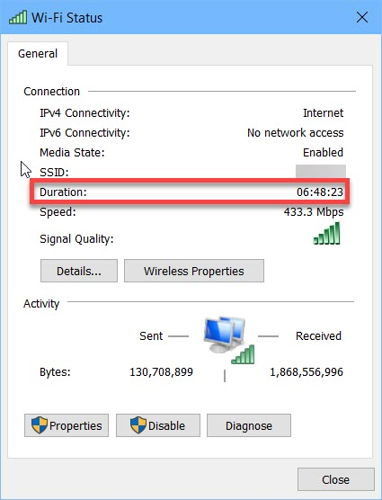
Network adapter duration approximates uptime.
Method 3: systeminfo (Command Prompt)
1. Open Command Prompt.
2. Run: systeminfo | find "System Boot Time"
3. Read the boot timestamp; subtract from the current time for uptime.
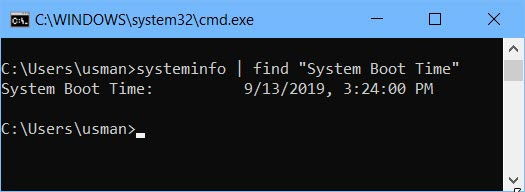
systeminfo reports the System Boot Time.
Method 4: wmic
1. Open Command Prompt.
2. Run: wmic path Win32_OperatingSystem get LastBootUpTime
3. Interpret the returned timestamp (YYYYMMDDHHMMSS).
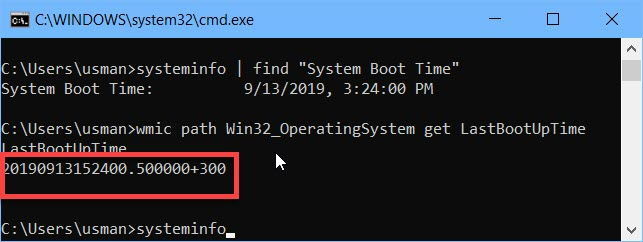
wmic returns the last boot time.
Method 5: net statistics
1. Open Command Prompt.
2. Run: net statistics workstation
3. Read the "Statistics since" line — it shows when the system started.
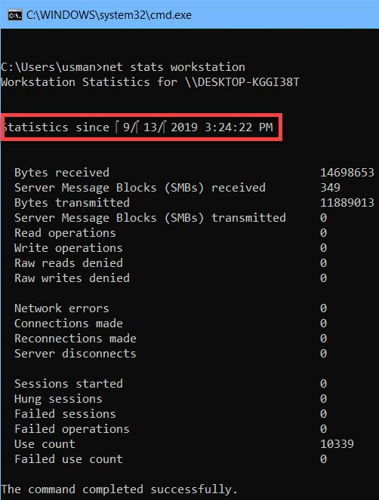
net statistics shows the "since" time.
Method 6: PowerShell
1. Open PowerShell.
2. Run: (get-date) - (gcim Win32_OperatingSystem).LastBootUpTime
3. PowerShell returns the exact uptime as days, hours, minutes, and seconds.
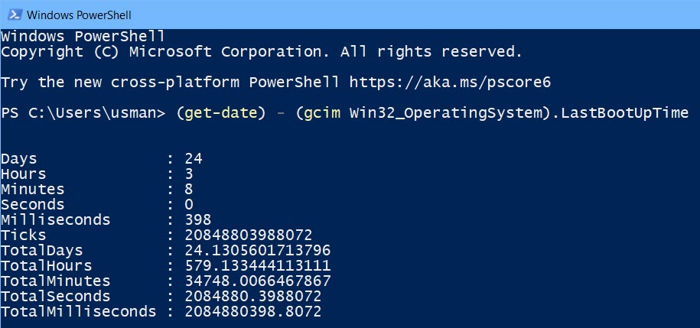
Calculate exact uptime in PowerShell.
Note: If Fast Startup is enabled, a normal shutdown is a partial hibernate, so uptime may not reset. Use Restart for a true reboot.
Troubleshooting
Problem: Uptime seems too high after shutting down.
Solution: Fast Startup keeps the kernel session — use Restart, or disable Fast Startup in Power Options, for a full reboot.
Problem: systeminfo is slow.
Solution: It gathers a lot of data; use the wmic or PowerShell one-liners for a faster result.
Problem: wmic is missing.
Solution: wmic is deprecated on newer Windows 11 builds — use the PowerShell CIM method instead.
Problem: Times don’t match between methods.
Solution: Some methods report network/service start rather than OS boot; trust Task Manager or the PowerShell LastBootUpTime value.
Conclusion
Whether you prefer a GUI or the command line, Windows offers several ways to check uptime. Task Manager is quickest for a glance, while PowerShell’s LastBootUpTime gives precise figures for troubleshooting.
</w:pBdr><w:spacing w:before="220" w:after="40"/></w:pPr><w:r><w:rPr><w:b/><w:bCs/><w:color w:val="0B5394"/><w:sz w:val="21"/><w:szCs w:val="21"/><w:rFonts w:ascii="Calibri" w:cs="Calibri" w:eastAsia="Calibri" w:hAnsi="Calibri"/></w:rPr><w:t xml:space="preserve">About TechHub
This guide is part of the TechHub Knowledge Base. For more step-by-step IT guides and support, visit techhub.com.lk.