4 Ways to Disable Automatic Window Resizing (Snap) in Windows
Stop windows from snapping/resizing when dragged to screen edges, via Settings and the Registry.
Overview
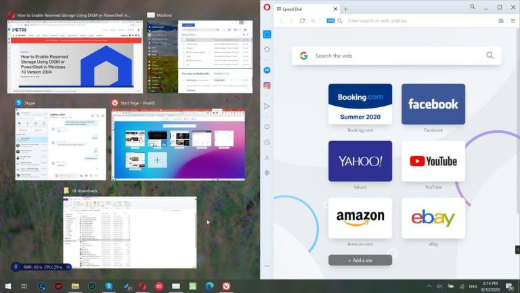
Windows’ Snap feature auto-resizes windows when you drag them to an edge or corner. If that’s disruptive, this guide shows four ways to disable Snap (Aero Snap) via Settings, Control Panel, and the Registry.
Disabling automatic window resizing (Snap).
Key Takeaways
- Snap auto-resizes windows dragged to edges/corners.
- Turn it off in Settings > Multitasking.
- Control Panel’s Ease of Access also disables it.
- A Registry value controls the same behaviour.
Method 1: Settings App
1. Open Settings > System > Multitasking.
2. Turn off "Snap windows".
3. Or expand it to disable specific Snap behaviours only.
Method 2: Control Panel (Ease of Access)
1. Open Control Panel > Ease of Access > Ease of Access Center.
2. Click "Make it easier to manage windows".
3. Tick "Prevent windows from being automatically arranged when moved to the edge of the screen".
4. Apply.
Method 3: Registry
Warning: Editing the Registry incorrectly can cause problems. Back up the Registry first.
1. Go to HKEY_CURRENT_USER\Control Panel\Desktop.
2. Set the string "WindowArrangementActive" to 0 to disable (1 to enable).
3. Sign out and back in to apply.
Method 4: Command Line
1. Disable via reg command: reg add "HKCU\Control Panel\Desktop" /v WindowArrangementActive /t REG_SZ /d 0 /f
2. Sign out/in (or restart) to apply.
Troubleshooting
Problem: Windows still snap.
Solution: Confirm "Snap windows" is off in Multitasking, and sign out/in after Registry changes.
Problem: Only want to keep some Snap features.
Solution: Expand "Snap windows" in Settings to toggle individual behaviours instead of all.
Problem: Setting reverts.
Solution: Reapply; ensure no other tool re-enables Snap.
Problem: Want it back.
Solution: Turn "Snap windows" back on, or set WindowArrangementActive to 1.
Conclusion
To stop windows auto-resizing, turn off "Snap windows" in Settings > Multitasking — the simplest method. Control Panel’s Ease of Access and the WindowArrangementActive Registry value achieve the same, and you can re-enable Snap anytime.