Overview
Control Panel applets are the individual tools (like Programs, Network, or Sound) within Control Panel. Many are backed by .cpl files you can launch directly by name — faster than clicking through menus. This guide explains CPL files and lists the most useful commands.
Control Panel applets can be opened directly by their .cpl command.
Key Takeaways
- A .cpl file is a Control Panel applet you can run by name.
- Open one by typing its command in the Run box (Windows + R), Command Prompt, or PowerShell.
- Common examples: appwiz.cpl (Programs), ncpa.cpl (Network), sysdm.cpl (System).
- Most .cpl files live in C:\Windows\System32.
How to Open a CPL File
1. Press Windows key + R to open Run.
2. Type the applet command, e.g. ncpa.cpl, and press Enter.
3. You can also run the same command in Command Prompt or PowerShell.
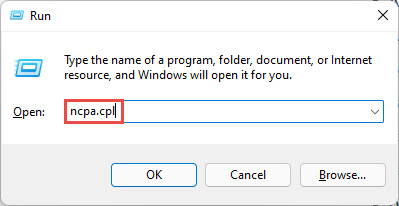
Open a CPL applet directly from the Run box.
Most Useful Control Panel Commands
- appwiz.cpl — Programs and Features (uninstall apps).
- ncpa.cpl — Network Connections (adapters).
- sysdm.cpl — System Properties (hardware, advanced, remote).
- desk.cpl — Display settings.
- timedate.cpl — Date and Time.
- mmsys.cpl — Sound (playback/recording devices).
- powercfg.cpl — Power Options.
- inetcpl.cpl — Internet Properties.
- main.cpl — Mouse settings.
- firewall.cpl — Windows Defender Firewall.
- intl.cpl — Region and language.
- hdwwiz.cpl — Device Manager / Add Hardware.
- wscui.cpl — Security and Maintenance.
- joy.cpl — Game Controllers.
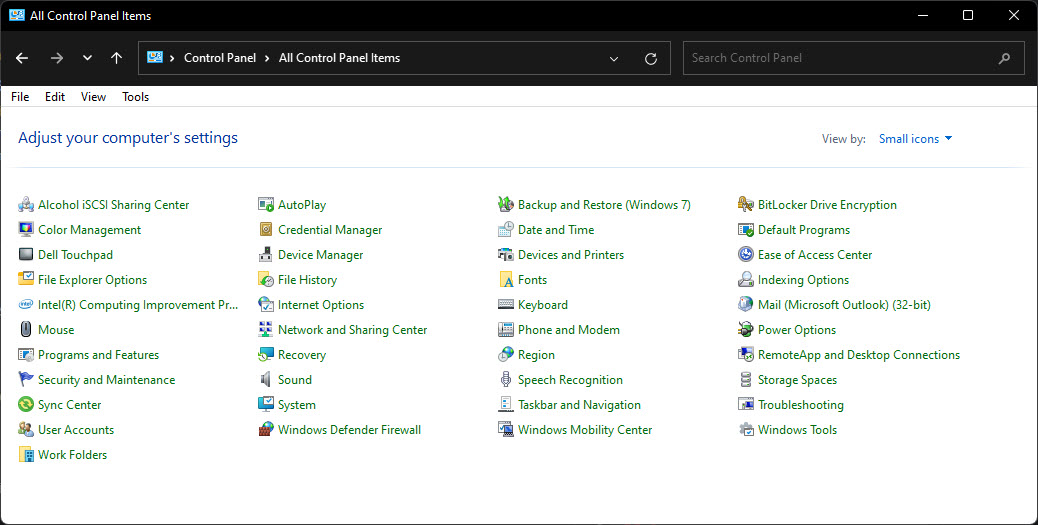
The applets available in Control Panel.
List All CPL Files on Your PC
1. Open Command Prompt.
2. Run: dir C:\Windows\System32\*.cpl
3. This lists every Control Panel applet file present on your system.
CPL vs MSC Files
- .cpl — Control Panel applets (e.g. appwiz.cpl).
- .msc — Microsoft Management Console snap-ins (e.g. services.msc, devmgmt.msc).
- Both are launched the same way (Run box or command line) but open different tool types.
Troubleshooting
Problem: A .cpl command does nothing.
Solution: Check the spelling, and that the applet exists on your edition/version. Some applets were moved into the Settings app.
Problem: The applet opens Settings instead of Control Panel.
Solution: Windows 11 redirects some legacy applets to Settings. Use the modern Settings page, or the specific control commands that still open the classic window.
Problem: "Windows cannot find" the file.
Solution: Run it from System32 or with the full path C:\Windows\System32\name.cpl.
Problem: You forgot a command.
Solution: List them with dir C:\Windows\System32\*.cpl, or open Control Panel and navigate normally.
Conclusion
Control Panel .cpl commands are a fast way to jump straight to a specific tool. Memorize a few favorites like appwiz.cpl, ncpa.cpl, and sysdm.cpl, and run them from the Run box whenever you need them.
</w:pBdr><w:spacing w:before="220" w:after="40"/></w:pPr><w:r><w:rPr><w:b/><w:bCs/><w:color w:val="0B5394"/><w:sz w:val="21"/><w:szCs w:val="21"/><w:rFonts w:ascii="Calibri" w:cs="Calibri" w:eastAsia="Calibri" w:hAnsi="Calibri"/></w:rPr><w:t xml:space="preserve">About TechHub
This guide is part of the TechHub Knowledge Base. For more step-by-step IT guides and support, visit techhub.com.lk.