Overview
Windows එකට local account passwords වරින් වර expire වෙන්න force කරන්න පුළුවන්. ඒවා වෙනස් කරන්න කියලා prompt එනවට ඔයා කැමති නැත්නම්, ඒවා කවදාවත් expire නොවෙන විදිහට set කරන්න පුළුවන්. මේ guide එකෙන් ක්රම තුනක් — සහ ඒක සුදුසු වෙන්නේ කවදද කියලා පෙන්නනවා.
Windows එකේ password එකක් කවදාවත් expire නොවෙන්න set කිරීම.
Warning: කවදාවත් expire නොවෙන passwords, බෙදාගන්නා හෝ සංවේදී systems වල security risk එකක් වෙන්න පුළුවන්. ශක්තිමත්, unique passphrase එකක් තෝරන්න, expiry disable කරන්නේ ඒක සුදුසු තැන්වල විතරයි.
Key Takeaways
- expiry එක user කෙනෙක් වෙනුවෙන් හෝ හැම local users ලාටම set කරන්න.
- lusrmgr.msc, net accounts/wmic, හෝ PowerShell පාවිච්චි කරන්න.
- Microsoft-account sign-ins වලට ලැබෙන්නේ නෑ (online manage වෙනවා).
- ඉවත් කරපු expiry එකට balance කරන්න ශක්තිමත් passwords පාවිච්චි කරන්න.
Method 1: Local Users and Groups
Note: lusrmgr.msc තියෙන්නේ Windows Pro/Enterprise වල, Home වල නෑ.
1. Windows + R press කරලා, lusrmgr.msc type කරලා, Enter press කරන්න.
2. Users open කරලා account එක double-click කරන්න.
3. "Password never expires" tick කරලා "User must change password…" එක clear කරන්න.
4. OK click කරන්න.
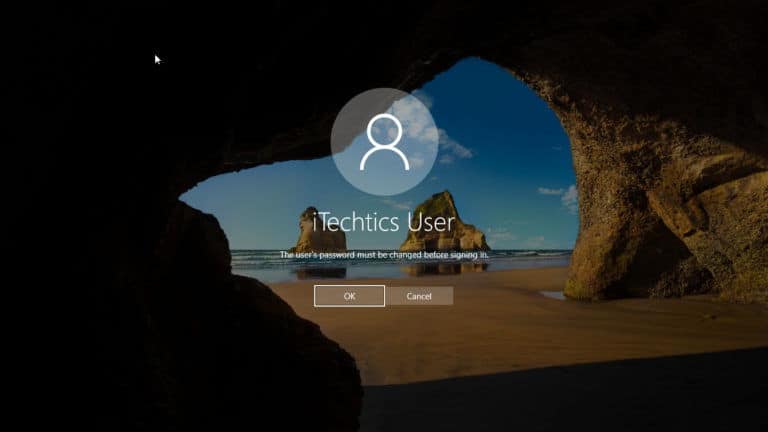
user account එකක Password/expiry options.
Method 2: Command Prompt
1. Command Prompt එක administrator විදිහට open කරන්න.
2. හැම local users ලාටම: net accounts /maxpwage:unlimited
3. නිශ්චිත user කෙනෙක්ට: wmic useraccount where "name='USERNAME'" set PasswordExpires=false
Method 3: PowerShell
1. PowerShell එක administrator විදිහට open කරන්න.
2. Run කරන්න: Set-LocalUser -Name "USERNAME" -PasswordNeverExpires $true
3. Verify කරන්න: Get-LocalUser "USERNAME" | Select Name,PasswordExpires
Troubleshooting
Problem: lusrmgr.msc හම්බුවෙන්නේ නෑ.
Solution: ඔයා Windows Home එකේ — ඒ වෙනුවට Command Prompt හෝ PowerShell ක්රමය පාවිච්චි කරන්න.
Problem: Option එක greyed out වෙලා.
Solution: account එක Microsoft account එකක් වෙන්න පුළුවන්; ඒවගේ expiry manage වෙන්නේ online, locally නෙවෙයි.
Problem: Setting එක apply වුණේ නෑ.
Solution: tool/prompt එක administrator විදිහට run කරලා, ඔයා හරි username එකද target කරේ කියලා තහවුරු කරගන්න.
Problem: Domain policy එකෙන් නැවත expiry enable කරනවා.
Solution: domain GPO එකකින් expiry එක centrally enforce කරනවා — ඒක adjust කරන්න ඔයාගේ administrator ගෙන් අහන්න.
Conclusion
Local password-expiry prompts නවත්තන්න පුළුවන් Local Users and Groups, net accounts/wmic, හෝ PowerShell එකේ Set-LocalUser හරහා. ඔයා security control එකක් ඉවත් කරන නිසා, ඒක ශක්තිමත් passphrase එකක් එක්ක combine කරලා සුදුසු තැන්වල විතරක් apply කරන්න.
About TechHub
මේ guide එක TechHub Knowledge Base එකේ කොටසක්. තව step-by-step IT guides සහ support වලට techhub.com.lk එකට යන්න.