Windows Home එකේ Local Users and Groups (lusrmgr) Manage කරන හැටි
Windows Home එකේ lusrmgr.msc නෑ — users සහ groups manage කරන built-in සහ safe third-party ක්රම මෙන්න.
Overview
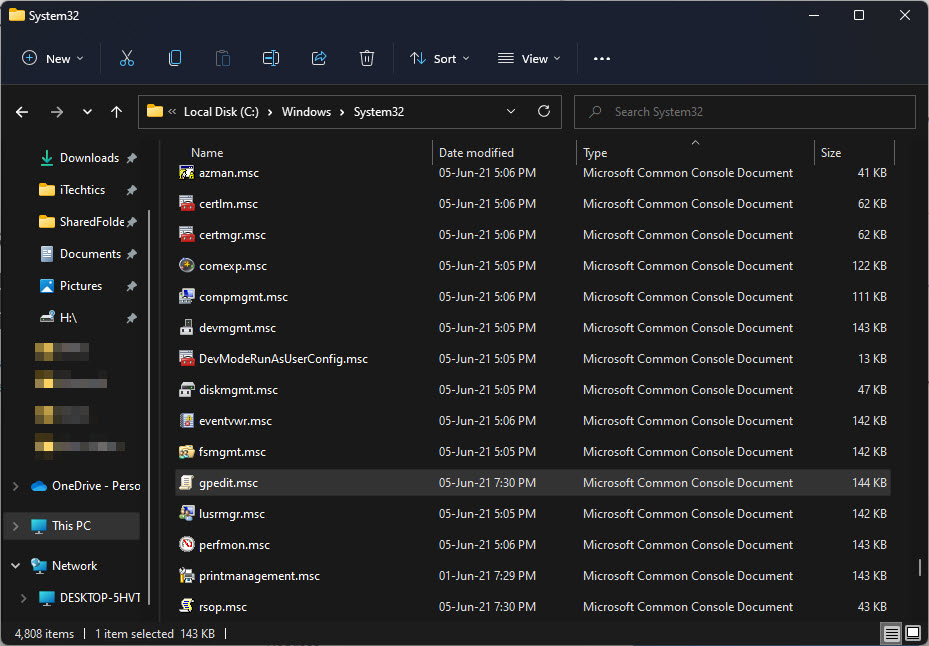
Local Users and Groups console එක (lusrmgr.msc) Windows Home එකේ නෑ. මේ guide එකෙන් Home එකේ local accounts සහ groups manage කරන built-in ක්රම, ඒ එක්කම හොඳින් දන්නා open-source lusrmgr alternative එකකුත් covers කරනවා.
Windows Home එකේ local users සහ groups manage කිරීම.
Key Takeaways
- lusrmgr.msc කියන්නේ Pro/Enterprise feature එකක්, Home එකේ නෑ.
- Settings, netplwiz, සහ net user වලින් Home එකේ accounts manage කරනවා.
- Group membership එක net localgroup වලින් set කරන්න පුළුවන්.
- Open-source "lusrmgr" tool එකකින් GUI alternative එකක් දෙනවා.
Built-in: Manage Accounts on Home
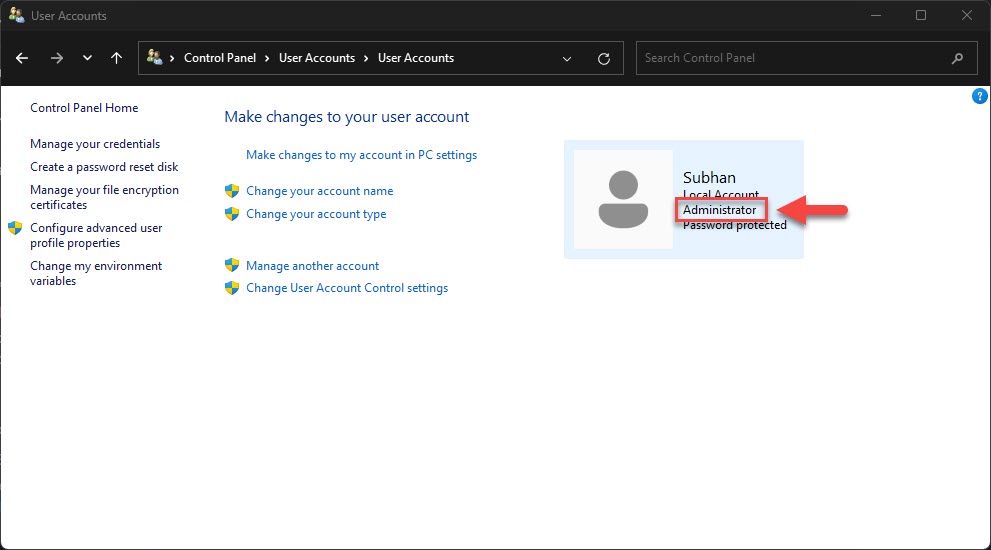
1. Users add/remove කරන්නත් account type වෙනස් කරන්නත් Settings > Accounts > Other users.
2. Classic user-accounts dialog එකකට netplwiz run කරන්න (users add කරන්න, auto-login set කරන්න).
3. Command line: net user වලින් accounts list වෙනවා; net user "Name" /add එකකින් හදනවා.
4. Group membership: net localgroup Administrators "Name" /add.
Open-Source lusrmgr Alternative
Note: GUI එකක් ඕන නම්, open-source "lusrmgr" tool එක download කරන්නේ එයාගේ official GitHub repository එකෙන් විතරයි. Admin tools run කරන්න කලින් source එක verify කරන්න.
1. Open-source lusrmgr (lusrmgr.exe) එක එයාගේ official GitHub releases වලින් download කරන්න.
2. එක administrator විදිහට run කරන්න.
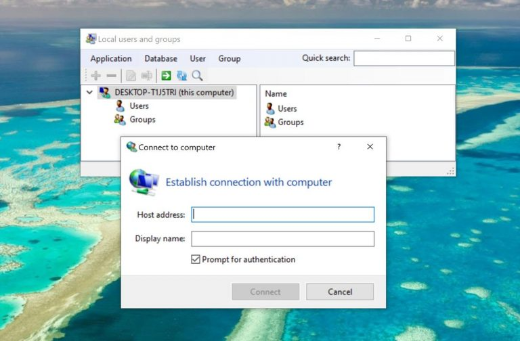
3. Users හදන්නත්, group membership set කරන්නත්, properties manage කරන්නත් එයාගේ interface එක පාවිච්චි කරන්න — Pro console එකට සමානයි.
Local users and groups management interface එකක්.
Common Tasks
- Local user එකක් හදන්න/delete කරන්න.
- Local account password එකක් reset කරන්න (net user "Name" *).
- Administrators හෝ වෙනත් groups වලට user එකක් add/remove කරන්න.
- Account එකක් disable/enable කරන්න.
Troubleshooting
Problem: lusrmgr.msc "cannot be used with this edition".
Solution: ඒක Home එකේ බලාපොරොත්තු වෙන දෙයක් — Settings, netplwiz, net user, හෝ open-source lusrmgr tool එක පාවිච්චි කරන්න.
Problem: net user access denied.
Solution: Command Prompt/PowerShell එක administrator විදිහට run කරන්න.
Problem: Third-party tool එක flag වෙනවා.
Solution: Download කරන්නේ official GitHub repo එකෙන් විතරයි, release එක verify කරන්න; admin tools සමහරවිට false-flag වෙනවා.
Problem: Change එක apply වුණේ නෑ.
Solution: Sign out/in කරන්න; සමහර account/group changes next logon එකේදී effect වෙනවා.
Conclusion
Windows Home එකේ lusrmgr.msc නැති වුණාට, built-in tools වලින් — Settings, netplwiz, සහ net user/localgroup — local users සහ groups සම්පූර්ණයෙන්ම manage කරන්න පුළුවන්. පුරුදු GUI එකකට, open-source lusrmgr tool එක (එයාගේ official GitHub එකෙන්) safe alternative එකක්.