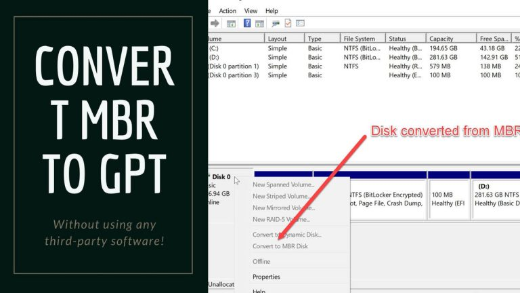
How to Convert MBR to GPT in Windows (Without Data Loss)
Switch a disk from MBR to GPT for UEFI/Secure Boot and Windows 11 — safely with MBR2GPT.
Overview
GPT is the modern partition scheme required for UEFI boot, Secure Boot, and Windows 11. Windows’ MBR2GPT tool converts a system disk from MBR to GPT without deleting data. This guide covers that and the disk-wiping alternatives.
Converting MBR to GPT.
Warning: Always back up before converting. MBR2GPT preserves data, but Diskpart/Disk Management conversion ERASES the disk. Also switch the firmware from Legacy/CSM to UEFI after converting the system disk, or it won’t boot.
Key Takeaways
- GPT is needed for UEFI, Secure Boot, and Windows 11.
- MBR2GPT converts the system disk without data loss.
- Diskpart/Disk Management conversion erases the disk (data drives only, or after backup).
- Switch BIOS to UEFI after converting the boot disk.
Method 1: MBR2GPT (No Data Loss)
1. Back up your data first.
2. Open Command Prompt as administrator.
3. Validate: mbr2gpt /validate /allowFullOS
4. Convert: mbr2gpt /convert /allowFullOS
5. Reboot into firmware and switch boot mode from Legacy/CSM to UEFI.
6. Boot into Windows — the disk is now GPT.
Method 2: Diskpart (Erases the Disk)
Warning: This deletes everything on the disk. Use only on empty/data disks or after a full backup.
1. Run diskpart as administrator.
2. list disk / select disk N (choose carefully).
3. clean, then convert gpt.
4. Recreate partitions and restore data.
Method 3: Disk Management
1. Open diskmgmt.msc.
2. The disk must be empty — delete all volumes (erases data).
3. Right-click the disk > "Convert to GPT Disk".
4. Recreate volumes.
Troubleshooting
Problem: mbr2gpt validation fails.
Solution: Ensure the disk is MBR, has ≤3 primary partitions, and enough free space for the EFI partition; run from an elevated prompt (or WinRE).
Problem: PC won’t boot after converting.
Solution: Switch firmware to UEFI (disable Legacy/CSM); MBR boots in Legacy, GPT boots in UEFI.
Problem: "Convert to GPT" greyed out.
Solution: Disk Management requires an empty disk — delete volumes (after backup) or use MBR2GPT for the system disk.
Problem: Only need it for Windows 11.
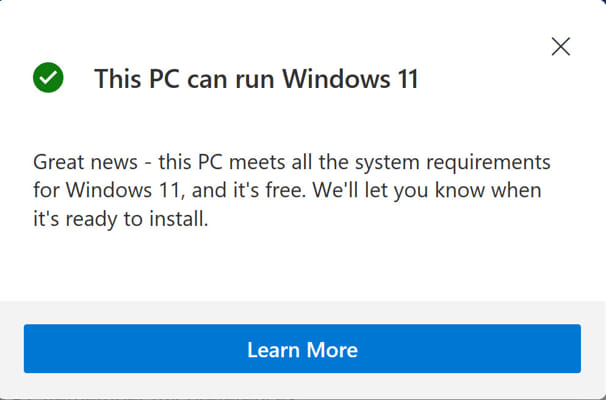
Solution: Convert with MBR2GPT and enable UEFI/Secure Boot + TPM to meet requirements.
Conclusion
For a system disk, MBR2GPT converts MBR to GPT without data loss — validate, convert, then switch firmware to UEFI. Diskpart/Disk Management conversion erases the disk, so reserve those for empty drives or after a full backup.