Windows එකේ Files සහ Folders ISO එකට Convert කරන Tools 5ක්
ImgBurn, AnyToISO, සහ Folder2ISO වගේ free tools පාවිච්චි කරලා files සහ folders ISO image එකකට package කරන්න.
Overview
ISO image එකකින් files සහ folders එකම mountable/burnable file එකකට bundle කරනවා — archive කරන්න, share කරන්න, නැත්නම් discs burn කරන්න ගොඩක් වැදගත්. මේ guide එකෙන් ඔයාගේ files වලින් ISOs හදන්න පුළුවන් free tools පහක් ගැන කියනවා.
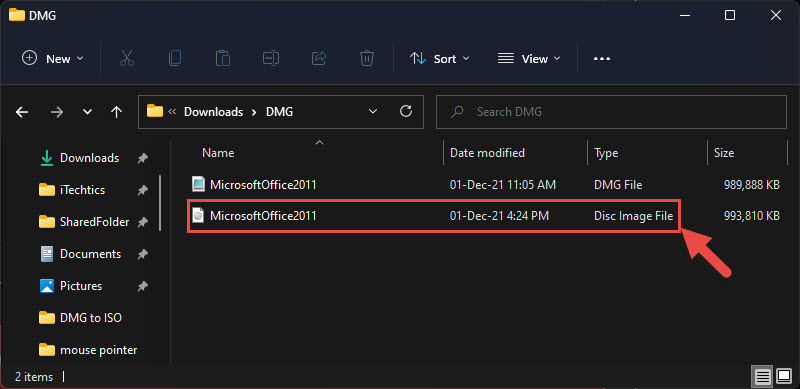
Files සහ folders ISO එකට convert කරනවා.
Note: bundle කරපු හරි tamper කරපු installers වළක්වා ගන්න හැම tool එකක්ම download කරන්න ඕන ඒකේ official website එකෙන් විතරයි.
Key Takeaways
- ISO files වලින් folders එකම mountable image එකකට bundle කරනවා.
- ImgBurn, AnyToISO, Folder2ISO, ISO Workshop, සහ WinCDEmu ඔක්කොම වැඩ කරනවා.
- ගොඩක් ඒවා free සහ simple: source folder එකක් තෝරලා, ISO විදිහට save කරන්න.
- features අනුව තෝරන්න (සමහරවා portable/lightweight).
1. AnyToISO
1. AnyToISO install කරලා open කරන්න.
2. "Folder to ISO" තෝරලා ඔයාගේ source folder එක select කරන්න.
3. output ISO path එක set කරලා "Make ISO" click කරන්න.
2. ImgBurn
1. ImgBurn open කරලා "Create image file from files/folders" තෝරන්න.
2. ඔයාගේ files/folder එක source එක විදිහට add කරන්න.
3. destination ISO එක set කරලා build (convert) button එක click කරන්න.
3. Folder2ISO
1. Folder2ISO (portable) open කරන්න.
2. source folder එක සහ destination එක select කරන්න.
3. "Generate ISO" click කරන්න.
4. ISO Workshop
1. ISO Workshop open කරලා "Make ISO" තෝරන්න.
2. files/folders add කරලා, volume name එකක් සහ output path එකක් set කරන්න.
3. ISO එක build කරන්න Make click කරන්න.
5. WinCDEmu
1. File Explorer එකේ folder එකක් right-click කරන්න.
2. "Build an ISO image" තෝරන්න (WinCDEmu එකෙන් එකතු කරපු එක).
3. ISO එක ඔයා තෝරගත්ත location එකට save කරන්න.
Troubleshooting
Problem: ISO එක mount වෙන්නේ නෑ.
Solution: tool එකෙන් standard ISO9660/UDF image එකක් හැදුවද කියලා බලන්න; ඒක නැවත හදන්න, නැත්නම් WinCDEmu වගේ tool එකකින් mount කරන්න.
Problem: දිග filenames truncate වෙනවා.
Solution: දිග names ආරක්ෂා කරගන්න tool එකේ UDF හරි Joliet/UDF options තෝරන්න.
Problem: Output එක disc එකකට වඩා ලොකුයි.
Solution: content එක split කරන්න නැත්නම් ලොකු disc/USB එකක් use කරන්න; ISOs CD/DVD sizes වලට වඩා ලොකු වෙන්න පුළුවන්.
Problem: Tool එකෙන් extra software bundle කරනවා.
Solution: official site එකෙන් download කරලා install වෙනකොට optional offers decline කරන්න.
Conclusion
Files සහ folders වලින් ISO එකක් හදන එක free tools එක්ක ලේසියි. ImgBurn සහ ISO Workshop full-featured, Folder2ISO සහ WinCDEmu lightweight, තව AnyToISO beginner-friendly — එකක් තෝරලා, ඔයාගේ folder එක තෝරලා, ISO එක save කරන්න.
About TechHub
මේ guide එක TechHub Knowledge Base එකේ කොටසක්. තව step-by-step IT guides සහ support වලට techhub.com.lk එකට යන්න.