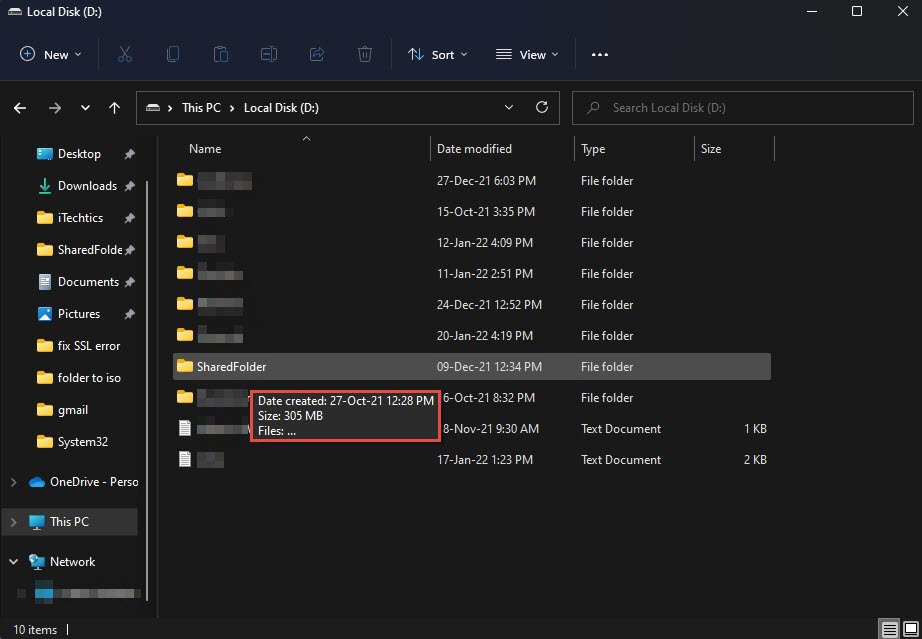
How to Show Hidden and Protected Files and Folders in Windows 11 and 10
Reveal hidden items and protected system files via File Explorer, Control Panel, and the command line.
Overview
Windows hides some files by default — regular "hidden" items and "protected operating system" files. This guide shows how to reveal both safely, plus command-line methods and a note on malware-hidden files.
Showing hidden files and folders in Windows.
Warning: Protected operating system files are hidden to prevent accidental changes. View them if needed, but do not delete or modify system files unless you know exactly what they are.
Key Takeaways
- "Hidden" items and "protected system" files are separate settings.
- File Explorer’s View menu toggles hidden items quickly.
- Folder Options reveals protected system files.
- attrib can un-hide files hidden by malware.
Show Hidden Items in File Explorer
1. Open File Explorer.
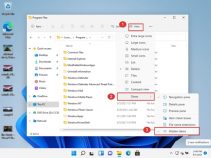
2. Windows 11: click View > Show > Hidden items.
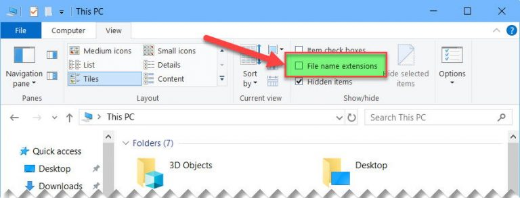
3. Windows 10: open the View tab and tick "Hidden items".
4. Hidden files/folders now appear (slightly faded).
Show Protected System Files
1. Open Folder/Explorer Options (View > Options, or run control folders).
2. On the View tab, untick "Hide protected operating system files (Recommended)".
3. Confirm the warning and click Apply.
4. Protected system files now show alongside hidden items.
Command-Line Methods
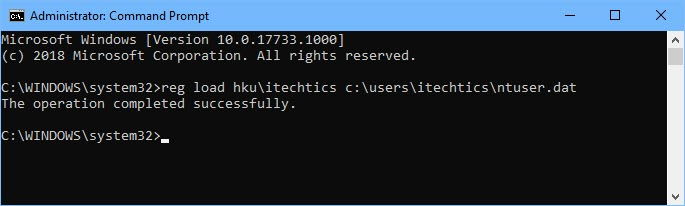
1. Command Prompt: dir /a lists all items including hidden/system.
2. Un-hide a file: attrib -h -s "C:\path\file"
3. PowerShell: Get-ChildItem -Force shows hidden items.
Files Hidden by Malware
1. If a virus set files hidden+system, open Command Prompt in the drive/folder.
2. Run: attrib -h -s -r /s /d *.*
3. This clears hidden/system/read-only attributes recursively; then scan the drive with Windows Security.
Troubleshooting
Problem: Files still not visible.
Solution: They may be "protected system" files — untick "Hide protected operating system files" in Folder Options.
Problem: "Access is denied" on some folders.
Solution: You may need administrator rights or ownership of the folder to view/enter it.
Problem: Attributes won’t clear.
Solution: Run Command Prompt as administrator and ensure the files aren’t in use.
Problem: Hidden files return after reboot.
Solution: Malware may re-hide them — run a full antivirus scan and clear the attributes again.
Conclusion
Revealing hidden items is a quick toggle in File Explorer, while protected system files require unticking their option in Folder Options. Use attrib for malware-hidden files — and treat protected system files with care, viewing rather than deleting them.