Overview
Quick Assist is Microsoft’s free tool for remote assistance — one person shares their screen while a helper views or controls it. This guide shows how to connect, the tools available, and how to do it safely.
Microsoft Quick Assist.
Warning: Only share a Quick Assist code with someone you trust. Scammers use Quick Assist to gain remote access — never give control to an unsolicited caller claiming to be "support".
Key Takeaways
- Quick Assist enables view-only or full-control remote sessions.
- The helper generates a code the other person enters.
- It’s built into Windows (also available in the Microsoft Store).
- Never share a code with unsolicited callers.
Before You Begin
- Both PCs need internet access.
- The helper needs a Microsoft account to generate a code.
- Agree in advance who is helping whom.
Establish a Connection
1. Both users open Quick Assist from the Start menu.
2. The helper clicks "Help someone" and signs in to get a 6-digit code.
3. The helper shares the code with the other person (by phone/chat you both trust).
4. The recipient enters the code under "Get help" and clicks Submit/Share.
5. The recipient approves view or control access.
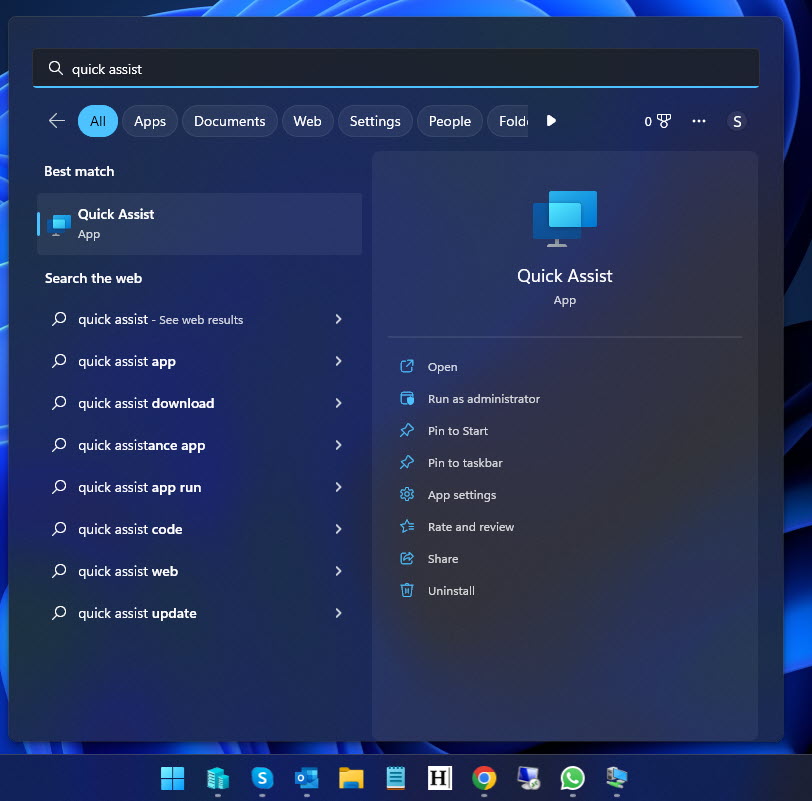
Open Quick Assist from the Start menu.
Tools During a Session
- Take full control or view only.
- Annotate the screen to point things out.
- Restart and reconnect the remote PC.
- Open Task Manager remotely and pause the session.

The Quick Assist toolbar.
Install or Uninstall Quick Assist
1. If missing, install "Quick Assist" from the official Microsoft Store.
2. To remove it: Settings > Apps > Installed apps > Quick Assist > Uninstall.
Troubleshooting
Problem: The code doesn’t work.
Solution: Codes expire after about 10 minutes — generate a fresh one and enter it promptly.
Problem: Can’t sign in to give help.
Solution: The helper needs a valid Microsoft account and internet; the recipient does not.
Problem: Connection fails.
Solution: Check both firewalls/VPNs and internet; reinstall Quick Assist from the Store if needed.
Problem: Two Quick Assist apps appear.
Solution: One is the legacy built-in version and one is the Store app — use the Store version.
Conclusion
Quick Assist is a simple, secure way to give or receive remote help on Windows. Generate a code, share it only with someone you trust, and use view or control mode as needed — and never respond to unsolicited "support" requests for a code.
</w:pBdr><w:spacing w:before="220" w:after="40"/></w:pPr><w:r><w:rPr><w:b/><w:bCs/><w:color w:val="0B5394"/><w:sz w:val="21"/><w:szCs w:val="21"/><w:rFonts w:ascii="Calibri" w:cs="Calibri" w:eastAsia="Calibri" w:hAnsi="Calibri"/></w:rPr><w:t xml:space="preserve">About TechHub
This guide is part of the TechHub Knowledge Base. For more step-by-step IT guides and support, visit techhub.com.lk.