Overview
Activating Windows 11 confirms your copy is genuine and unlocks personalization and full functionality. After reinstalling Windows or changing hardware, you may need to reactivate. This guide shows how to check your activation status and activate Windows 11 through legitimate methods — a product key or a digital license.
Activating Windows 11 confirms your copy is genuine.
Key Takeaways
- Activation uses either a 25-character product key or a digital license tied to your hardware/Microsoft account.
- Link your Microsoft account so the digital license survives a reinstall or hardware change.
- Check your status in Settings > System > Activation.
- Buy Windows 11 only from Microsoft or authorised retailers.
Check Your Activation Status
1. Open Settings > System > Activation to see whether Windows is activated and how.
2. Or open Command Prompt and run: slmgr /xpr to see the activation status.
3. For full licence detail, run: slmgr /dlv
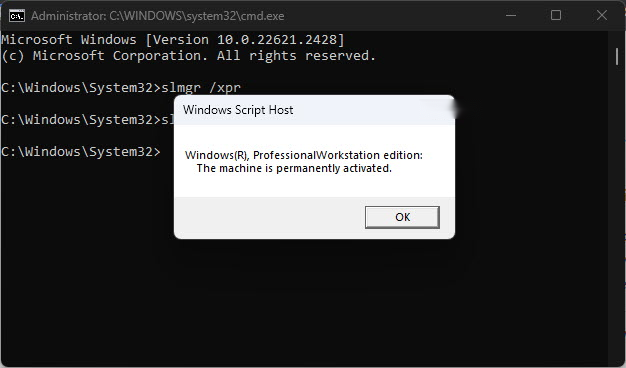
The activation status is shown in Settings > System > Activation.
Find How Your Windows Is Activated
1. Open Settings > System > Activation.
2. Look at the Activation state: it will say "Windows is activated with a digital license" or "…with a digital license linked to your Microsoft account".
3. Linked licences reactivate automatically after a reinstall when you sign in with the same account.
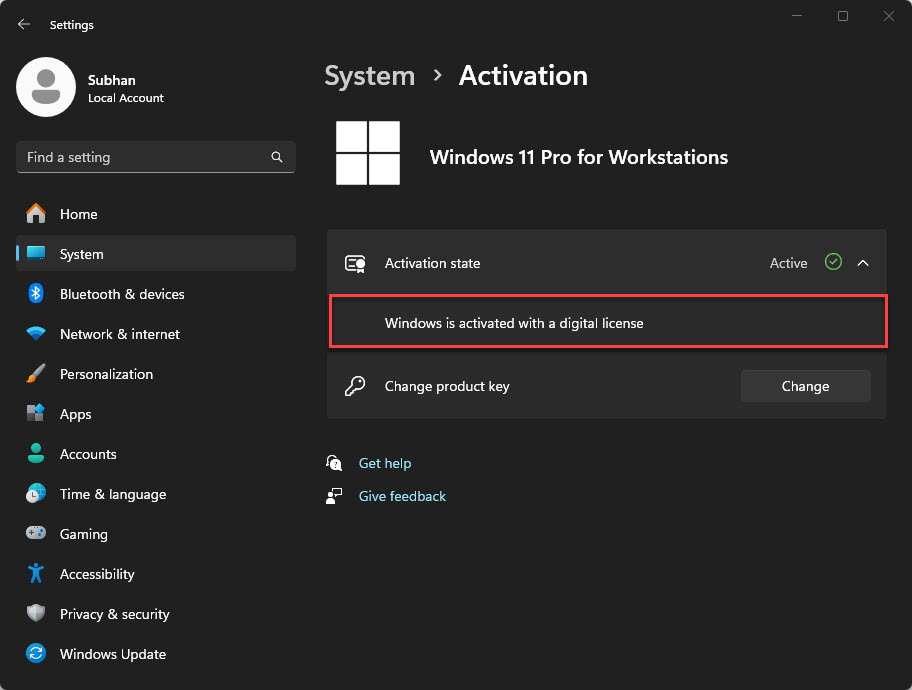
See whether Windows is activated with a digital licence or a product key.
Method 1 — Activate During Setup
1. During Windows 11 installation, enter your product key when prompted.
2. If you are reinstalling on the same hardware, you can choose "I don’t have a product key" and it will activate later via your digital licence.
3. Complete setup and sign in with your Microsoft account.
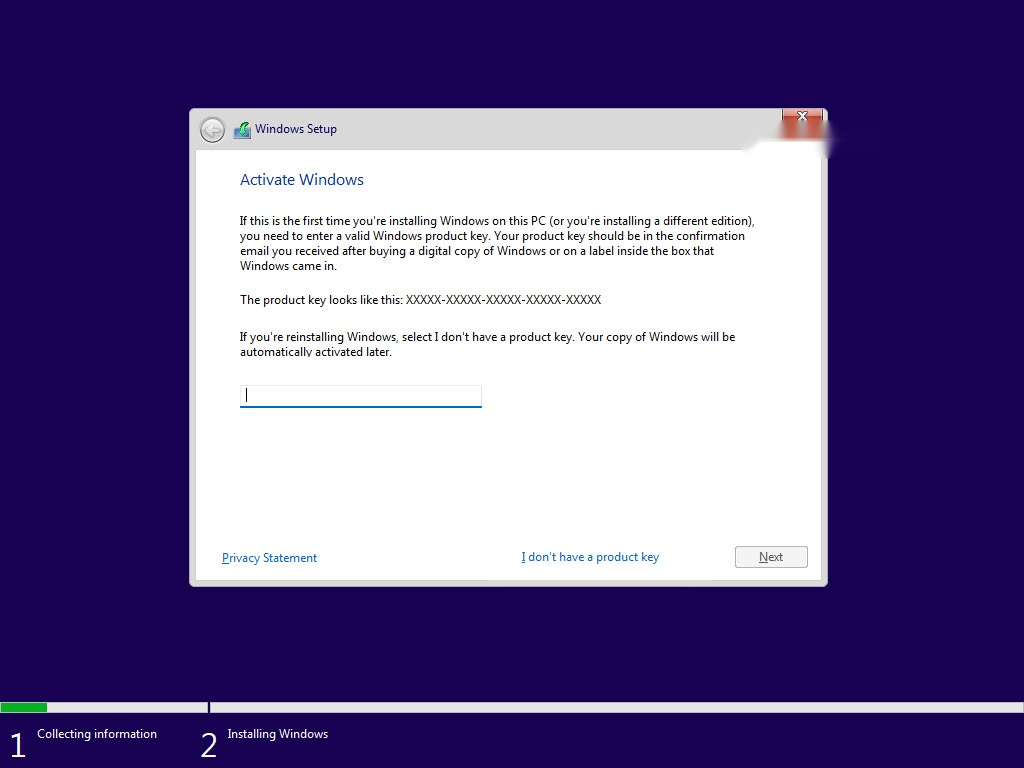
Windows 11 setup prompts for a product key.
Method 2 — Activate With a Product Key
1. Open Settings > System > Activation.
2. Expand "Change product key" and click Change.
3. Enter your 25-character product key and click Next to activate.
Method 3 — Link a Microsoft Account (Digital Licence)
1. Once activated, open Settings > Accounts > Your info and sign in with a Microsoft account.
2. This links your digital licence to that account.
3. After a reinstall or hardware change, sign in with the same account so Windows reactivates automatically.
Method 4 — Transfer a Licence to New Hardware
1. Ensure your existing Windows is activated with a digital licence linked to your Microsoft account.
2. After major hardware changes, open Settings > System > Activation and run the Activation Troubleshooter.
3. Choose "I changed hardware on this device recently", sign in, and select the device to reactivate.
Note: Retail licences can usually be moved to new hardware; OEM licences are tied to the original PC. Buy Windows only from Microsoft or authorised sellers.
Troubleshooting
Problem: Windows is not activated after a hardware change.
Solution: Run the Activation Troubleshooter in Settings > System > Activation and choose the recent-hardware-change option while signed in to your Microsoft account.
Problem: "This product key didn’t work".
Solution: Confirm the key matches your edition (Home vs Pro) and was entered correctly. Keys from unofficial sources may be invalid.
Problem: Activation servers are busy.
Solution: Wait and try again later, or activate by phone using slui 4. Ensure your internet connection is working.
Problem: You need a licence.
Solution: Purchase Windows 11 from Microsoft or an authorised retailer, then enter the key in Settings > Activation.
Conclusion
Activating Windows 11 is straightforward with a valid product key or a digital licence. Link your Microsoft account so activation carries over automatically after reinstalls and hardware changes, and always buy licences from official sources.
This guide is part of the TechHub Knowledge Base. For more step-by-step IT guides and support, visit techhub.com.lk.