Windows Firewall සහ PowerShell පාවිච්චි කරලා Websites, IPs, Apps, සහ Ports Block හෝ Allow කරන්නේ කොහොමද
Domains, IP addresses, ports, සහ programs සඳහා network access control කරන්න firewall rules හදන්න.
Overview
Windows Defender Firewall එකට IP, port, හෝ application අනුව traffic block හෝ allow කරන්න පුළුවන්. මේ guide එකෙන් Firewall GUI එකෙන් සහ PowerShell එකෙන් මේ rules හදන්නේ කොහොමද කියලා පෙන්නනවා, ඔයා administer කරන machine එකක access control කරන්න.
Windows Firewall එකෙන් allow හෝ block කරන එක.
Note: ඔයාට අයිති හෝ manage කරන්න authorize කරපු computers වල විතරක් firewall rules configure කරන්න.
Key Takeaways
- Firewall rules වලින් IPs, ports, හෝ apps target කරන්න පුළුවන්.
- IP එකෙන් website එකක් block කරන එක imperfect ය (sites බොහෝ/shared IPs පාවිච්චි කරනවා).
- Scripting සඳහා PowerShell (New-NetFirewallRule) පාවිච්චි කරන්න.
- Inbound සහ outbound rules වෙන වෙනම configure කරනවා.
Find a Website’s IP Address
1. Command Prompt එක open කරන්න.
2. මේක Run කරන්න: nslookup example.com
3. Rule එකක පාවිච්චි කරන්න return වුණු IP address(es) සටහන් කරගන්න.
Block/Allow an IP (Firewall GUI)
1. Windows Defender Firewall with Advanced Security open කරන්න wf.msc run කරන්න.
2. "Outbound Rules" එකට right-click කරන්න > New Rule > Custom.
3. All programs, any protocol වලට apply කරන්න.
4. Scope යටතේ, remote IP address(es) add කරන්න.
5. Block (හෝ Allow) තෝරලා rule එකට නමක් දෙන්න.
Block/Allow with PowerShell
1. IP එකක් block කරන්න: New-NetFirewallRule -DisplayName "Block IP" -Direction Outbound -RemoteAddress 1.2.3.4 -Action Block
2. Port එකක් block කරන්න: New-NetFirewallRule -DisplayName "Block 8080" -Direction Inbound -Protocol TCP -LocalPort 8080 -Action Block
3. App එකක් block කරන්න: New-NetFirewallRule -DisplayName "Block App" -Direction Outbound -Program "C:\Path\app.exe" -Action Block
Block/Allow an App (GUI)
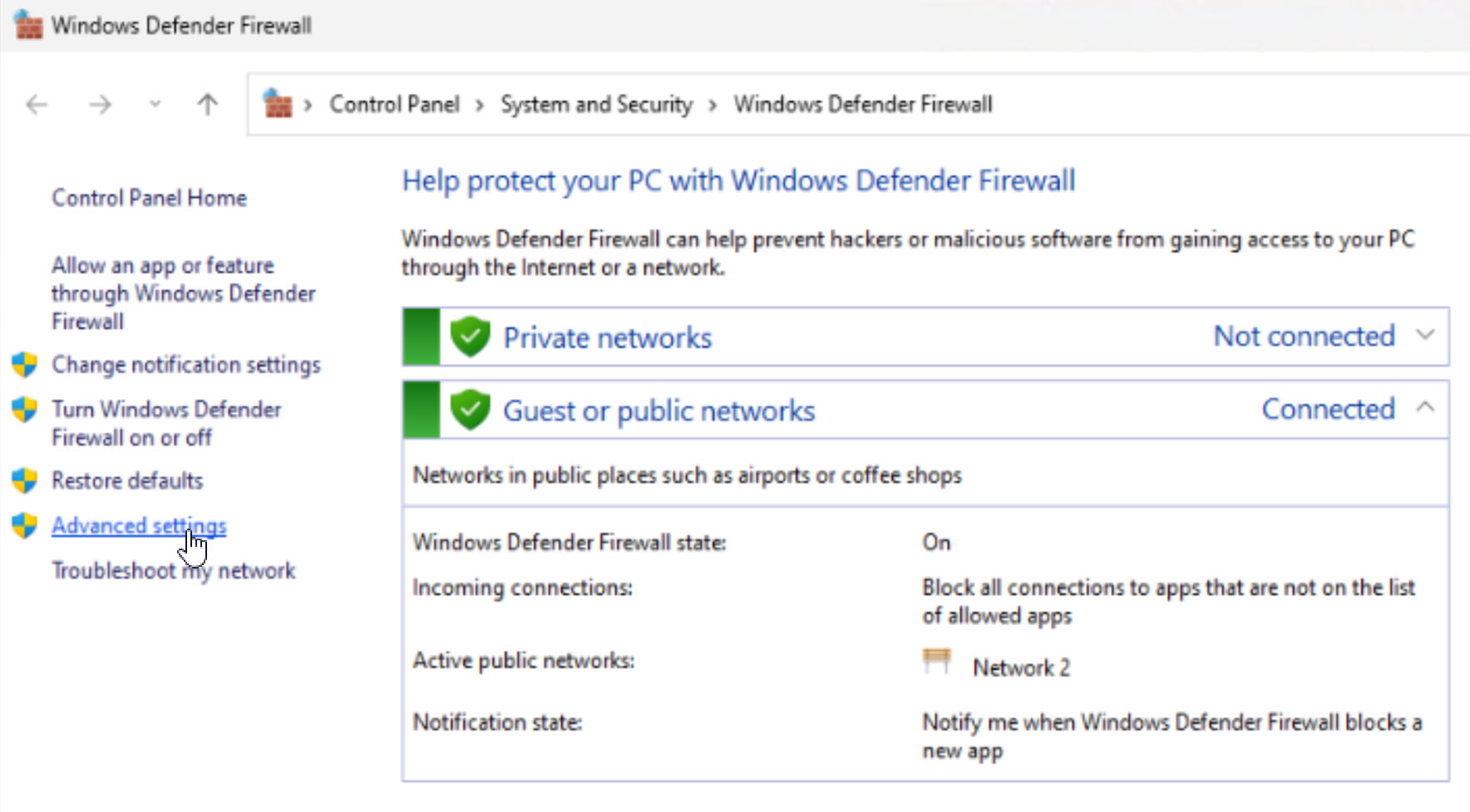
1. Control Panel > Windows Defender Firewall > Allow an app or feature open කරන්න (allow කරන්න).
2. Block කරන්න නම්, wf.msc > New Rule > Program පාවිච්චි කරලා app එකේ .exe එකට point කරන්න.
3. Block තෝරලා ඕන profiles වලට apply කරන්න.
Troubleshooting
Problem: Block කරපු website එක තාමත් load වෙනවා.
Solution: Sites බොහෝ/rotating IPs සහ CDNs පාවිච්චි කරනවා — IP blocking එක unreliable ය; ඒ වෙනුවට hosts-file entry එකක් හෝ DNS/content filtering පාවිච්චි කරන්න.
Problem: Rule එකට effect එකක් නෑ.
Solution: Direction (inbound vs outbound) එක, rule එක enabled ද, ඒක active network profile එකට apply වෙනවද කියලා check කරන්න.
Problem: App එක තාමත් connect වෙනවා.
Solution: Program rule එක exact .exe path එකට point කරන්න; සමහර apps වලට තමන්ගේම rules ඕන helper processes පාවිච්චි කරනවා.
Problem: Service එකකින් ඔයාවම locked out වුණා.
Solution: wf.msc එකෙන් හෝ Remove-NetFirewallRule -DisplayName "..." එකෙන් rule එක disable/delete කරන්න.
Conclusion
Windows Firewall එකෙන් ඔයාට wf.msc හෝ PowerShell එකේ New-NetFirewallRule හරහා IP, port, හෝ program අනුව allow හෝ block කරන්න පුළුවන්. Website blocking එකට විශේෂයෙන්, IP rules වලට වඩා DNS/content filtering හෝ hosts file එක හොඳට වැඩ කරනවා, මොකද sites බොහෝ addresses පුරා විහිදෙනවා.