Overview
AppLocker is a Windows security feature that lets administrators define exactly which applications and files users can or cannot run. It is ideal for locking down shared, business, or kiosk computers where you want to prevent unauthorized or risky software from launching. This guide explains what AppLocker is and walks through creating rules to block executable files.
Key Takeaways
- AppLocker controls app execution based on file path, publisher, or file hash.
- It is available on Windows Enterprise and Education editions, and Windows Server.
- Rules are managed through the Local Security Policy console (secpol.msc).
- The Application Identity service must be running for AppLocker rules to take effect.
What Is AppLocker?
AppLocker extends earlier Software Restriction Policies with more flexible, rule-based control. You create rules that allow or deny specific executables, Windows Installer files, scripts, and packaged apps. Rules can target individual users or groups, making it easy to restrict standard users while leaving administrators unaffected.
Note: AppLocker is included in Windows Enterprise and Education editions. On Windows Pro you can create rules but enforcement is limited, so confirm your edition before relying on it.
Step 1: Start the Application Identity Service
AppLocker rules only apply when the Application Identity service is running.
1. Press Windows + R, type services.msc, and press Enter.
2. Locate the Application Identity service in the list.
3. Right-click it, choose Properties, set the Startup type to Automatic, and click Start.
4. Click Apply and OK.
Step 2: Open the AppLocker Console
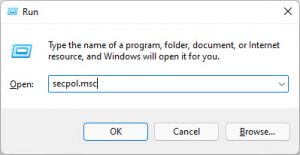
1. Press Windows + R, type secpol.msc, and press Enter to open Local Security Policy.
2. In the left pane, expand Application Control Policies, then AppLocker.
3. You will see rule categories: Executable Rules, Windows Installer Rules, Script Rules, and Packaged App Rules.
Opening the Local Security Policy console.
Step 3: Configure Rule Enforcement
1. Right-click AppLocker in the left pane and choose Properties.
2. For Executable rules, tick Configured and set the mode to Enforce rules.
3. Click Apply and OK.
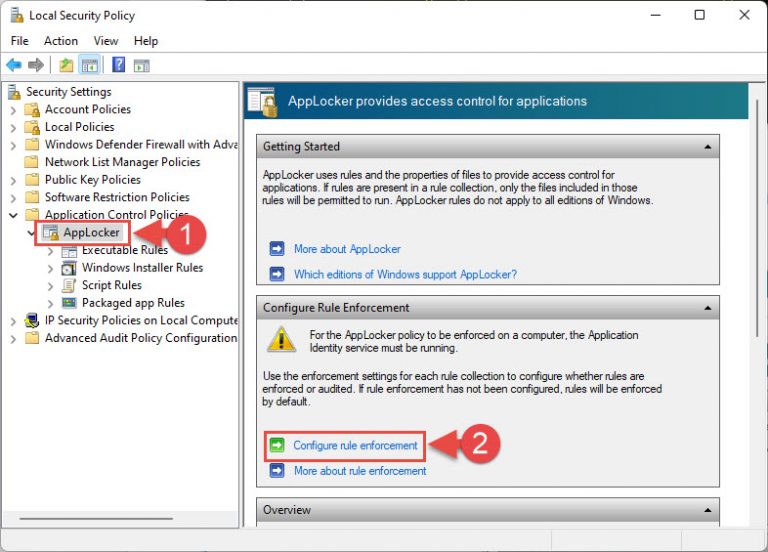
Setting executable rule enforcement.
Step 4: Create Default Rules
Default rules ensure Windows and installed programs continue to run for administrators before you add restrictions.
1. Right-click Executable Rules and choose Create Default Rules.
2. This adds baseline rules that allow the Program Files and Windows folders to run, and allow administrators to run everything.
Warning: Always create default rules before enforcing AppLocker. Without them, essential system executables can be blocked, which may prevent users from logging in or running Windows normally.
Step 5: Create a Rule to Block an App
1. Right-click Executable Rules and choose Create New Rule, then click Next on the welcome screen.
2. Set the action to Deny and choose the user or group the rule applies to, then click Next.
3. Choose a condition — Publisher, Path, or File hash. Path is simplest for blocking a specific program by its location.
4. Browse to the executable you want to block, for example the app in its Program Files folder, and click Next.
5. Add any exceptions if needed, click Next, name the rule, and click Create.
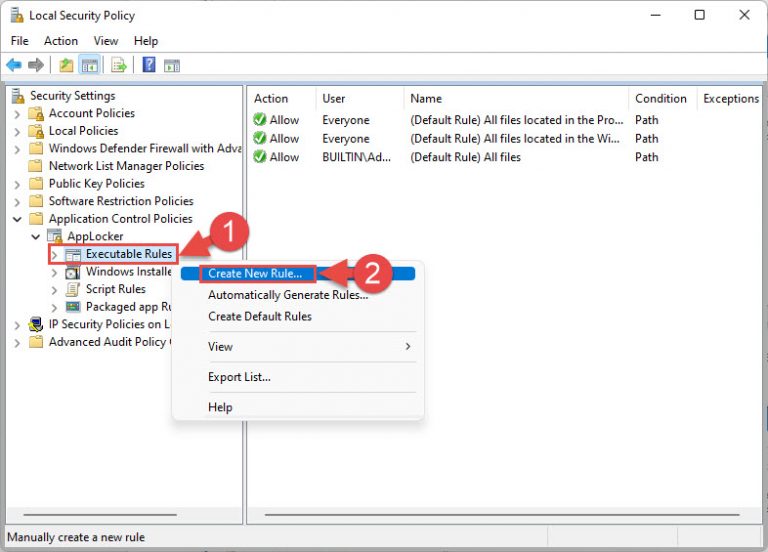
Creating a new deny rule.
Once created, the deny rule takes precedence over allow rules, so the targeted app will no longer launch for the selected users.
Removing a Rule
To lift a restriction, select the rule under Executable Rules, right-click it, and choose Delete. Confirm the prompt. The change applies after Group Policy refreshes or after you run gpupdate /force.
Troubleshooting
Problem: AppLocker rules are not being enforced.
Solution: Confirm the Application Identity service is running and set to Automatic. Rules do nothing while the service is stopped.
Problem: Administrators are also being blocked.
Solution: Make sure you created the default rules, which allow administrators to run all files, and that your deny rule targets standard users rather than everyone.
Problem: AppLocker options are missing or greyed out.
Solution: Your Windows edition may not support enforcement. AppLocker enforcement requires Enterprise or Education editions.
Problem: A blocked user can still run the app from another folder.
Solution: Path rules only cover the specified location. Use a Publisher or File hash rule to block the app regardless of where it is copied.
Conclusion
AppLocker gives administrators precise control over which applications run on a Windows PC. By starting the Application Identity service, creating default rules, and adding targeted deny rules, you can block unwanted software while keeping the system usable. Test your rules on a sample account before rolling them out widely.
About TechHub
This guide is part of the TechHub Knowledge Base. For more step-by-step IT guides and support, visit techhub.com.lk.