Overview
Windows Update sometimes installs a driver that causes problems, then reinstalls it after you roll back. Rather than disabling all updates, you can block that one driver. This guide uses Microsoft’s Show or Hide Updates tool and Group Policy to do it.
Key Takeaways
- You can block a single driver without disabling Windows Update.
- Microsoft’s Show or Hide Updates troubleshooter hides specific updates.
- Roll back the bad driver first, then hide it so it does not return.
- Group Policy can stop Windows from delivering drivers via Windows Update.
Roll Back and Hide the Driver
1. Open Device Manager, double-click the device, and use Roll Back Driver on the Driver tab.
2. Download Microsoft’s Show or Hide Updates troubleshooter.
3. Run it, choose Hide updates, and select the problematic driver.
4. Windows will no longer offer that driver version.
Optional: Group Policy
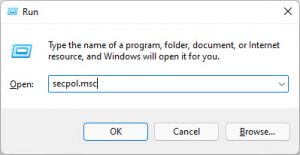
1. Press Windows + R, type gpedit.msc, and press Enter.
2. Go to Computer Configuration > Administrative Templates > Windows Components > Windows Update.
3. Enable Do not include drivers with Windows Updates if you want to stop all driver delivery.
4. Click OK and update policy with gpupdate /force.
Note: Blocking one driver is preferable to disabling all updates, since you keep receiving important security patches.
Troubleshooting
Problem: The driver reinstalls despite hiding it.
Solution: Roll back first, then hide the exact version; if it returns, use the Group Policy option to stop driver delivery.
Problem: The troubleshooter does not list the driver.
Solution: Trigger a Windows Update scan so the pending driver appears, then rerun the hide tool.
Problem: gpedit.msc is unavailable.
Solution: On Windows Home, use the corresponding registry value under the WindowsUpdate policies key.
Problem: You want the driver back later.
Solution: Run the troubleshooter again and choose Show hidden updates to restore it.
Conclusion
Blocking a single troublesome driver keeps your system stable without sacrificing other updates. Roll back, hide the version, and optionally use policy for a durable fix.
About TechHub
This guide is part of the TechHub Knowledge Base. For more step-by-step IT guides and support, visit techhub.com.lk.