Overview
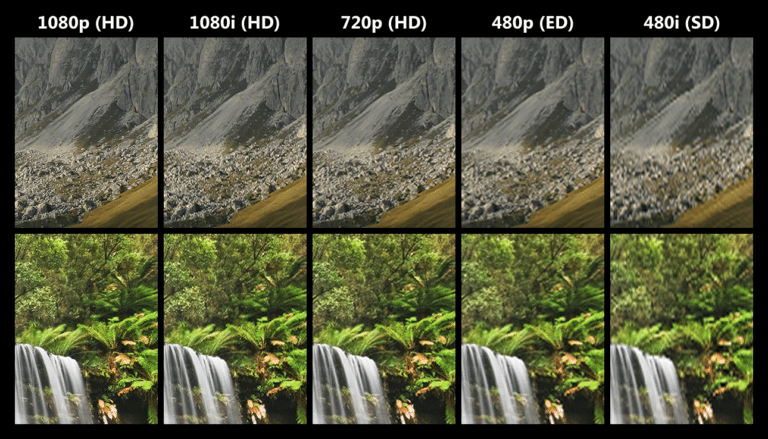
Screen resolution එකෙන් තමයි හැම දෙයක්ම කොච්චර sharp ද, කොච්චර ලොකුවට පේනවද කියන එක control වෙන්නේ. මේ guide එකෙන් Windows එකේ ඒක වෙනස් කරන ක්රම තුනක් පෙන්නනවා — built-in Settings app එක, command-line ක්රමයක්, සහ සැහැල්ලු hotkey tool එකක්.
Windows එකේ screen resolution වෙනස් කිරීම.
Key Takeaways
- වඩාත්ම sharp රූපයට ඔයාගේ display එකේ native resolution එක පාවිච්චි කරන්න.
- Resolution වෙනස් කරන්න ලේසිම ක්රමය Settings එකයි.
- QRes/HRC වගේ tools වලින් command එකකින් හෝ hotkey එකකින් switch කරන්න පුළුවන්.
- වැරදි resolution එකක් blurry හෝ stretched වෙලා පේන්න පුළුවන්.
Check Your Current Resolution
1. Settings > System > Display open කරන්න.
2. "Display resolution" එකට scroll කරන්න.
3. දැන් තියෙන value එක පෙන්නනවා; "(Recommended)" කියලා තියෙන එක native resolution එකයි.
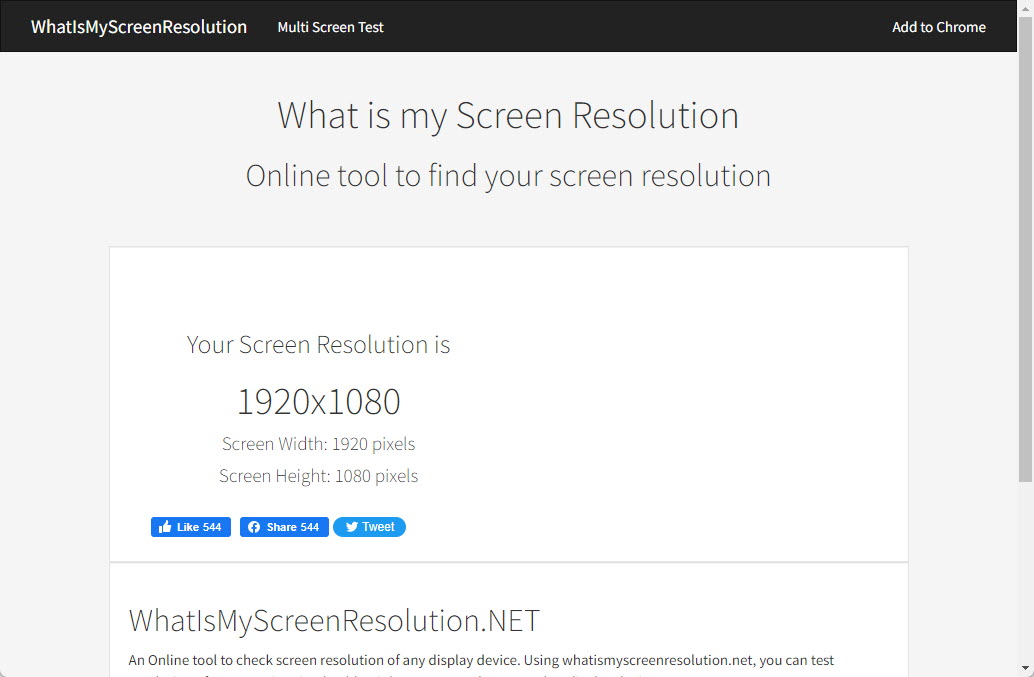
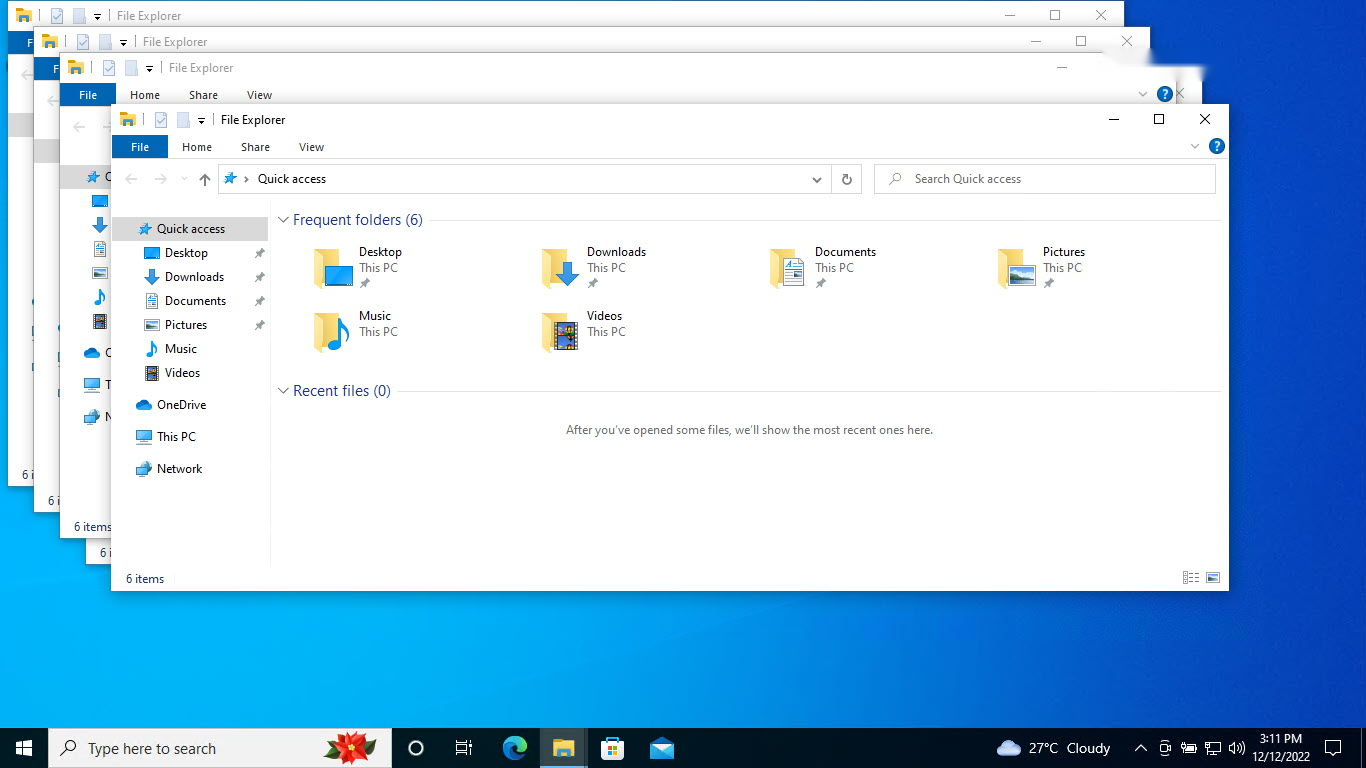
දැනට තියෙන screen resolution එක බැලීම.
Method 1: Windows Settings
1. Settings > System > Display open කරන්න.
2. "Display resolution" එක යටතේ තියෙන dropdown එක open කරන්න.
3. resolution එකක් තෝරන්න (Recommended එක තෝරන එක හොඳයි).
4. තහවුරු කරන්න prompt එකේ "Keep changes" click කරන්න.
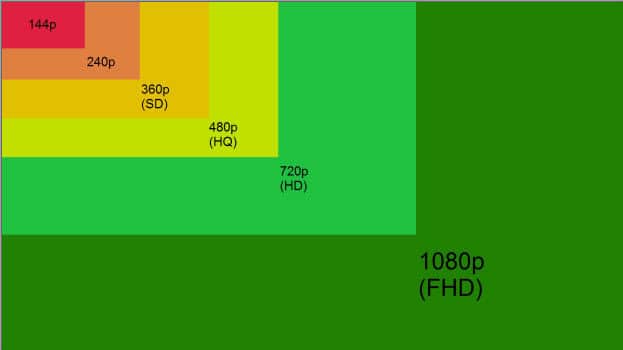
තියෙන resolutions වලින් තෝරාගැනීම.
Method 2: Command Line (QRes)
Note: QRes වගේ command-line resolution tools download කරන්නේ විශ්වාසවන්ත, official sources වලින් විතරයි.
1. QRes වගේ tool එකක් download කරන්න.
2. Run කරන්න: QRes.exe /x:1920 /y:1080 (ඔයාට ඕන target එකට adjust කරගන්න).
3. ඕන නම් ඉක්මන් resolution switches වලට ඒක script කරගන්න.
Method 3: HotKey Resolution Changer
1. HotKey Resolution Changer (HRC) එකේ official source එකෙන් download කරන්න.
2. නිශ්චිත resolutions වලට hotkeys assign කරන්න.
3. එකපාරටම switch කරන්න hotkey එක press කරන්න.
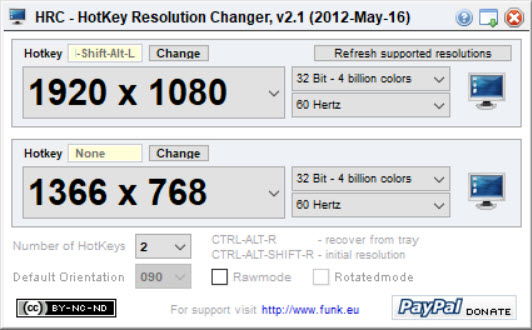
HotKey Resolution Changer.
Troubleshooting
Problem: ඕන resolution එක list එකේ නෑ.
Solution: GPU driver එකයි monitor driver එකයි update කරන්න; හරි driver එකෙන් තමයි support කරන හැම mode එකක්ම පෙන්නන්නේ.
Problem: Screen එක blurry වගේ පේනවා.
Solution: native/Recommended resolution එක set කරලා Display settings යටතේ scaling එකත් match කරන්න.
Problem: වෙනස් කරාට පස්සේ screen එක black වුණා.
Solution: තත්පර 15ක් ඉන්න — ඔයා confirm නොකළොත් Windows එකෙන් ඉබේම revert වෙනවා; නැත්නම් reset කරන්න Safe Mode එකට boot කරන්න.
Problem: Reboot එකට පස්සේ resolution එක reset වෙනවා.
Solution: driver එකක හෝ dual-GPU conflict එකක් ඒක override කරන්න පුළුවන්; drivers update කරලා GPU control panel එකේත් resolution එක set කරන්න.
Conclusion
Resolution වෙනස් කරන්න ලේසිම ක්රමය Settings > System > Display හරහා. එතන Recommended value එකෙන් තමයි වඩාත්ම sharp රූපය ලැබෙන්නේ. ඉක්මන් switching එකට QRes වගේ command-line tools හෝ hotkey utility එකක් වේගවත් විකල්ප වෙනවා.
About TechHub
මේ guide එක TechHub Knowledge Base එකේ කොටසක්. තව step-by-step IT guides සහ support වලට techhub.com.lk එකට යන්න.