Overview
Wi-Fi runs on the 2.4 GHz and 5 GHz bands, which trade range for speed. If you are not getting the speed or coverage you expect, switching bands can help. This guide explains the difference, how to check 5 GHz support, and how to change the band in Windows, on a router, and on a Mac.
Choosing the right Wi-Fi band balances speed and range.
Key Takeaways
- 2.4 GHz reaches further and through walls but is slower and more congested.
- 5 GHz is faster with less interference but has shorter range.
- Check 5 GHz support with netsh wlan show drivers.
- Set a preferred band in the Wi-Fi adapter’s advanced settings, or split bands on the router.
2.4 GHz vs 5 GHz
- 2.4 GHz — longer range, better wall penetration, but slower and crowded (microwaves, Bluetooth interfere).
- 5 GHz — much faster, less interference, but shorter range and weaker through walls.
- Use 5 GHz near the router for speed; 2.4 GHz for distance and obstacles.
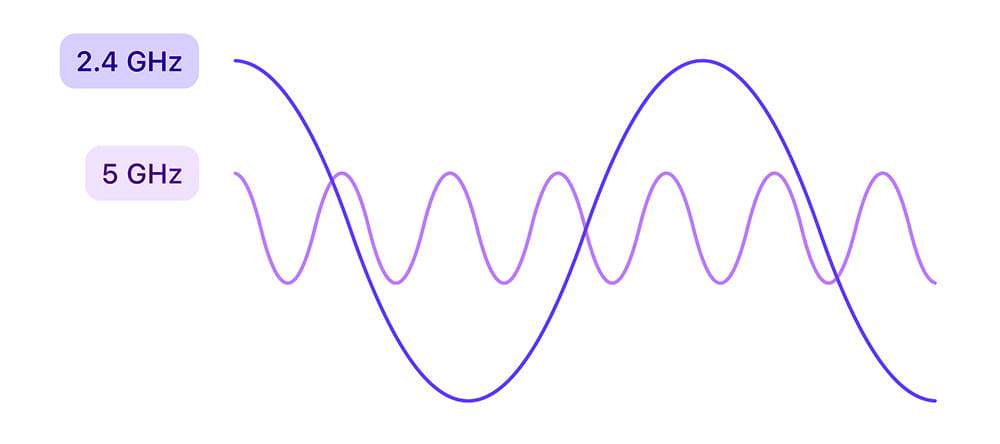
2.4 GHz has longer wavelengths (more range); 5 GHz is faster.
Check If Your PC Supports 5 GHz
1. Open Command Prompt.
2. Run: netsh wlan show drivers
3. Look at "Radio types supported" — if it lists 802.11a/ac/ax (or n on 5 GHz), your adapter supports 5 GHz.
Change the Band in Windows
1. Right-click Start and open Device Manager.
2. Expand Network adapters, right-click your Wi-Fi adapter, and choose Properties.
3. Open the Advanced tab and find "Preferred Band" (or "Band").
4. Select 2.4 GHz or 5 GHz (or "Prefer 5 GHz"), then click OK.
Change the Band on the Router
1. Open your router’s admin page in a browser.
2. Find the wireless settings for the 2.4 GHz and 5 GHz networks.
3. Give each band a distinct SSID (network name) so you can pick which one a device joins.
4. Save and reconnect your device to the band you want.
Change the Band on a Mac
1. On the router, set different SSIDs for 2.4 GHz and 5 GHz.
2. On the Mac, open Wi-Fi settings and connect to the SSID for the band you want.
3. Or prioritise the preferred network in System Settings > Wi-Fi > Advanced.
Tip: Giving each band its own SSID is the simplest way to control exactly which band a device uses.
Troubleshooting
Problem: There is no Preferred Band option.
Solution: Your adapter may not support 5 GHz, or the driver lacks the setting. Update the Wi-Fi driver, or split SSIDs on the router instead.
Problem: 5 GHz is not listed by the adapter.
Solution: The adapter is 2.4 GHz only. Use a dual-band USB Wi-Fi adapter to add 5 GHz.
Problem: 5 GHz drops out at a distance.
Solution: That is expected — 5 GHz has shorter range. Move closer, add a mesh node, or use 2.4 GHz for far rooms.
Problem: The device keeps joining the wrong band.
Solution: Use separate SSIDs per band and connect to the one you want; forget the other network if needed.
Conclusion
Match the band to your need: 5 GHz for speed up close, 2.4 GHz for range. Set a preferred band in your adapter’s advanced settings, or split the bands into separate SSIDs on the router for full control.
</w:pBdr><w:spacing w:before="220" w:after="40"/></w:pPr><w:r><w:rPr><w:b/><w:bCs/><w:color w:val="0B5394"/><w:sz w:val="21"/><w:szCs w:val="21"/><w:rFonts w:ascii="Calibri" w:cs="Calibri" w:eastAsia="Calibri" w:hAnsi="Calibri"/></w:rPr><w:t xml:space="preserve">About TechHub
This guide is part of the TechHub Knowledge Base. For more step-by-step IT guides and support, visit techhub.com.lk.