Overview
By default, PowerShell blocks running script files (.ps1) to protect you from malicious code. To run your own scripts, you change the execution policy with Set-ExecutionPolicy. This guide explains the policies and scopes and how to enable scripts safely.
PowerShell blocks scripts by default until you change the execution policy.
Key Takeaways
- RemoteSigned is the recommended balance: local scripts run; downloaded ones must be signed.
- Set it per scope — CurrentUser is safer than the whole machine.
- Use Get-ExecutionPolicy -List to see the current settings.
- Bypass/Unrestricted remove protection — avoid them except temporarily.
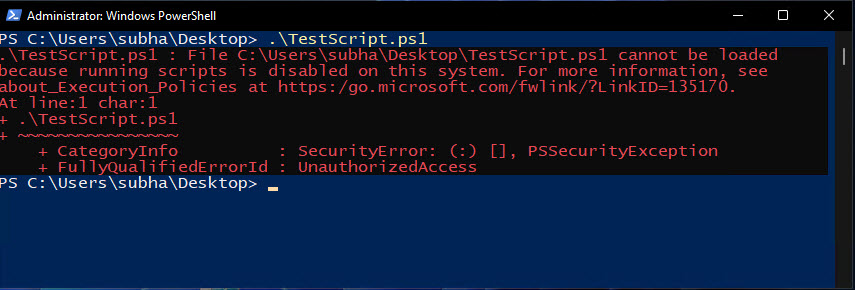
A script cannot run under the default Restricted policy.
Execution Policies
- Restricted — no scripts run (default on clients).
- RemoteSigned — local scripts run; downloaded scripts need a trusted signature (recommended).
- AllSigned — every script must be signed by a trusted publisher.
- Unrestricted / Bypass — scripts run with little or no checks (least secure).
Execution Scopes
- Process — applies only to the current PowerShell session.
- CurrentUser — applies to your account only.
- LocalMachine — applies to all users (requires admin).
Enable Scripts (Recommended: RemoteSigned)
1. Open PowerShell (as administrator for machine-wide changes).
2. Run: Set-ExecutionPolicy RemoteSigned
3. Confirm with Y when prompted.
4. Local scripts now run; downloaded scripts still need to be signed.
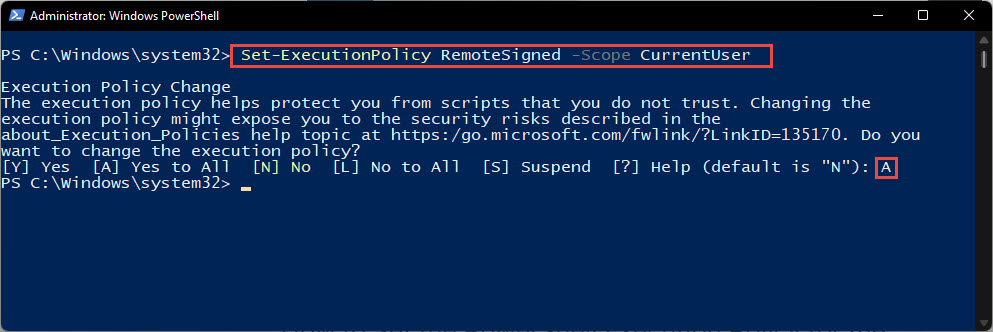
Execution policy changed to RemoteSigned.
Change Policy for a Specific Scope
1. For just your account: Set-ExecutionPolicy -Scope CurrentUser RemoteSigned
2. For only the current session: Set-ExecutionPolicy -Scope Process Bypass
3. Process scope is great for running one script without changing system settings.
Allow a Script Just Once
1. Open PowerShell.
2. Run: powershell -ExecutionPolicy Bypass -File "C:\path\script.ps1"
3. This runs that single script without changing your saved policy.
Check and Revert the Policy
1. Check all scopes: Get-ExecutionPolicy -List
2. Revert to default: Set-ExecutionPolicy Restricted (or Undefined for a scope).
3. Restart PowerShell to confirm the change.
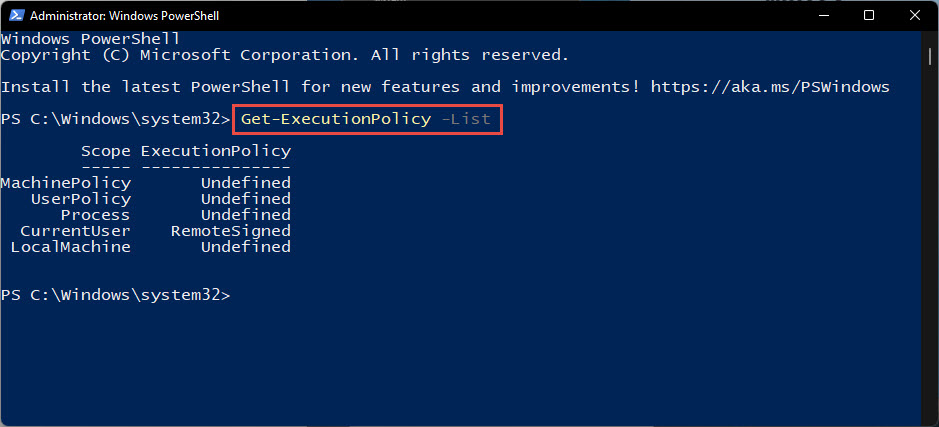
Check the current execution policy settings.
Warning: Avoid leaving the policy on Unrestricted or Bypass system-wide — it lets any script run. Prefer RemoteSigned, or Bypass only per-process.
Troubleshooting
Problem: "running scripts is disabled on this system".
Solution: Set the policy to RemoteSigned (Set-ExecutionPolicy -Scope CurrentUser RemoteSigned), then run your script again.
Problem: Change is blocked by Group Policy.
Solution: On managed PCs, the policy may be enforced. Use -Scope Process Bypass for one session, or contact your administrator.
Problem: A downloaded script still will not run.
Solution: It may be marked as blocked. Right-click the file > Properties > Unblock, or sign it, or run with -ExecutionPolicy Bypass.
Problem: Access denied changing LocalMachine.
Solution: Run PowerShell as administrator for machine-wide scope, or use CurrentUser which does not need elevation.
Conclusion
Set-ExecutionPolicy unlocks PowerShell scripting. Use RemoteSigned (ideally at CurrentUser scope) for a safe default, Bypass per-process for one-off scripts, and avoid leaving the system fully unrestricted.
</w:pBdr><w:spacing w:before="220" w:after="40"/></w:pPr><w:r><w:rPr><w:b/><w:bCs/><w:color w:val="0B5394"/><w:sz w:val="21"/><w:szCs w:val="21"/><w:rFonts w:ascii="Calibri" w:cs="Calibri" w:eastAsia="Calibri" w:hAnsi="Calibri"/></w:rPr><w:t xml:space="preserve">About TechHub
This guide is part of the TechHub Knowledge Base. For more step-by-step IT guides and support, visit techhub.com.lk.