Overview
Pinging one device at a time is slow when you need to check many. With a Command Prompt loop, PowerShell, or a multi-ping tool you can test connectivity to a whole list or subnet at once. This guide shows each method.
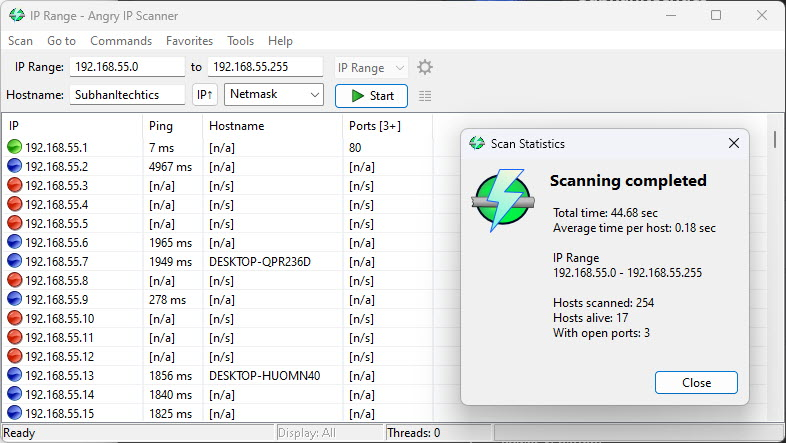
Ping many hosts or an entire subnet in one operation.
Key Takeaways
- A Command Prompt FOR loop can ping an entire subnet quickly.
- PowerShell’s Test-Connection accepts multiple hosts and runs in parallel.
- Tools like NirSoft PingInfoView show continuous results for many hosts.
- Use these to map which devices are online on your network.
Method 1 — Command Prompt (FOR Loop)
1. Open Command Prompt.
2. Ping a range, e.g. 192.168.1.1–254: for /L %i in (1,1,254) do @ping -n 1 -w 200 192.168.1.%i | find "Reply"
3. This lists only the addresses that respond.
4. To ping a fixed list, put the IPs in a loop: for %i in (host1 host2 host3) do @ping -n 1 %i
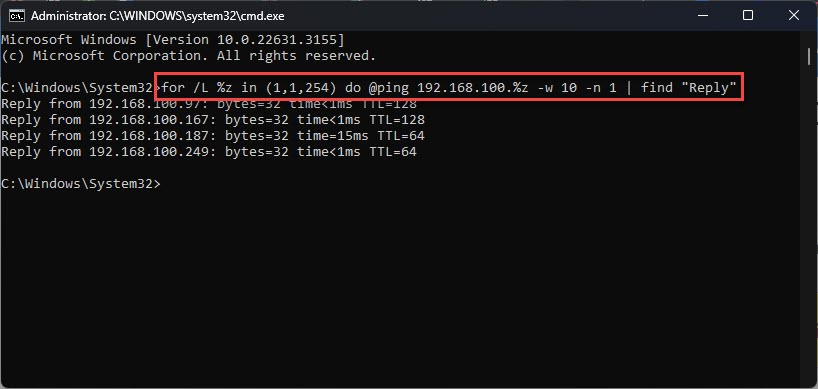
Ping multiple hosts from Command Prompt with a loop.
Note: In a .bat file, double the percent signs (%%i instead of %i).
Method 2 — PowerShell
1. Open PowerShell.
2. Ping several hosts: Test-Connection -ComputerName host1,host2,8.8.8.8 -Count 1
3. Ping a subnet: 1..254 | ForEach-Object { Test-Connection -Count 1 -Quiet -ComputerName "192.168.1.$_" }
4. Use -Quiet to get simple True/False results for each.
Ping multiple devices using PowerShell.
Method 3 — NirSoft PingInfoView
1. Download PingInfoView from NirSoft (official) and run it.
2. Paste your list of hostnames/IP addresses.
3. Set the ping interval and start — it shows live status, response time, and success rate for all hosts at once.
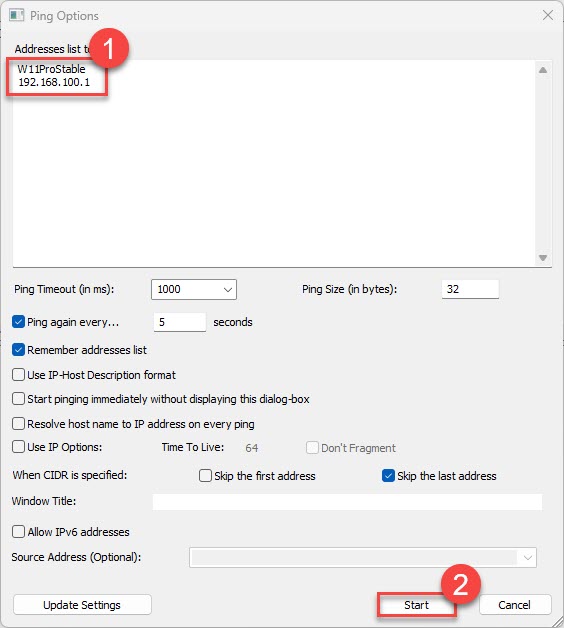
PingInfoView pings many devices at once with a live table.
Troubleshooting
Problem: A device does not reply but is online.
Solution: Many devices block ICMP (ping) by firewall. A no-reply does not always mean offline — test another port or service.
Problem: The loop is very slow.
Solution: Lower the timeout (-w 200 in ping) and use -n 1, or use PowerShell which can run checks in parallel.
Problem: PowerShell Test-Connection errors on unreachable hosts.
Solution: Add -Quiet (returns True/False) or wrap in try/catch to handle timeouts gracefully.
Problem: Percent variable error in a batch file.
Solution: Use %%i instead of %i inside .bat/.cmd files.
Conclusion
To check many devices fast, use a Command Prompt loop for a quick subnet sweep, PowerShell’s Test-Connection for scripting, or PingInfoView for a live multi-host dashboard — remembering that some devices simply do not answer ping.
</w:pBdr><w:spacing w:before="220" w:after="40"/></w:pPr><w:r><w:rPr><w:b/><w:bCs/><w:color w:val="0B5394"/><w:sz w:val="21"/><w:szCs w:val="21"/><w:rFonts w:ascii="Calibri" w:cs="Calibri" w:eastAsia="Calibri" w:hAnsi="Calibri"/></w:rPr><w:t xml:space="preserve">About TechHub
This guide is part of the TechHub Knowledge Base. For more step-by-step IT guides and support, visit techhub.com.lk.