Overview
Faulty drivers cause crashes, freezes, and hardware glitches. This guide shows three ways to identify bad drivers in Windows — the quick Device Manager check, the powerful Driver Verifier, and third-party driver checkers.
Checking for bad drivers in Windows.
Key Takeaways
- Device Manager flags problem devices quickly.
- Driver Verifier stress-tests drivers to catch faulty ones.
- Driver Verifier can cause reboots — use it carefully.
- Third-party tools help find outdated drivers.
Method 1: Device Manager
1. Open Device Manager (devmgmt.msc).
2. Look for yellow warning triangles or unknown devices.
3. Right-click a flagged device > Properties to read the error code.
4. Update or reinstall the driver from the vendor’s official site.
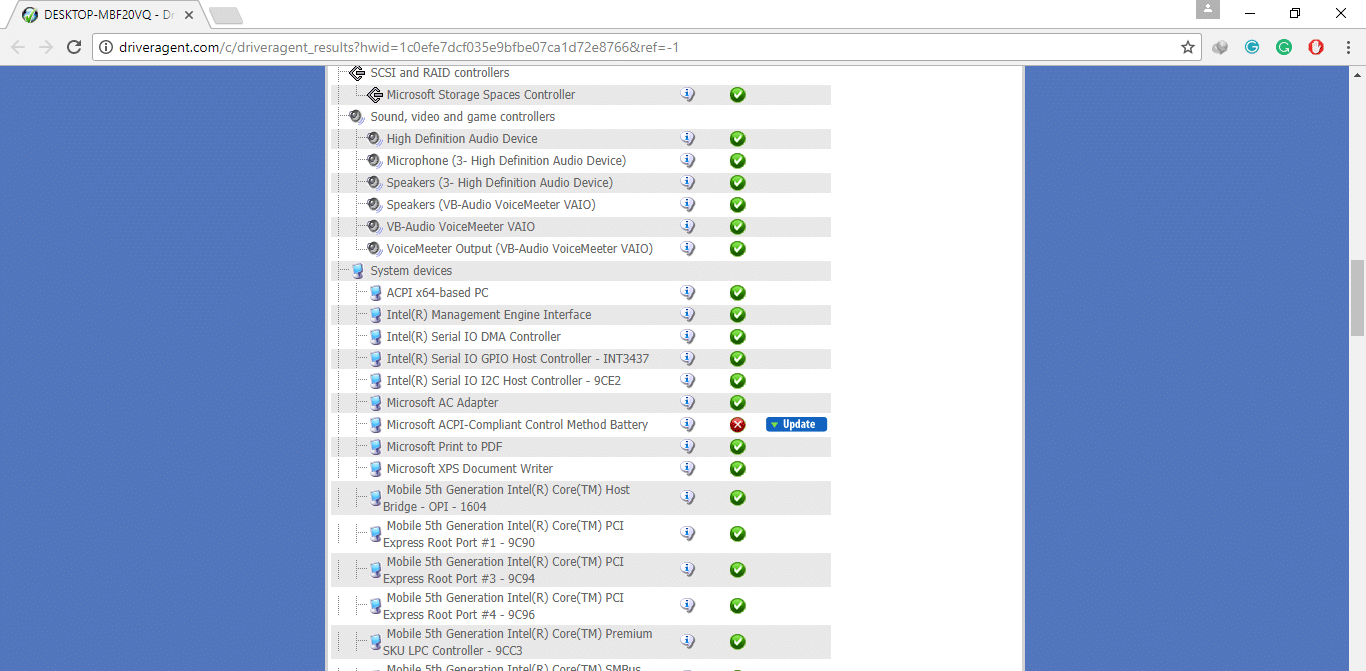
Device driver statuses in Device Manager.
Method 2: Driver Verifier
Warning: Driver Verifier intentionally stresses drivers and can cause blue screens or boot loops. Create a System Restore point first and know how to disable it (verifier /reset) from Safe Mode.
1. Run verifier as administrator.
2. Choose "Create standard settings".
3. Select "Automatically select unsigned drivers" or specify drivers to test.
4. Restart; if a bad driver is found, Windows will BSOD naming the driver.
5. Disable it afterward with: verifier /reset
Method 3: Driver-Check Tools
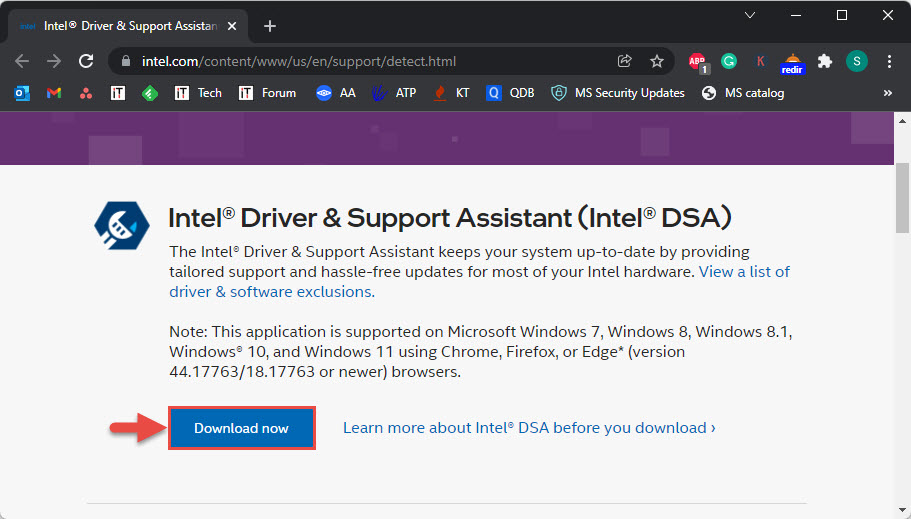
Note: If you use a third-party driver checker (e.g., DriverAgent), download it only from its official site and be cautious of bundled software.
1. Install a reputable driver-check tool.
2. Scan to list outdated or problematic drivers.
3. Update drivers from official vendor sources rather than the tool’s bundled downloads where possible.
Troubleshooting
Problem: Driver Verifier caused a boot loop.
Solution: Boot into Safe Mode and run verifier /reset, or use System Restore.
Problem: No obvious flagged device.
Solution: Use Reliability Monitor and Event Viewer to correlate crashes with specific drivers.
Problem: Driver keeps failing.
Solution: Uninstall it (delete driver software) and install the latest signed driver from the manufacturer.
Problem: Unsure which driver crashed.
Solution: Driver Verifier’s BSOD names the culprit; analyse the minidump with WinDbg if needed.
Conclusion
Start with Device Manager for quick flags, then use Driver Verifier (carefully) to pinpoint a faulty driver via a targeted crash. Always update from official vendor sources — and keep a restore point before running Driver Verifier.
</w:pBdr><w:spacing w:before="220" w:after="40"/></w:pPr><w:r><w:rPr><w:b/><w:bCs/><w:color w:val="0B5394"/><w:sz w:val="21"/><w:szCs w:val="21"/><w:rFonts w:ascii="Calibri" w:cs="Calibri" w:eastAsia="Calibri" w:hAnsi="Calibri"/></w:rPr><w:t xml:space="preserve">About TechHub
This guide is part of the TechHub Knowledge Base. For more step-by-step IT guides and support, visit techhub.com.lk.