Overview
Bad sectors කියන්නේ disk එකේ තවදුරටත් විශ්වාසවන්තව data store කරන්න බැරි වුණු areas. නොබලා තිබ්බොත්, ඒවා corruption, crashes සහ data loss ඇති කරනවා. මේ guide එකෙන් bad sectors වල වර්ග පැහැදිලි කරලා, built-in Windows tools සහ විශ්වාසවන්ත utilities පාවිච්චි කරලා disk එකේ health එක check කරන්නෙත්, errors repair කරන්නෙත් හැටි පෙන්නනවා.
Data loss ඇති කරන්න කලින් disk errors check කරලා repair කරන්න.
Key Takeaways
- Soft (logical) bad sectors බොහෝ විට repair කරන්න පුළුවන්; hard (physical) ඒවා බැහැ.
- /f /r එක්ක CHKDSK තමයි ප්රධාන built-in repair tool එක.
- මුලින්ම data backup කරන්න — fail වෙන disk එකක repairs risky වෙන්න පුළුවන්.
- නිතර හෝ වැඩි වෙන bad sectors කියන්නේ drive එක fail වෙනවා කියන එකයි, ඒක replace කරන්න ඕන.
Types and Causes
- Soft bad sectors — logical errors, බොහෝ විට CHKDSK වලින් fixable.
- Hard bad sectors — repair කරන්න බැරි physical damage (ඒ area එක unusable විදිහට mark කරනවා).
- හේතු අතර හදිසි power loss, physical shock, පරණ වුණු drives, සහ malware තියෙනවා.
- ලක්ෂණ: slow performance, නිතර freezes, corrupt files, සහ අමුතු හඬවල්.
Check Disk Health From Settings
1. Settings > System > Storage > Advanced storage settings > Disks & volumes open කරන්න.
2. ඔයාගේ drive එක select කරලා ඒකේ Properties open කරන්න.
3. drive health/SMART status එක review කරන්න (විශේෂයෙන් SSDs වලට ප්රයෝජනවත්).
Check From File Explorer
1. File Explorer open කරලා, drive එක right-click කරලා, Properties තෝරන්න.
2. Tools tab එක open කරලා Error checking යටතේ Check click කරන්න.
3. Windows එකට file-system errors scan කරලා repair කරන්න දෙන්න.
Check Drive Status From Command Prompt
1. Command Prompt එක administrator විදිහට open කරන්න.
2. මේක run කරන්න: wmic diskdrive get status — "OK" කියන්නේ drive එක healthy කියලා report කරනවා.
3. SMART detail එකට, CrystalDiskInfo වගේ tool එකක් පාවිච්චි කරන්න.
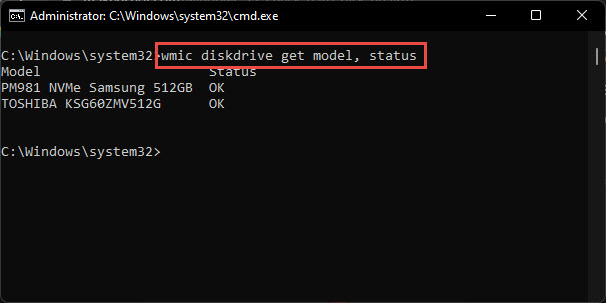
Command Prompt එකෙන් drive status එක check කරන්න.
Repair With CHKDSK
1. Command Prompt එක administrator විදිහට open කරන්න.
2. මේක run කරන්න: chkdsk C: /f /r /x (C: වෙනුවට ඔයාගේ drive එක දාන්න).
3. /f errors fix කරනවා, /r bad sectors හොයලා read කරන්න පුළුවන් data recover කරනවා, /x මුලින්ම volume එක dismount කරනවා.
4. System drive එකට, next restart එකේදී scan එක schedule කරන්න දීලා, reboot කරන්න.
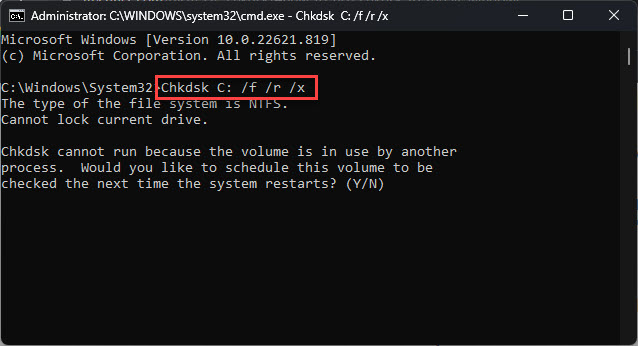
Bad sectors හොයලා repair කරන්න CHKDSK run කරන්න.
Repair With PowerShell
1. PowerShell එක administrator විදිහට open කරන්න.
2. Scan: Repair-Volume -DriveLetter C -Scan
3. Repair: Repair-Volume -DriveLetter C -OfflineScanAndFix
Third-Party Disk Tools
- Hard Disk Sentinel — විස්තරාත්මක health, temperature, සහ SMART monitoring.
- HD Tune Pro — error scanning සහ benchmarking.
- SeaTools (Seagate) / vendor tools — ඔයාගේ drive එකට manufacturer diagnostics.
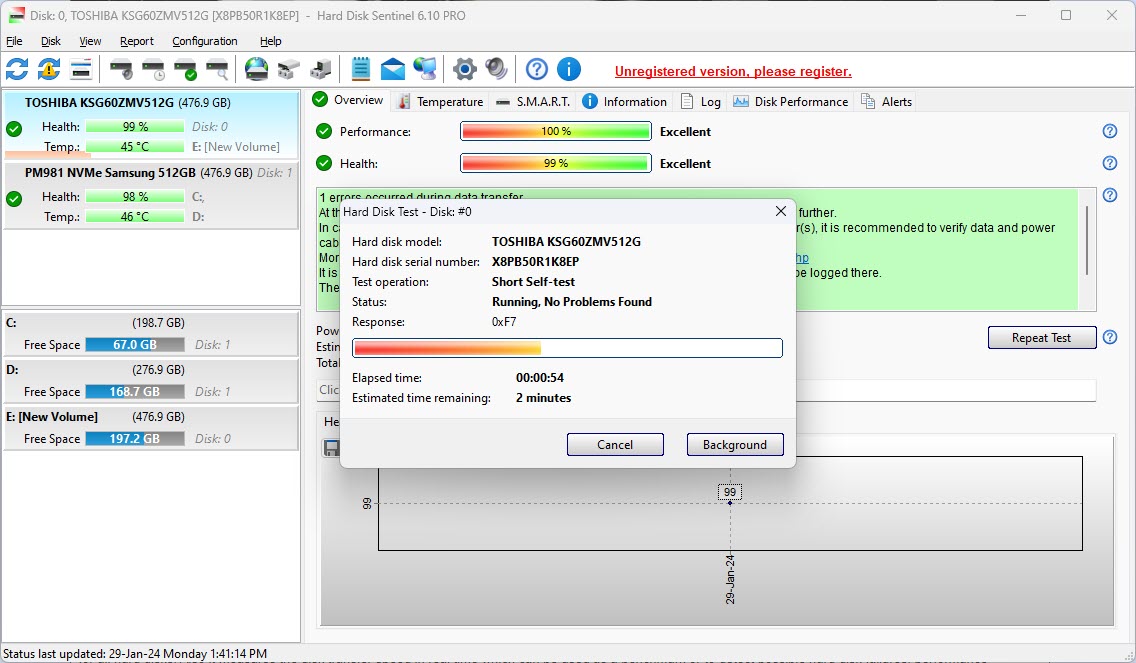
Hard Disk Sentinel වගේ tools disk health එක විස්තරාත්මකව monitor කරනවා.
Warning: Drive එකක් physical bad sectors හෝ fail වෙන SMART status එකක් පෙන්නනවා නම්, වහාම backup කරලා ඒක replace කරන්න — physically damage වුණු sectors repairs වලින් restore කරන්න බැහැ.
Troubleshooting
Problem: CHKDSK එක stuck වෙනවා නැත්නම් ගොඩක් වෙලා ගන්නවා.
Solution: ලොකු හෝ fail වෙන drives වෙලා ගන්නවා, විශේෂයෙන් /r එක්ක. run වෙන්න දෙන්න; fail වෙන disk එකක පැය ගණන් hang වෙනවා නම්, backup කරලා drive එක replace කරන්න.
Problem: Volume එක පාවිච්චියේ තියෙන නිසා CHKDSK run කරන්න බැහැ.
Solution: dismount කරන්න /x පාවිච්චි කරන්න, නැත්නම් next restart එකට scan එක schedule කරලා reboot කරන්න.
Problem: Bad sectors නැවත නැවත එනවා.
Solution: Drive එක physically fail වෙනවා. Data backup කරලා ඒක replace කරන්න.
Problem: ඒක SSD එකක්.
Solution: SSDs වල traditional bad sectors නැහැ; SMART health check කරලා manufacturer ගේ tool එක run කරන්න, සහ firmware එක up to date බව confirm කරන්න.
Conclusion
නිතිපතා disk checks වලින් problems කලින් අල්ලනවා. Logical errors fix කරන්නත් soft bad sectors වලින් data recover කරන්නත් CHKDSK හෝ Repair-Volume පාවිච්චි කරන්න — ඒත් physical bad sectors හෝ fail වෙන SMART status එකක් backup කරලා drive එක replace කරන්න signal එකක් විදිහට සලකන්න.
About TechHub
මේ guide එක TechHub Knowledge Base එකේ කොටසක්. තව step-by-step IT guides සහ support වලට techhub.com.lk එකට යන්න.