Overview
When the screen resolution drop-down is greyed out and stuck at one (often wrong) resolution, Windows is using a generic display driver instead of the proper one. This guide shows how to restore full resolution options, primarily by installing the correct graphics driver.
A greyed-out resolution setting is almost always a graphics-driver issue.
Key Takeaways
- The cause is usually a missing, generic, or corrupted graphics driver.
- Installing the correct GPU driver restores the full list of resolutions.
- Use the GPU manufacturer’s (NVIDIA/AMD/Intel) or your PC maker’s driver.
- A clean reinstall with DDU helps when a normal update does not.
What Causes It?
Windows falls back to a "Microsoft Basic Display Adapter" generic driver when the real GPU driver is missing or broken. That generic driver only supports limited resolutions, so the drop-down greys out.
Fix 1 — Update the Display Driver
1. Right-click Start and open Device Manager.
2. Expand Display adapters and check whether it shows your GPU or "Microsoft Basic Display Adapter".
3. Right-click the device and choose Update driver > Search automatically.
4. Restart and check the resolution options.
Fix 2 — Reinstall the Graphics Driver
1. In Device Manager, right-click the display adapter and choose Uninstall device (tick "Delete the driver software" if shown).
2. Restart — Windows reinstalls a driver.
3. If the issue persists, use Display Driver Uninstaller (DDU) in Safe Mode for a clean removal, then install a fresh driver.
Fix 3 — Install the Manufacturer’s Driver
1. Identify your GPU (Device Manager or dxdiag).
2. Download the latest driver from NVIDIA, AMD, or Intel, or from your laptop/PC maker’s support page.
3. Run the installer (choose a clean installation if offered) and restart.
Fix 4 — Adjust the Refresh Rate
1. Open Settings > System > Display > Advanced display.
2. Set a supported refresh rate for your monitor.
3. Recheck the resolution drop-down.
Fix 5 — Undo Recent Changes
- Uninstall a recent Windows update if the problem started right after one (Settings > Windows Update > Update history).
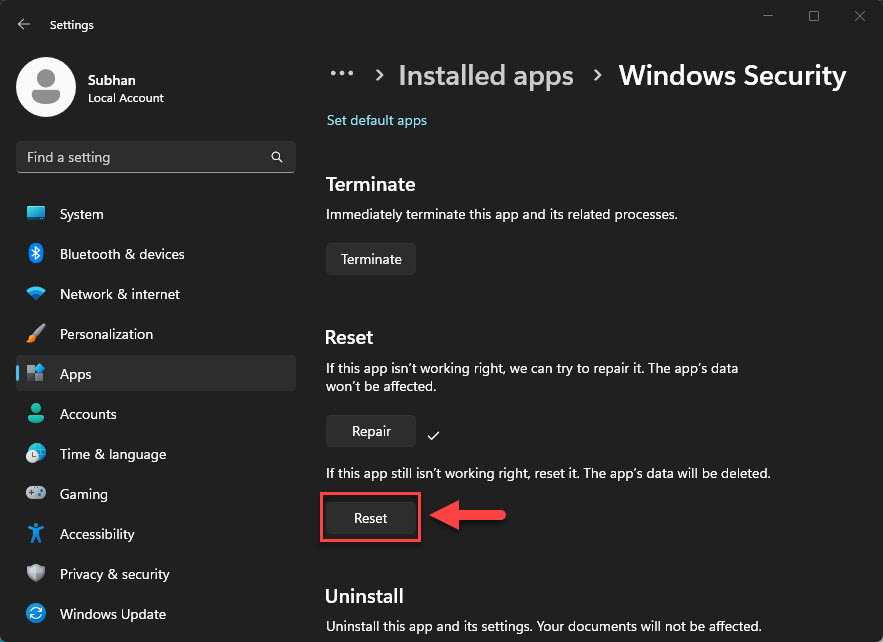
- As a last resort, reset Windows (Settings > System > Recovery > Reset this PC) keeping your files.
Troubleshooting
Problem: Device Manager shows "Microsoft Basic Display Adapter".
Solution: Install the proper GPU driver from the manufacturer — the generic driver causes the greyed-out resolution.
Problem: The correct resolution still is not listed.
Solution: Ensure the monitor is connected properly and recognized; update the monitor driver, and try a different cable/port.
Problem: Driver install fails.
Solution: Use DDU in Safe Mode to fully remove the old driver, then install the new one with a clean installation.
Problem: Resolution resets after reboot.
Solution: A failing or generic driver is reloading. Reinstall the correct driver and disable automatic driver updates if Windows keeps replacing it.
Conclusion
A greyed-out resolution almost always comes down to the graphics driver. Install the correct GPU driver from the manufacturer — using DDU for a clean slate if needed — and your full range of resolutions returns.
</w:pBdr><w:spacing w:before="220" w:after="40"/></w:pPr><w:r><w:rPr><w:b/><w:bCs/><w:color w:val="0B5394"/><w:sz w:val="21"/><w:szCs w:val="21"/><w:rFonts w:ascii="Calibri" w:cs="Calibri" w:eastAsia="Calibri" w:hAnsi="Calibri"/></w:rPr><w:t xml:space="preserve">About TechHub
This guide is part of the TechHub Knowledge Base. For more step-by-step IT guides and support, visit techhub.com.lk.