Overview
A Windows update can occasionally break keyboard input — keys stop responding, type the wrong characters, or lag. This is usually a driver or settings issue introduced by the update. This guide shows how to fix it.
A Windows update can sometimes break keyboard input.
Key Takeaways
- Reinstalling the keyboard driver fixes most post-update issues.
- Uninstalling the problematic update can restore a working keyboard.
- Filter Keys can cause missed or delayed keystrokes — turn it off.
- Use the on-screen keyboard to perform fixes if needed.
Fix 1 — Reinstall the Keyboard Driver
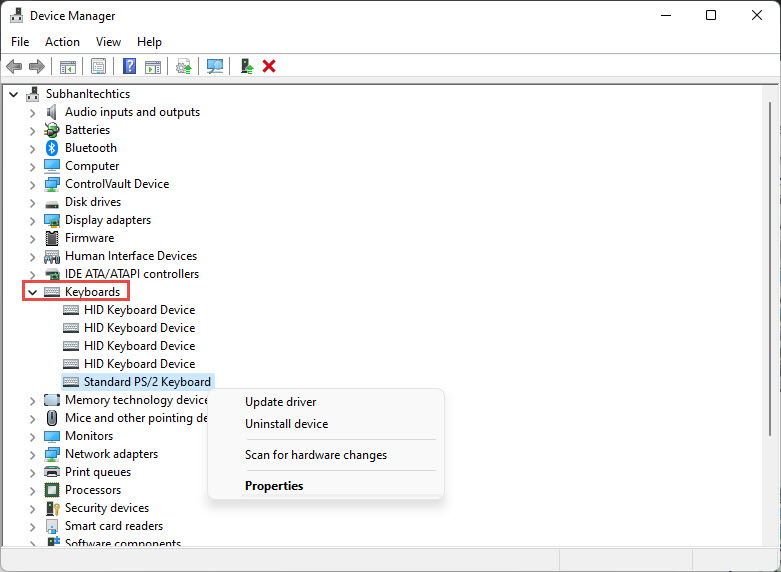
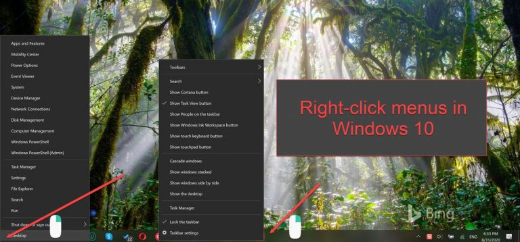
1. Right-click Start and open Device Manager.
2. Expand Keyboards, right-click your keyboard, and choose Uninstall device.
3. Restart the PC — Windows reinstalls the driver automatically.
4. If needed, choose Update driver and install the latest from your PC maker.
Fix 2 — Uninstall the Problematic Update
1. Open Settings > Windows Update > Update history > Uninstall updates.
2. Select the most recent update installed just before the problem began.
3. Click Uninstall and restart.
4. Pause updates briefly until a fix is available.
Fix 3 — Turn Off Filter Keys
1. Open Settings > Accessibility > Keyboard.
2. Turn off Filter Keys (and Sticky Keys if enabled).
3. Test the keyboard again.
Tip: If you have no working keyboard, open the on-screen keyboard (Settings > Accessibility > Keyboard > On-screen keyboard, or Win + Ctrl + O) to carry out these steps.
Troubleshooting
Problem: No keys work at all.
Solution: Use the on-screen keyboard or an external USB keyboard to perform the fixes; reinstall the driver and check the keyboard is enabled in BIOS.
Problem: Wrong characters appear.
Solution: Check the keyboard layout/language in Settings > Time & language > Language & region, and reinstall the driver.
Problem: Keys are slow or missed.
Solution: Turn off Filter Keys; if it persists, update the keyboard driver and check for a stuck key.
Problem: It broke right after an update.
Solution: Uninstall that update from Update history, then reinstall the keyboard driver once the keyboard works.
Conclusion
A keyboard broken by a Windows update is almost always fixed by reinstalling the driver, rolling back the update, and disabling Filter Keys. Use the on-screen keyboard to get the job done if you have no input at all.
</w:pBdr><w:spacing w:before="220" w:after="40"/></w:pPr><w:r><w:rPr><w:b/><w:bCs/><w:color w:val="0B5394"/><w:sz w:val="21"/><w:szCs w:val="21"/><w:rFonts w:ascii="Calibri" w:cs="Calibri" w:eastAsia="Calibri" w:hAnsi="Calibri"/></w:rPr><w:t xml:space="preserve">About TechHub
This guide is part of the TechHub Knowledge Base. For more step-by-step IT guides and support, visit techhub.com.lk.