Overview
A Caps Lock key that is stuck on — so everything types in capitals and pressing the key does nothing — is usually caused by a stuck key, a keyboard glitch, or a driver problem. This guide walks through the fixes in order, from quick checks to driver reinstalls, and shows how to fix text that was already typed in all caps.
A stuck Caps Lock makes everything type in capital letters.
Key Takeaways
- Often a stuck Shift key, not Caps Lock itself, is the real cause.
- Reconnecting the keyboard or restarting the PC fixes most temporary glitches.
- Updating or reinstalling the keyboard driver resolves persistent issues.
- You can convert already-typed ALL CAPS text using the Change Case feature in Word.
Why Won’t Caps Lock Turn Off?
The most common causes are a physically stuck Caps Lock or Shift key, debris under the key, a temporary keyboard driver glitch, or a loose connection. Working through the steps below identifies and fixes the cause.
Step 1 — Check the Caps Lock and Shift Keys
1. Press Caps Lock a few times firmly to see if it toggles the on-screen indicator.
2. Press both Shift keys — a stuck Shift can mimic Caps Lock being on.
3. Gently clean around the keys and remove any debris that may be holding one down.
Step 2 — Reconnect the Keyboard
1. For a wired keyboard, unplug it and plug it into a different USB port.
2. For a wireless keyboard, turn it off and on, or re-pair it / replace the batteries.
3. Test whether Caps Lock now toggles correctly.
Step 3 — Restart the Computer
1. Save your work and restart Windows.
2. A restart clears temporary keyboard and driver glitches.
3. Check the Caps Lock key again after signing back in.
Step 4 — Run the Keyboard Troubleshooter
1. Open Settings > System > Troubleshoot > Other troubleshooters.
2. Find Keyboard and click Run.
3. Apply any fixes the troubleshooter recommends.
Step 5 — Update or Reinstall the Keyboard Driver
1. Right-click Start and choose Device Manager.
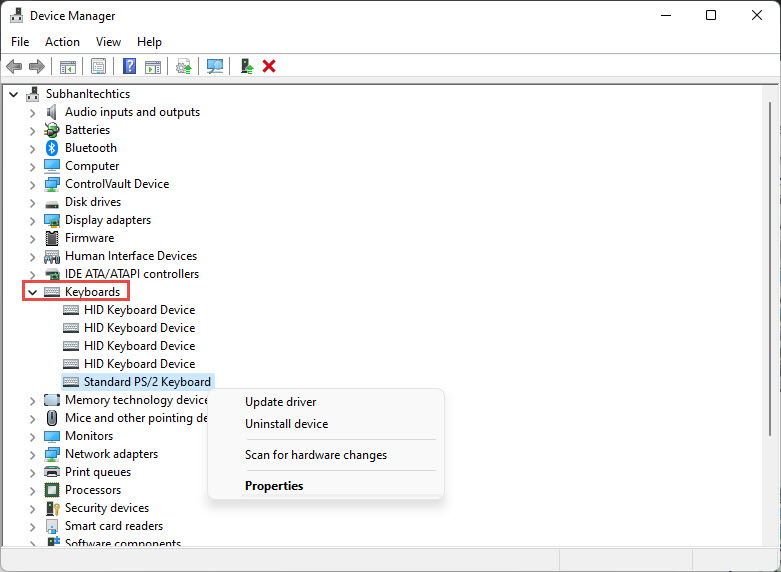
2. Expand Keyboards, right-click your keyboard, and choose Update driver.
3. If updating does not help, choose Uninstall device, then restart — Windows reinstalls the driver automatically.
Quick Workaround and Fixing All-Caps Text
- Hold Shift while typing to type in lowercase temporarily if Caps Lock is on.
- To fix text already typed in capitals in Microsoft Word, select it and use the Change Case button on the Home tab (Aa), then choose lowercase or Sentence case.
- In many apps, Shift + F3 cycles selected text between UPPERCASE, lowercase, and Capitalised.
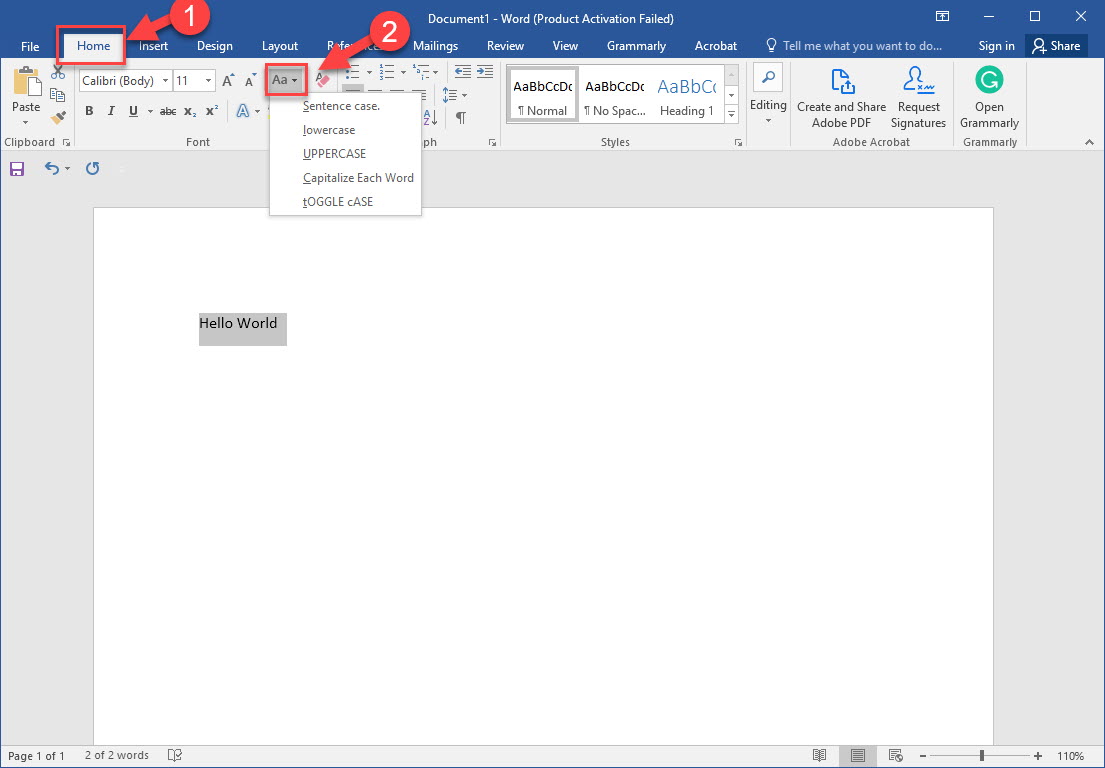
Use Change Case in Word to fix text typed in all capitals.
Troubleshooting
Problem: Caps Lock still won’t turn off after all steps.
Solution: Test a different keyboard. If the problem disappears, the original keyboard’s key or controller is faulty and may need replacing.
Problem: Only some keys are affected.
Solution: This points to hardware or debris. Clean the keyboard, or try an external keyboard to confirm.
Problem: The issue started after a Windows update.
Solution: Roll back or reinstall the keyboard driver in Device Manager, and check for a newer driver from your PC maker.
Problem: A remapping tool is involved.
Solution: If you use key-remapping software (e.g. PowerToys), check it has not remapped Caps Lock or Shift unexpectedly.
Conclusion
A stuck Caps Lock is usually a quick fix — check for stuck keys, reconnect the keyboard, restart, and reinstall the driver if needed. And when you are left with a block of capitals, Word’s Change Case feature puts it right in seconds.
</w:pBdr><w:spacing w:before="220" w:after="40"/></w:pPr><w:r><w:rPr><w:b/><w:bCs/><w:color w:val="0B5394"/><w:sz w:val="21"/><w:szCs w:val="21"/><w:rFonts w:ascii="Calibri" w:cs="Calibri" w:eastAsia="Calibri" w:hAnsi="Calibri"/></w:rPr><w:t xml:space="preserve">About TechHub
This guide is part of the TechHub Knowledge Base. For more step-by-step IT guides and support, visit techhub.com.lk.