Overview
Reversed Caps Lock means letters type in capitals when Caps Lock is OFF and lowercase when it is ON. It is usually a stuck Shift key, a keyboard glitch, or a driver issue. This guide walks through the fixes.
Reversed Caps Lock types capitals when the key is off.
Key Takeaways
- A stuck Shift key is the most common cause — Shift + Caps Lock interaction reverses the behaviour.
- Restarting and reconnecting the keyboard fixes many glitches.
- Disabling Filter Keys and updating the keyboard driver helps persistent cases.
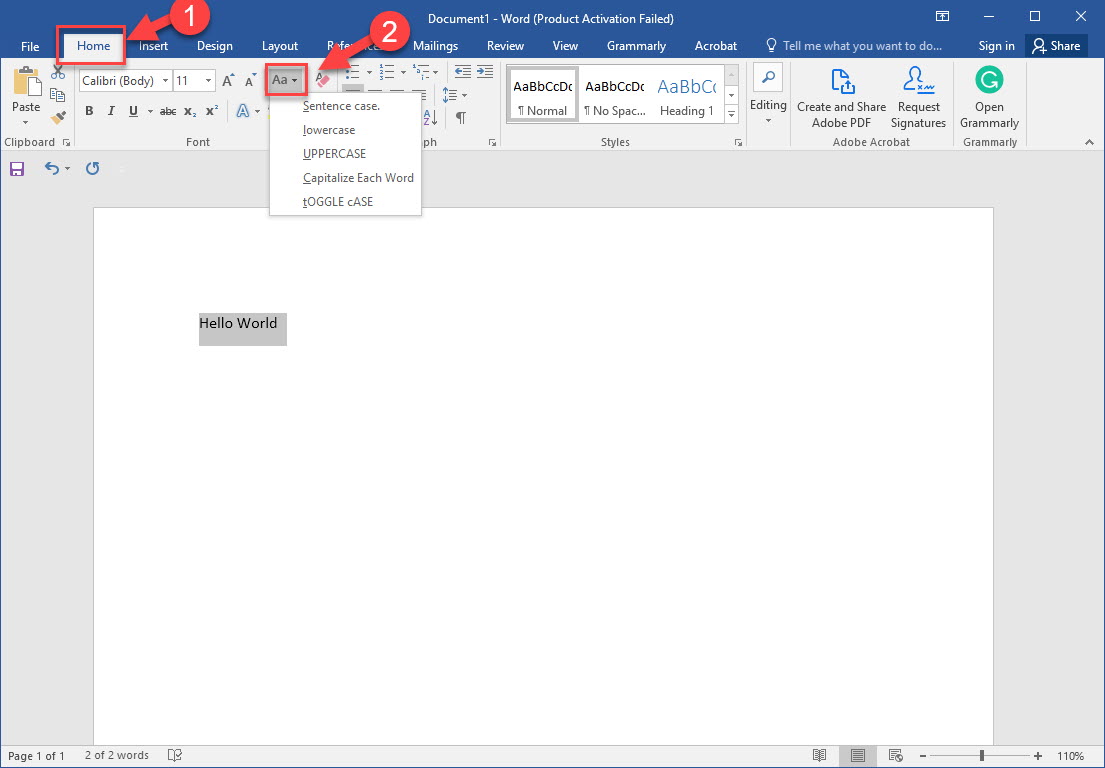
- Use Word’s Change Case to fix already-typed text.
Why Is Caps Lock Reversed?
Holding Shift while Caps Lock is on inverts the casing, and a stuck or sticky Shift key can make this permanent. Driver glitches and accessibility settings (Filter Keys) can also cause odd casing.
Step 1 — Check for a Stuck Shift Key
1. Press both Shift keys firmly several times.
2. Clean around the Shift and Caps Lock keys to remove debris.
3. Test typing again to see if the behaviour normalises.
Step 2 — Restart and Reconnect
1. Restart the PC to clear temporary glitches.
2. For external keyboards, unplug and replug (or re-pair wireless ones).
3. Test on another USB port.
Step 3 — Disable Filter Keys
1. Open Settings > Accessibility > Keyboard.
2. Turn off Filter Keys (and Sticky Keys if enabled).
3. Re-test the Caps Lock behaviour.
Step 4 — Update or Reinstall the Keyboard Driver
1. Open Device Manager > Keyboards.
2. Right-click your keyboard and choose Update driver.
3. If needed, Uninstall device and restart so Windows reinstalls it.
Fix Already-Typed Text and Repair Windows
- In Word, select the text and use Change Case (or Shift + F3) to correct casing.
- If the problem is system-wide, repair Windows files: DISM /Online /Cleanup-Image /RestoreHealth then sfc /scannow.
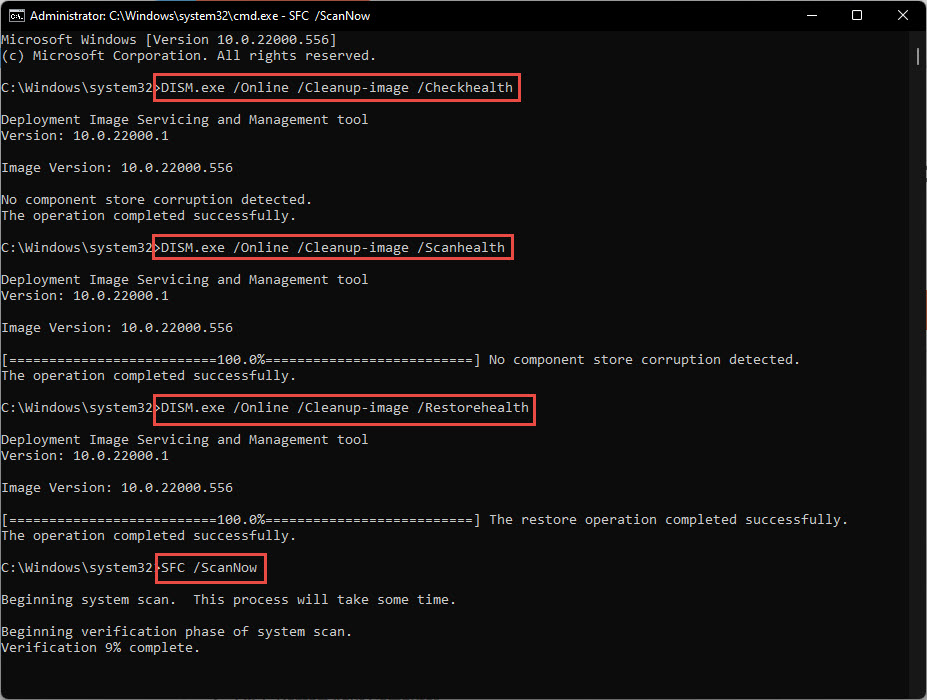
Repair Windows files with DISM and SFC if needed.
Troubleshooting
Problem: It only happens on one keyboard.
Solution: Test a different keyboard. If the issue disappears, the original has a stuck/faulty Shift key.
Problem: Behaviour returns after restart.
Solution: Reinstall the keyboard driver and disable Filter/Sticky Keys; check for key-remapping software.
Problem: A remapping tool is involved.
Solution: If you use PowerToys or similar, check it has not remapped Caps Lock or Shift.
Problem: Casing is wrong in one app only.
Solution: That app may have its own auto-capitalize setting; check its options.
Conclusion
Reversed Caps Lock is usually a stuck Shift key or a keyboard glitch. Check the keys, restart and reconnect, disable Filter Keys, and reinstall the driver — and use Word’s Change Case to fix any text already typed wrong.
</w:pBdr><w:spacing w:before="220" w:after="40"/></w:pPr><w:r><w:rPr><w:b/><w:bCs/><w:color w:val="0B5394"/><w:sz w:val="21"/><w:szCs w:val="21"/><w:rFonts w:ascii="Calibri" w:cs="Calibri" w:eastAsia="Calibri" w:hAnsi="Calibri"/></w:rPr><w:t xml:space="preserve">About TechHub
This guide is part of the TechHub Knowledge Base. For more step-by-step IT guides and support, visit techhub.com.lk.