Overview
The Switch User option lets you change accounts without closing the current user’s apps. If it is missing, Fast User Switching has likely been disabled by a policy or registry setting, or there is only one account. This guide restores it.
Restore the missing Switch User option in Windows.
Key Takeaways
- Switch User relies on Fast User Switching being enabled.
- It only appears when more than one user account exists.
- Re-enable it via Group Policy or the Registry.
- Switching keeps the other user’s apps running in the background.
Why Is It Missing?
- Fast User Switching is disabled by Group Policy or registry.
- There is only one user account on the PC.
- A policy "Hide entry points for Fast User Switching" is enabled.
Fix 1 — Make Sure Another Account Exists
1. Open Settings > Accounts > Other users.
2. Add a second account if there is only one (Switch User needs at least two).
3. Sign out and check the Start menu/lock screen for the Switch user option.
Fix 2 — Enable Fast User Switching via Group Policy
1. Press Windows key + R, type gpedit.msc, and press Enter (Pro/Enterprise).
2. Go to Computer Configuration > Administrative Templates > System > Logon.
3. Set "Hide entry points for Fast User Switching" to Disabled or Not Configured.
4. Click OK and run gpupdate /force.
Fix 3 — Enable via the Registry
Warning: Back up the registry first.
1. Open regedit and go to HKEY_LOCAL_MACHINE\SOFTWARE\Microsoft\Windows\CurrentVersion\Policies\System.
2. Find or create a DWORD named HideFastUserSwitching.
3. Set it to 0 to show Switch User (1 hides it).
4. Restart the PC.
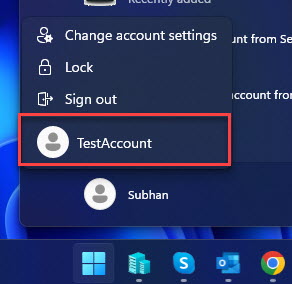
Switch to another user account from the Start menu.
Troubleshooting
Problem: Still missing after enabling.
Solution: Confirm at least two accounts exist, the policy is Disabled/Not Configured, HideFastUserSwitching is 0, then restart.
Problem: gpedit.msc is not available.
Solution: Use the registry method (HideFastUserSwitching = 0) on Home editions.
Problem: It is hidden on a work PC.
Solution: Your organisation may disable Fast User Switching by policy; contact IT.
Problem: Switching is slow.
Solution: Fast User Switching keeps other sessions in memory; ensure you have enough RAM if multiple users stay signed in.
Conclusion
The Switch User option returns once Fast User Switching is enabled and a second account exists. Adjust the Group Policy or the HideFastUserSwitching registry value, restart, and you can switch accounts without signing out.
</w:pBdr><w:spacing w:before="220" w:after="40"/></w:pPr><w:r><w:rPr><w:b/><w:bCs/><w:color w:val="0B5394"/><w:sz w:val="21"/><w:szCs w:val="21"/><w:rFonts w:ascii="Calibri" w:cs="Calibri" w:eastAsia="Calibri" w:hAnsi="Calibri"/></w:rPr><w:t xml:space="preserve">About TechHub
This guide is part of the TechHub Knowledge Base. For more step-by-step IT guides and support, visit techhub.com.lk.