Overview
Error 0x800f081f appears when Windows cannot find the files it needs to install a feature (often .NET Framework 3.5) or an update. The cause is usually a missing source or corrupted system files. This guide works through the fixes in order.
Error 0x800f081f usually means Windows cannot find required source files.
Key Takeaways
- The error means a required source file is missing or the component store is damaged.
- Supplying a source (or allowing Windows Update) fixes the .NET 3.5 case.
- Repair system files with DISM and SFC.
- Resetting Windows Update components clears update-related corruption.
Fix 1 — Run the Windows Update Troubleshooter
1. Open Settings > System > Troubleshoot > Other troubleshooters.
2. Run the Windows Update troubleshooter and apply any fixes.
3. Restart and retry.
Fix 2 — Install .NET 3.5 With a Source
1. Mount a matching Windows ISO (note its drive letter, e.g. E:).
2. Open Command Prompt as administrator.
3. Run: DISM /Online /Enable-Feature /FeatureName:NetFx3 /All /Source:E:\sources\sxs /LimitAccess
4. This installs .NET 3.5 from media instead of Windows Update.
Fix 3 — Repair System Files (DISM and SFC)
1. Open Command Prompt as administrator.
2. Run: DISM /Online /Cleanup-Image /RestoreHealth
3. Run: sfc /scannow
4. Restart the PC.
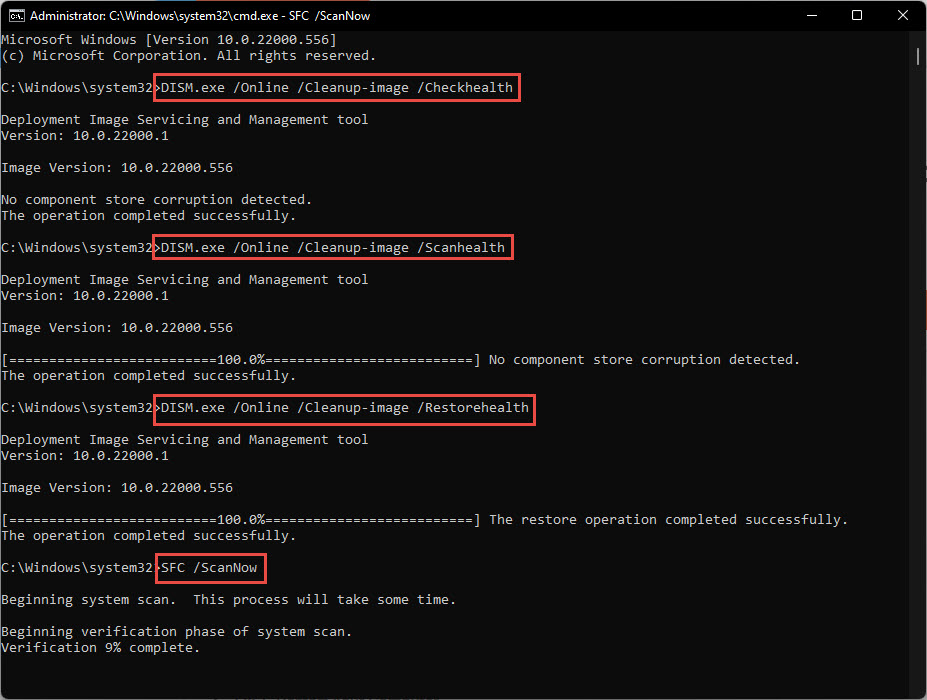
Repair Windows system files with DISM and SFC.
Fix 4 — Reset Windows Update Components
1. Open Command Prompt as administrator.
2. Stop services: net stop wuauserv and net stop cryptsvc and net stop bits.
3. Rename the SoftwareDistribution and catroot2 folders (e.g. ren C:\Windows\SoftwareDistribution SoftwareDistribution.old).
4. Restart the services and retry Windows Update.
Fix 5 — Allow Repair Content From Windows Update (Group Policy)
1. Open gpedit.msc and go to Computer Configuration > Administrative Templates > System.
2. Enable "Specify settings for optional component installation and component repair".
3. Tick "Download repair content … directly from Windows Update instead of WSUS", then apply.
Fix 6 — In-Place Upgrade (Last Resort)
1. Download the matching Windows ISO from Microsoft and mount it.
2. Run setup.exe and choose to keep your files and apps.
3. This repairs Windows while preserving your data and usually clears persistent update errors.
Troubleshooting
Problem: 0x800f081f only appears for .NET 3.5.
Solution: Use the DISM command with /Source pointing at your media’s sources\sxs folder and /LimitAccess.
Problem: DISM cannot find source files.
Solution: Mount an ISO matching your exact Windows build and point DISM at it; mismatched media is a common cause.
Problem: WSUS-managed PC keeps failing.
Solution: Enable the Group Policy to download repair content directly from Windows Update, or supply a local source.
Problem: Nothing works.
Solution: Perform an in-place upgrade with the matching ISO, or a cloud reset (Reset this PC) keeping your files.
Conclusion
0x800f081f comes down to a missing source or a damaged component store. Supply a source for .NET 3.5, repair with DISM and SFC, reset Windows Update components, and fall back to an in-place upgrade to clear it for good.
</w:pBdr><w:spacing w:before="220" w:after="40"/></w:pPr><w:r><w:rPr><w:b/><w:bCs/><w:color w:val="0B5394"/><w:sz w:val="21"/><w:szCs w:val="21"/><w:rFonts w:ascii="Calibri" w:cs="Calibri" w:eastAsia="Calibri" w:hAnsi="Calibri"/></w:rPr><w:t xml:space="preserve">About TechHub
This guide is part of the TechHub Knowledge Base. For more step-by-step IT guides and support, visit techhub.com.lk.