Overview
The error "A connection was successfully established, but then an error occurred during the pre-login handshake" usually appears after old protocols (SSL 2.0/3.0, TLS 1.0) are disabled for security (e.g. PCI DSS), leaving SQL Server unable to negotiate TLS 1.2. This guide explains the fixes.
The pre-login handshake error often follows disabling legacy TLS/SSL.
Key Takeaways
- The error is typically a TLS version mismatch after disabling legacy protocols.
- SQL Server and the .NET client both need TLS 1.2 support.
- Install the SQL Server cumulative update that adds TLS 1.2 support.
- Ensure .NET Framework 4.6+ (which supports TLS 1.2) is installed.
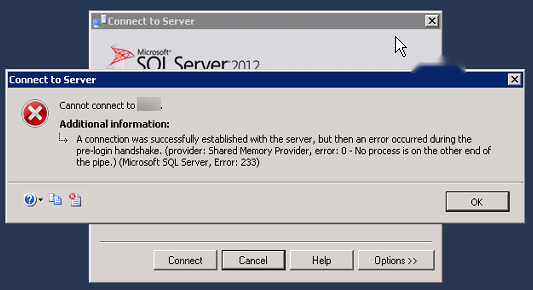
The SQL Server connection error message.
Why It Happens
To meet security standards, administrators disable SSL 2.0/3.0 and TLS 1.0. Older SQL Server builds and older .NET clients do not support TLS 1.2, so the secure handshake fails — producing this error even though the network connection itself succeeded.
Fix 1 — Install the SQL Server Cumulative Update
1. Identify your SQL Server version and build.
2. Download and install the cumulative update (or service pack) from Microsoft that adds TLS 1.2 support for your version.
3. Restart the SQL Server service.
4. Reconnect and test.
Fix 2 — Install/Update .NET Framework
1. Ensure .NET Framework 4.6 or later is installed on both the SQL Server and the client.
2. Newer .NET versions support TLS 1.2 by default.
3. Restart the machine after installing.
Fix 3 — Manage Protocols With IISCrypto
1. Download Nartac IISCrypto (official) on the SQL Server host.
2. Review which TLS/SSL protocols are enabled.
3. Ensure TLS 1.2 is enabled (it is required), while keeping insecure protocols disabled.
4. Apply the changes and reboot.
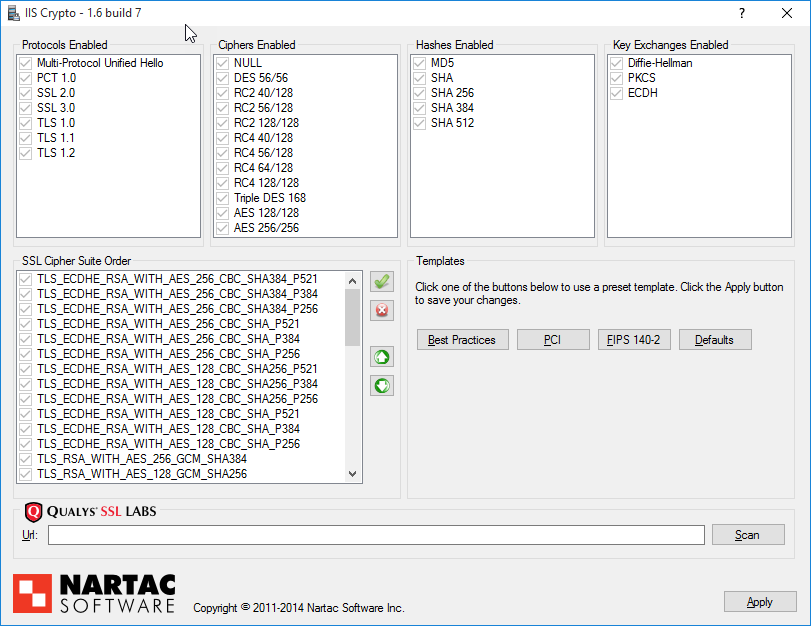
IISCrypto manages which SSL/TLS protocols are enabled.
Fix 4 — Verify TLS Settings in the Registry
Warning: Back up the registry before editing.
1. Go to HKEY_LOCAL_MACHINE\SYSTEM\CurrentControlSet\Control\SecurityProviders\SCHANNEL\Protocols.
2. Confirm TLS 1.2 is present and Enabled (DisabledByDefault = 0, Enabled = 1) for Client and Server.
3. Reboot and retry the connection.
Troubleshooting
Problem: Still failing after updating SQL Server.
Solution: Also update the client/application’s .NET Framework to 4.6+ and confirm TLS 1.2 is enabled on both ends.
Problem: TLS 1.2 is enabled but it still fails.
Solution: Check the SQL Server build supports TLS 1.2 (apply the required CU), and that no force-encryption mismatch exists between client and server.
Problem: IISCrypto changes broke other services.
Solution: Keep TLS 1.2 enabled and avoid disabling protocols still required by other apps; reapply a known-good template and reboot.
Problem: The app uses an old driver.
Solution: Update the SQL client driver (ODBC/OLE DB) to a version that supports TLS 1.2.
Conclusion
This handshake error is a TLS 1.2 compatibility gap. Patch SQL Server, ensure .NET 4.6+ is installed, and confirm TLS 1.2 is enabled on both client and server — then the secure connection completes successfully.
</w:pBdr><w:spacing w:before="220" w:after="40"/></w:pPr><w:r><w:rPr><w:b/><w:bCs/><w:color w:val="0B5394"/><w:sz w:val="21"/><w:szCs w:val="21"/><w:rFonts w:ascii="Calibri" w:cs="Calibri" w:eastAsia="Calibri" w:hAnsi="Calibri"/></w:rPr><w:t xml:space="preserve">About TechHub
This guide is part of the TechHub Knowledge Base. For more step-by-step IT guides and support, visit techhub.com.lk.