Overview
Hyper-V virtual machines have no virtual sound card, so by default a guest reports "No audio device". The fix is to connect using Enhanced Session Mode, which redirects audio (and other resources) from the host. This guide shows how.
Hyper-V VMs need Enhanced Session Mode for audio.
Key Takeaways
- Hyper-V provides no emulated sound card; audio comes via Enhanced Session Mode.
- Enable Enhanced Session in Hyper-V settings, then connect using it.
- In the connection dialog, ensure audio is set to play on the local computer.
- Linux guests need extra configuration to support Enhanced Session.
Step 1 — Enable Enhanced Session Mode
1. Open Hyper-V Manager > Hyper-V Settings.
2. Under Server, tick "Allow enhanced session mode".
3. Under User, tick "Use enhanced session mode".
4. Click OK.
Step 2 — Connect With Audio Redirection
1. Open (connect to) the VM; if prompted, choose the enhanced session and click Show Options.
2. On the Local Resources tab, under Remote audio, click Settings and choose "Play on this computer".
3. Connect — the guest now plays sound through the host.
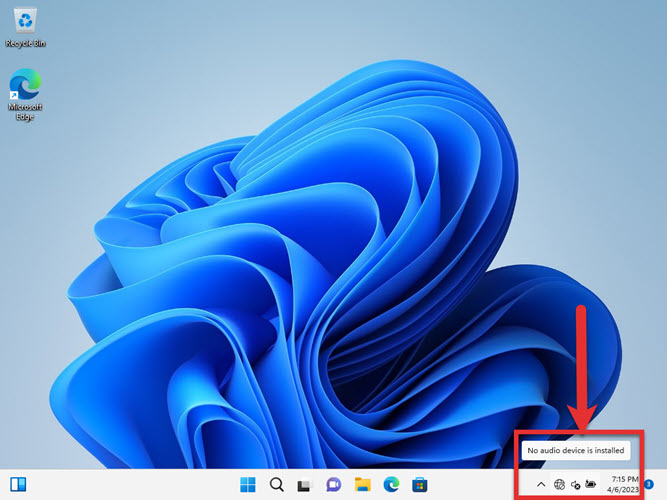
Without Enhanced Session, the guest shows no audio device.
If Enhanced Session Is Missing
1. Ensure "Allow enhanced session mode" is enabled in Hyper-V server settings.
2. The guest must be a supported OS (Windows 10/11/Server) with Guest Services/RDP available.
3. Toggle the Enhanced Session button on the VM connection toolbar.
Linux Guests
- Linux VMs need XRDP and hv_sock configured to use Enhanced Session.
- Follow your distribution’s Enhanced Session setup, or use audio-over-network alternatives.
- Without it, Linux Hyper-V guests typically have no audio.
Troubleshooting
Problem: Still no audio in enhanced session.
Solution: Confirm Remote audio is set to "Play on this computer" in the connection options, and that the host audio works.
Problem: Enhanced Session option is greyed out.
Solution: Enable it in Hyper-V server settings and ensure the guest supports it (RDP/Guest Services running).
Problem: Audio works then drops.
Solution: Reconnect the enhanced session; ensure the host audio device is stable and drivers are updated.
Problem: Linux VM has no sound.
Solution: Configure XRDP/Enhanced Session for your distro, or stream audio over the network as an alternative.
Conclusion
Hyper-V has no virtual sound card, so audio only works through Enhanced Session Mode. Enable it in Hyper-V settings, connect with "Play on this computer" selected, and your VM will have sound.
</w:pBdr><w:spacing w:before="220" w:after="40"/></w:pPr><w:r><w:rPr><w:b/><w:bCs/><w:color w:val="0B5394"/><w:sz w:val="21"/><w:szCs w:val="21"/><w:rFonts w:ascii="Calibri" w:cs="Calibri" w:eastAsia="Calibri" w:hAnsi="Calibri"/></w:rPr><w:t xml:space="preserve">About TechHub
This guide is part of the TechHub Knowledge Base. For more step-by-step IT guides and support, visit techhub.com.lk.