Overview
Windows shows a "Low Disk Space" warning when a drive is nearly full. The best fix is to free up space; you can also disable the notification. This guide covers both, with practical space-saving steps.
The Low Disk Space warning.
Key Takeaways
- Free space first — the warning signals a real problem.
- Delete temp files, empty the Recycle Bin, run Disk Cleanup.
- Hibernation and pagefile can reclaim large amounts of space.
- A Registry value can suppress the warning if needed.
Fix 1: Delete Temporary Files
1. Open Settings > System > Storage.
2. Click "Temporary files", review, and delete them.
3. Or run Disk Cleanup (cleanmgr) and clean system files.
Fix 2: Empty the Recycle Bin
1. Right-click the Recycle Bin and choose Empty Recycle Bin.
2. Confirm to permanently remove deleted items.
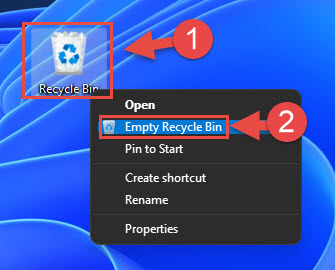
Empty the Recycle Bin to reclaim space.
Fix 3: Manage Hibernation and Pagefile
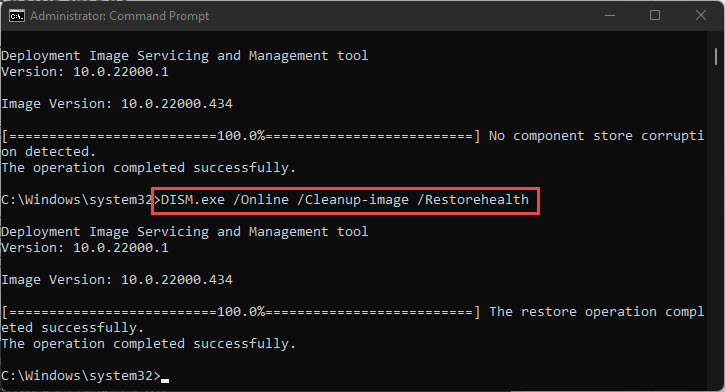
1. Disable hibernation to remove hiberfil.sys: in an elevated prompt run powercfg /hibernate off
2. If needed, adjust the pagefile in System > Advanced system settings > Performance > Advanced > Virtual memory.
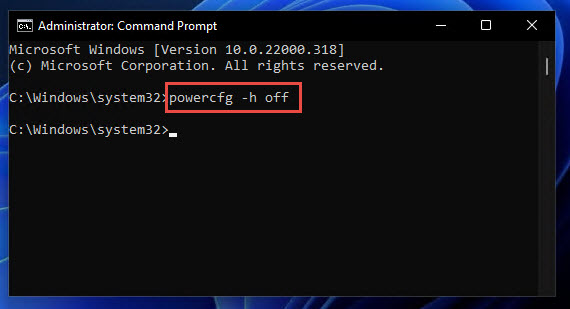
Command to disable hibernation.
Fix 4: Disk Cleanup and Large Files
1. Run Disk Cleanup > Clean up system files (removes old updates, temp, delivery optimization files).
2. Use Storage settings or a tool like TreeSize to find and remove large unneeded files.
Fix 5: Extend the Partition
1. If another partition has free space, open Disk Management (diskmgmt.msc).
2. Shrink a spare partition and extend the low-space drive into the freed space (must be adjacent).
Disable the Warning (Optional)
Warning: Editing the Registry incorrectly can cause problems. Back up the Registry first. Disabling the warning hides a genuine alert — free space regularly instead.
1. Open regedit and go to HKEY_CURRENT_USER\Software\Microsoft\Windows\CurrentVersion\Policies\Explorer
2. Create a DWORD named NoLowDiskSpaceChecks and set it to 1.
3. Sign out and back in to apply.
Troubleshooting
Problem: Space fills up again quickly.
Solution: Enable Storage Sense to auto-clean temp files, and check for large downloads or backups piling up.
Problem: Can’t extend the partition.
Solution: Extend only works into adjacent unallocated space; shrink the neighbouring partition first, or use a partition tool.
Problem: Warning persists after cleanup.
Solution: Restart Explorer or sign out/in; ensure the drive now has comfortable free space.
Problem: hiberfil.sys still present.
Solution: Run powercfg /hibernate off from an elevated prompt to remove it.
Conclusion
The Low Disk Space warning is best solved by actually freeing space — temp files, Recycle Bin, Disk Cleanup, hibernation, and large-file removal all help. Only suppress the notification via the Registry once you’ve addressed the underlying storage pressure.
</w:pBdr><w:spacing w:before="220" w:after="40"/></w:pPr><w:r><w:rPr><w:b/><w:bCs/><w:color w:val="0B5394"/><w:sz w:val="21"/><w:szCs w:val="21"/><w:rFonts w:ascii="Calibri" w:cs="Calibri" w:eastAsia="Calibri" w:hAnsi="Calibri"/></w:rPr><w:t xml:space="preserve">About TechHub
This guide is part of the TechHub Knowledge Base. For more step-by-step IT guides and support, visit techhub.com.lk.