Overview
A missing D drive is usually a missing drive letter, a hidden volume, or a connection/driver issue — not lost data. This guide walks through restoring it safely without formatting.
Fixing a missing Local Disk D.
Warning: Do not create or format a volume on a disk that still holds your data — that erases it. Only create a new volume on genuinely empty/unallocated space.
Key Takeaways
- Often just a missing drive letter, fixable in Disk Management.
- Re-scanning disks re-detects drives.
- Check cables/connections for physical drives.
- Update storage drivers if the disk isn’t detected.
Fix 1: Restart and Re-scan
1. Restart the PC first.
2. Open Disk Management (diskmgmt.msc).
3. Click Action > Rescan Disks.
4. See whether the D volume reappears.
Fix 2: Assign a Drive Letter
1. In Disk Management, find the volume with no letter.
2. Right-click it > "Change Drive Letter and Paths".
3. Click Add, choose D (or an available letter), and click OK.
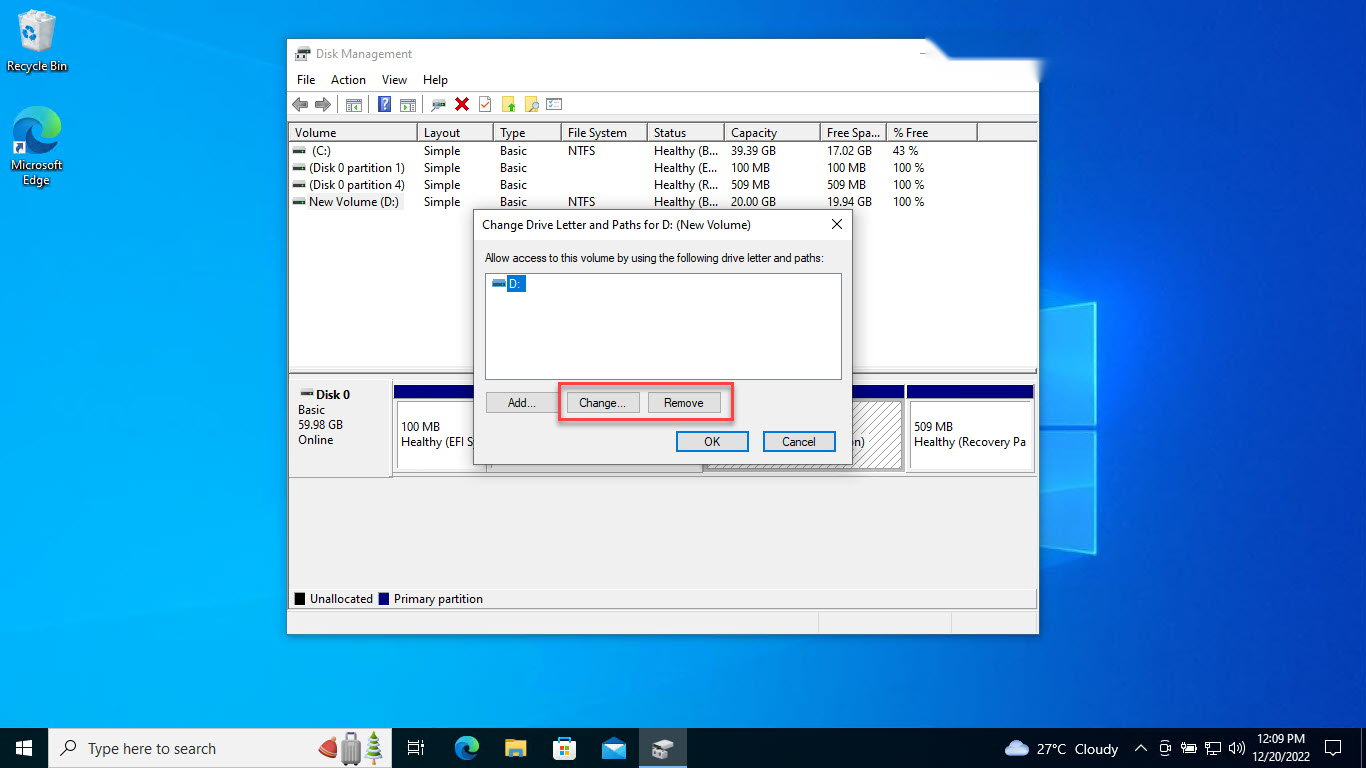
Change or add a drive letter.
Fix 3: Unhide a Hidden Drive
1. If a policy hid it, open File Explorer Options > View and ensure hidden items show.
2. Check for a Group Policy/Registry setting (NoDrives) hiding the letter and clear it.
Fix 4: Check Connections (Physical Drives)
1. Power down and reseat the drive’s SATA/power cables (or M.2).
2. Try a different SATA port/cable.
3. Confirm the drive appears in BIOS/UEFI.
Fix 5: Update Disk Drivers
1. Open Device Manager > Disk drives.
2. Right-click the disk > Update driver, or uninstall and rescan for hardware changes.
3. Restart and recheck.
Troubleshooting
Problem: Volume shows as RAW/unallocated.
Solution: Don’t format if it held data — use data-recovery software first, then repair the file system.
Problem: Drive missing from Disk Management too.
Solution: Check BIOS detection and cabling; the disk may have a hardware/connection fault.
Problem: Letter keeps disappearing.
Solution: A NoDrives policy or a removable-drive conflict may be hiding it — clear the policy and reassign the letter.
Problem: Detected but inaccessible.
Solution: Run chkdsk on the drive; update storage drivers and the disk firmware.
Conclusion
A missing D drive is most often a drive-letter or detection issue rather than data loss. Rescan disks, assign a letter in Disk Management, check connections, and update drivers — avoiding any format on a drive that still contains your files.
</w:pBdr><w:spacing w:before="220" w:after="40"/></w:pPr><w:r><w:rPr><w:b/><w:bCs/><w:color w:val="0B5394"/><w:sz w:val="21"/><w:szCs w:val="21"/><w:rFonts w:ascii="Calibri" w:cs="Calibri" w:eastAsia="Calibri" w:hAnsi="Calibri"/></w:rPr><w:t xml:space="preserve">About TechHub
This guide is part of the TechHub Knowledge Base. For more step-by-step IT guides and support, visit techhub.com.lk.