Overview
The Sleep option lets your PC enter a low-power state while keeping your session in memory for a quick resume. If Sleep disappears from the Start menu power button, it is usually a display driver, power configuration, or Group Policy issue. This guide explains why the option goes missing and how to restore it.
Key Takeaways
- Sleep saves your session to memory for fast resume; hibernation saves it to disk.
- A missing Sleep option often stems from display drivers or power settings.
- You can re-enable Sleep from Control Panel, Group Policy, or by restoring default power settings.
- Updating the display driver frequently brings the option back.
Sleep vs Hibernation
Sleep keeps your open apps in RAM and uses a small amount of power for near-instant resume. Hibernation writes your session to the hard drive and uses no power, but resumes more slowly. Both can go missing for similar reasons, and the fixes below apply to restoring Sleep.
Why Is the Sleep Option Missing?
Common causes include a display adapter driver that does not report sleep support, a power plan where Sleep is disabled, a Group Policy that hides the option, or corrupted power settings after an update.
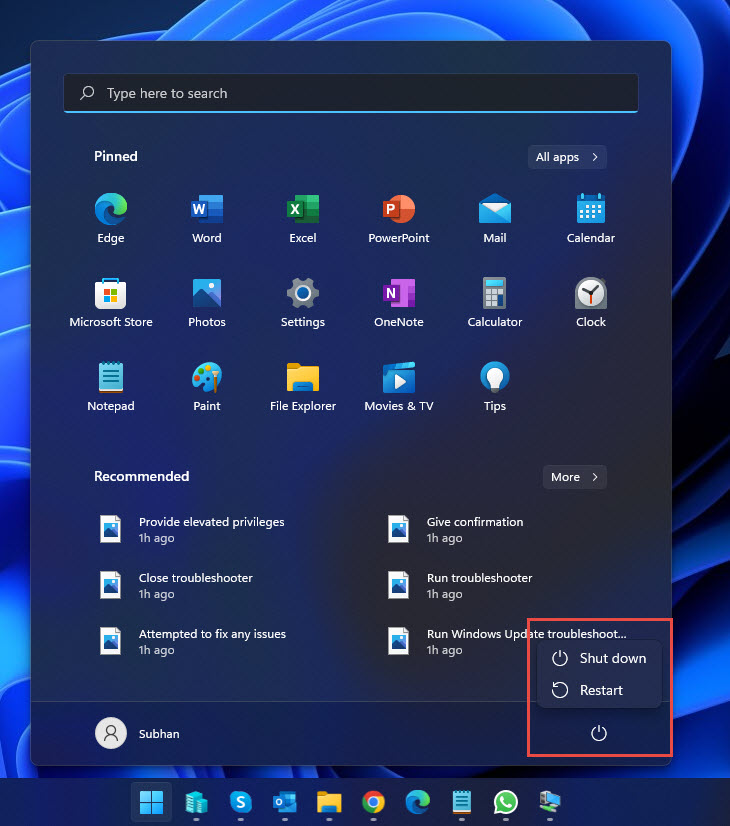
The Sleep option missing from Power options.
Fix 1: Enable Sleep From Control Panel
1. Press Windows + R, type control, and press Enter to open Control Panel.
2. Go to Hardware and Sound > Power Options, then click "Choose what the power buttons do".
3. Click "Change settings that are currently unavailable".
4. Under Shutdown settings, tick the Sleep box.
5. Click Save changes. The Sleep option should reappear in the Start menu.
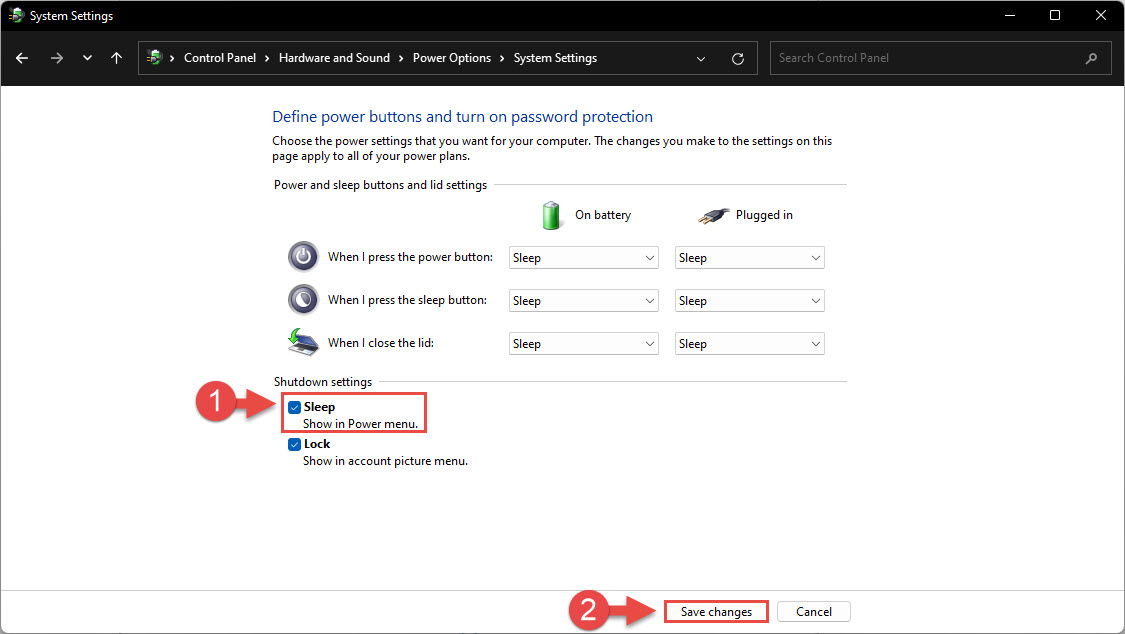
Enabling the Sleep option in shutdown settings.
Fix 2: Enable Sleep From Group Policy
On Windows Pro, Enterprise, and Education editions, a policy may hide the Sleep option.
1. Press Windows + R, type gpedit.msc, and press Enter.
2. Go to Computer Configuration > Administrative Templates > Windows Components > File Explorer.
3. Find "Show sleep in the power options menu" and double-click it.
4. Select Enabled, then click Apply and OK.
5. Run gpupdate /force in an elevated command prompt to apply the change.
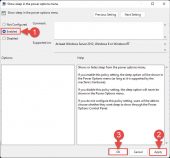
Enabling the Sleep policy in Group Policy.
Fix 3: Restore Default Power Settings
Corrupted power configuration can hide Sleep. Resetting power plans to their defaults often fixes it.
1. Click Start, type "cmd", right-click Command Prompt, and choose Run as administrator.
2. Run the command: powercfg -restoredefaultschemes
3. Close the prompt and check the Start menu power button for the Sleep option.
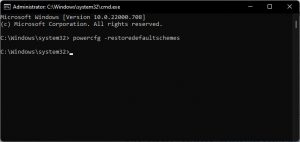
Restoring default power schemes.
Fix 4: Update the Display Driver
A display driver that does not advertise sleep support can remove the option entirely.
1. Press Windows + X and choose Device Manager.
2. Expand Display adapters, right-click your graphics device, and choose Update driver.
3. Select Search automatically for drivers, or download the latest driver from the GPU maker's official site (Intel, NVIDIA, or AMD).
4. Restart the PC after updating and check the power menu.
Tip: You can also run the built-in Power troubleshooter from Settings > System > Troubleshoot > Other troubleshooters, which can detect and repair common power configuration problems automatically.
Troubleshooting
Problem: The Sleep checkbox is greyed out in Control Panel.
Solution: Click "Change settings that are currently unavailable" first, which unlocks the Shutdown settings so you can tick Sleep.
Problem: Sleep is still missing after enabling it.
Solution: Update or reinstall the display driver, since a driver without sleep support removes the option regardless of other settings.
Problem: gpedit.msc is not available.
Solution: The Group Policy Editor is not in Windows Home. Use the Control Panel and powercfg methods instead.
Problem: The PC wakes immediately after sleeping.
Solution: In Device Manager, open the power management tab of your mouse, keyboard, and network adapter and adjust which devices are allowed to wake the PC.
Conclusion
A missing Sleep option is almost always fixable. Start by enabling Sleep in the Control Panel power settings, then check Group Policy, reset power schemes with powercfg, and update your display driver. One of these steps will restore the Sleep option and let your PC rest properly again.
About TechHub
This guide is part of the TechHub Knowledge Base. For more step-by-step IT guides and support, visit techhub.com.lk.