Overview
When a program reports a missing DLL such as MSVCP140.dll, VCRUNTIME140.dll, or MSVCR120.dll, it usually needs a Visual C++ Redistributable that is not installed or is damaged. This guide shows the safe ways to restore the missing files.
Missing DLL errors usually point to a Visual C++ Redistributable problem.
Warning: Do not download individual DLL files from random "DLL download" websites — they are a common malware vector. Restore DLLs by installing the official runtime instead.
Key Takeaways
- Most missing-DLL errors are fixed by installing the correct Visual C++ Redistributable.
- Install both the x64 and x86 runtimes — many apps are 32-bit.
- Re-registering a DLL or repairing Windows fixes corrupted cases.
- Never download loose DLLs from untrusted sites.
What Is a DLL?
A DLL (Dynamic Link Library) is shared code that multiple programs use. The Visual C++ runtimes provide many common DLLs; if the right runtime is missing, apps that depend on it fail to start.
Fix 1 — Reinstall the Visual C++ Redistributable
1. Go to Microsoft’s official "Latest supported Visual C++ Redistributable downloads" page.
2. Download and install both the X64 (vc_redist.x64.exe) and X86 (vc_redist.x86.exe) packages.
3. Restart the PC and try the program again.
4. For older apps, also install the specific year (2013, 2012, etc.) it requires.
Fix 2 — Re-register the DLL
1. Open Command Prompt as administrator.
2. Run: regsvr32 "MSVCP140.dll" (replace with the named DLL).
3. If it reports the module was loaded but the entry point was not found, the DLL is not self-registering — reinstall the runtime instead.
Fix 3 — Repair the Program and Windows
1. Reinstall or repair the program reporting the error (Settings > Apps > the app > Modify/Repair).
2. Install pending Windows updates.
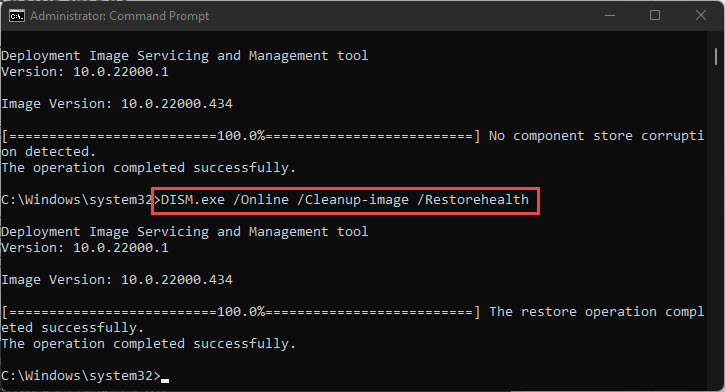
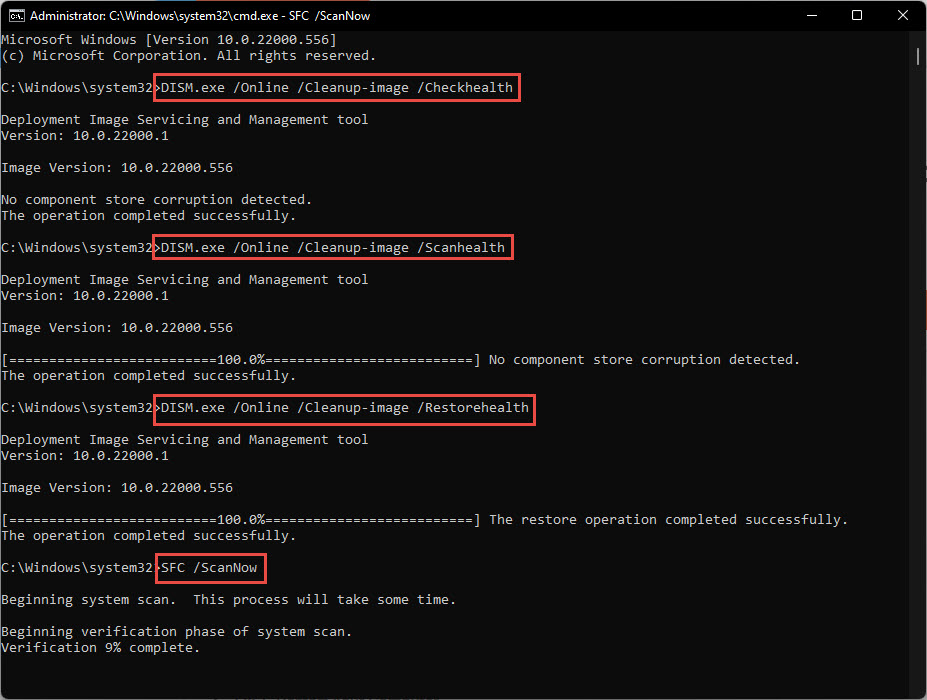
3. Repair system files: run DISM /Online /Cleanup-Image /RestoreHealth then sfc /scannow.
Fix 4 — Scan and Restore
- Run a full malware scan — malware can delete or replace system DLLs.
- Use System Restore to revert to a point before the error began, if available.
Troubleshooting
Problem: The DLL is still missing after installing the runtime.
Solution: Install both x64 and x86 versions, and the specific Visual C++ year the app needs; then restart.
Problem: A 32-bit app fails on 64-bit Windows.
Solution: Install the x86 (32-bit) Visual C++ Redistributable in addition to x64.
Problem: Reinstalling the runtime errors with 0x80070666.
Solution: A newer version is already present; uninstall the existing 2015–2022 entries and reinstall, or use Repair.
Problem: It keeps recurring.
Solution: Scan for malware and run SFC/DISM; persistent corruption may need an in-place repair of Windows.
Conclusion
Missing Visual C++ DLLs are almost always fixed by installing the official runtimes (both x64 and x86) from Microsoft, then repairing the app or Windows if needed. Never grab loose DLLs from untrusted sites — restore them the safe way.
</w:pBdr><w:spacing w:before="220" w:after="40"/></w:pPr><w:r><w:rPr><w:b/><w:bCs/><w:color w:val="0B5394"/><w:sz w:val="21"/><w:szCs w:val="21"/><w:rFonts w:ascii="Calibri" w:cs="Calibri" w:eastAsia="Calibri" w:hAnsi="Calibri"/></w:rPr><w:t xml:space="preserve">About TechHub
This guide is part of the TechHub Knowledge Base. For more step-by-step IT guides and support, visit techhub.com.lk.