Overview
Windows optional features (like .NET 3.5, Hyper-V, or the OpenSSH client) sometimes fail to install, often with vague errors. The causes range from a metered connection to corrupted system files. This guide works through the fixes in order so you can install the feature without reinstalling Windows.
Optional features can fail to install for several fixable reasons.
Key Takeaways
- Many optional features download on demand, so connection and Windows Update issues block them.
- A metered connection or a "Hide features" policy can prevent installation.
- Repairing system files with DISM and SFC fixes corruption-related failures.
- PowerShell can install most features directly when the GUI fails.
Pre-Troubleshooting Checks
- Make sure you are connected to the internet — many features download from Windows Update.
- Confirm you are signed in as an administrator.
- Restart the PC once and try again before deeper steps.
Fix 1 — Disable the Metered Connection
1. Open Settings > Network & Internet and select your active connection.
2. Turn off Metered connection.
3. Retry installing the optional feature — metered connections block on-demand downloads.
Fix 2 — Disable the "Hide Windows Features" Policy
1. Press Windows key + R, type gpedit.msc, and press Enter (Pro/Enterprise).
2. Go to User Configuration > Administrative Templates > Control Panel > Programs.
3. Set "Hide Windows Features" to Disabled or Not Configured, then click OK.
Fix 3 — Restart the Windows Module Installer Service
1. Press Windows key + R, type services.msc, and press Enter.
2. Find Windows Modules Installer, right-click it, and choose Restart (set Startup type to Manual or Automatic).
3. Also ensure Windows Update service is running, then retry.
Fix 4 — Run the Windows Update Troubleshooter
1. Open Settings > System > Troubleshoot > Other troubleshooters.
2. Run the Windows Update troubleshooter and apply any fixes.
3. Restart and try the feature again.
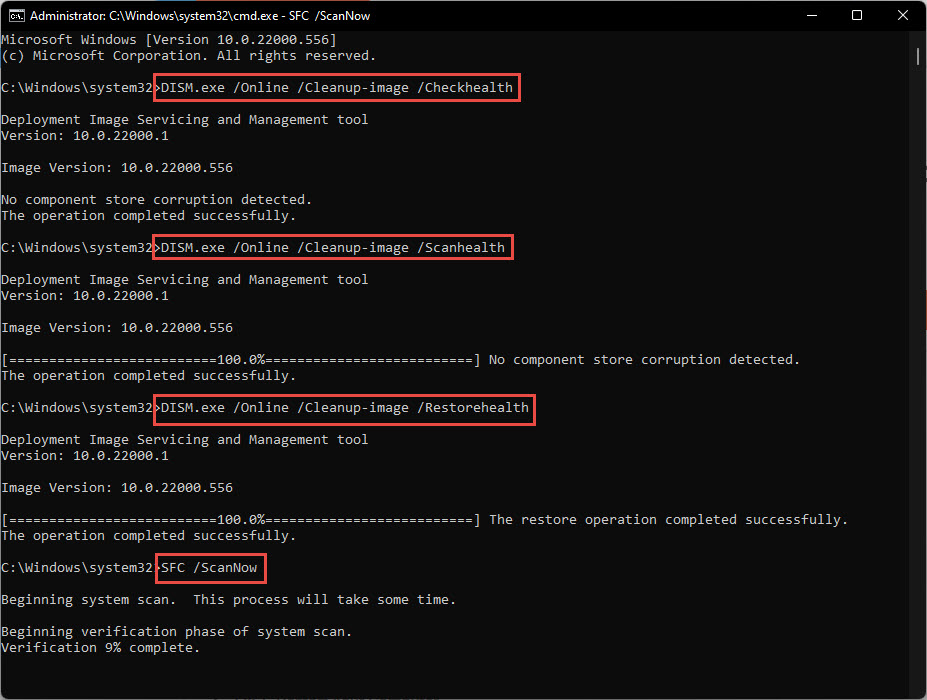
Fix 5 — Repair System Files with DISM and SFC
1. Open Command Prompt as administrator.
2. Run: DISM /Online /Cleanup-Image /RestoreHealth
3. Then run: sfc /scannow
4. Restart the PC once both complete.

Repair Windows system files with DISM and SFC.
Fix 6 — Reset Windows Update Components
1. Open Command Prompt as administrator.
2. Stop the services: net stop wuauserv and net stop bits
3. Rename the SoftwareDistribution folder (e.g. ren C:\Windows\SoftwareDistribution SoftwareDistribution.old).
4. Restart the services: net start wuauserv and net start bits, then retry.
Fix 7 — Install the Feature with PowerShell
1. Open PowerShell as administrator.
2. For built-in features: Enable-WindowsOptionalFeature -Online -FeatureName "FeatureName" -All
3. For capabilities (like OpenSSH): Add-WindowsCapability -Online -Name "Capability~~~~Version"
4. Restart if prompted.
Troubleshooting
Problem: The feature still fails with error 0x800f0954 or similar.
Solution: This is usually a Windows Update source issue. Reset Windows Update components (Fix 6), or temporarily allow downloads from Windows Update via Group Policy.
Problem: .NET 3.5 specifically fails.
Solution: Install it from Windows installation media using DISM /Online /Enable-Feature with the /Source option pointing to the media’s sources\sxs folder.
Problem: DISM reports it cannot find source files.
Solution: Provide a known-good source with the /Source switch, or run Windows Update first to repair the component store.
Problem: The feature is missing from the list entirely.
Solution: A policy may be hiding features (Fix 2), or the feature is not available on your edition of Windows.
Conclusion
Optional-feature failures are almost always fixable. Clear connection and policy blocks first, then repair system files with DISM and SFC, and fall back to PowerShell to install the feature directly — no reinstall required.
</w:pBdr><w:spacing w:before="220" w:after="40"/></w:pPr><w:r><w:rPr><w:b/><w:bCs/><w:color w:val="0B5394"/><w:sz w:val="21"/><w:szCs w:val="21"/><w:rFonts w:ascii="Calibri" w:cs="Calibri" w:eastAsia="Calibri" w:hAnsi="Calibri"/></w:rPr><w:t xml:space="preserve">About TechHub
This guide is part of the TechHub Knowledge Base. For more step-by-step IT guides and support, visit techhub.com.lk.