Overview
When your browser shows a "security certificate is not trusted" or "your connection is not private" warning, it means the browser could not verify the website’s SSL/TLS certificate. Often the cause is on your own device — such as an incorrect clock — and is safe to fix. This guide explains the common causes and how to resolve them, while being clear about when a warning is protecting you.
A certificate warning means the browser could not verify the site’s SSL certificate.
Warning: Never bypass a certificate warning on a banking, email, login, or payment site. If the fixes below do not resolve it, the warning may be genuine — do not enter sensitive information.
Key Takeaways
- Most "not trusted" errors are caused by a wrong system date/time or a stale browser cache.
- Fix your clock first — an incorrect date is the single most common cause.
- Clearing the cache and resetting the browser resolve many remaining cases.
- If the certificate is genuinely invalid or expired, the warning is protecting you — heed it.
Common Causes
- Incorrect system date and time, so the certificate appears expired or not yet valid.
- A corrupted or outdated browser cache.
- A misconfigured or extension-modified browser.
- An actually expired, misconfigured, or untrusted certificate on the website itself.

A typical SSL certificate error shown in the browser.
Fix 1 — Correct the System Date and Time
1. Open Settings > Time & language > Date & time.
2. Turn on Set time automatically and Set time zone automatically.
3. Click Sync now to update the clock.
4. Reload the website — a wrong clock is the most frequent cause of certificate errors.
Fix 2 — Clear the Browser Cache
1. In your browser, press Ctrl + Shift + Delete to open the clear-browsing-data dialog.
2. Select Cached images and files (and cookies if needed).
3. Choose a time range of All time and confirm.
4. Restart the browser and revisit the site.
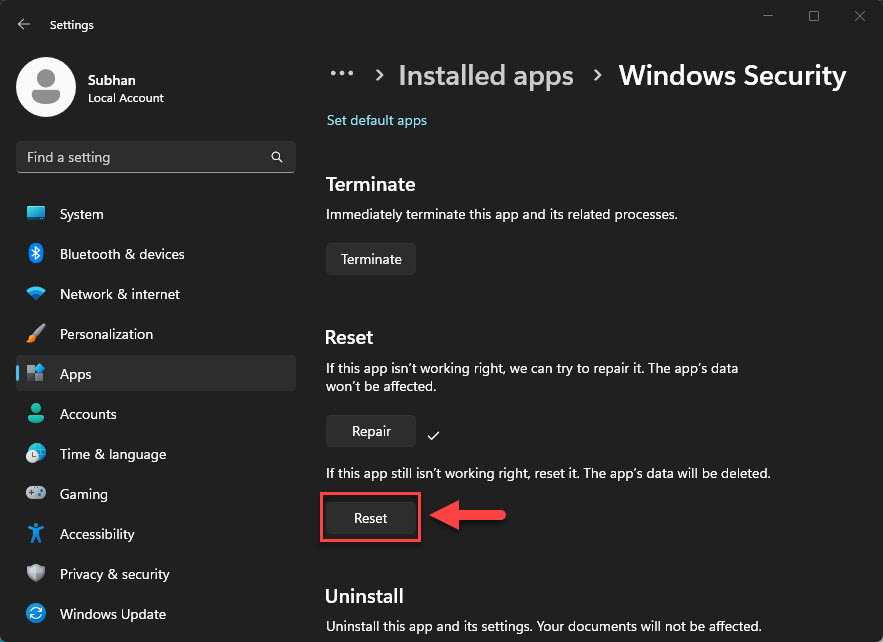
Fix 3 — Reset the Browser Configuration
1. Open your browser’s Settings and find the Reset settings (restore defaults) option.
2. Confirm the reset — this disables extensions and clears temporary settings without deleting bookmarks or passwords.
3. Restart the browser and test the website again.
4. If an extension was the cause, re-enable extensions one at a time to find the culprit.
Tip: Testing the site in a private/incognito window (with extensions off) quickly shows whether an extension or cached data is to blame.
Fix 4 — Check the Website’s SSL Certificate
1. Use an online SSL checker and enter the website address.
2. Review whether the certificate is valid, correctly installed, and not expired.
3. If the checker reports the certificate is expired or invalid, the problem is on the website — contact the site owner and do not bypass the warning.
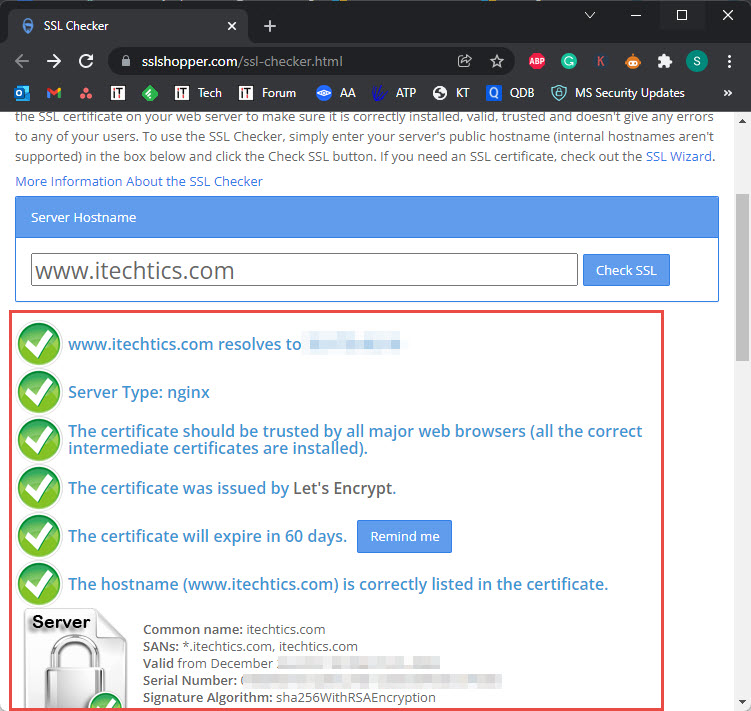
An online SSL checker shows whether a site’s certificate is valid.
Troubleshooting
Problem: The error appears on only one website.
Solution: The issue is likely the site’s own certificate. Verify it with an SSL checker; if it is expired or invalid, avoid entering sensitive data and notify the site owner.
Problem: The error appears on every website.
Solution: This points to your device — correct the system date/time, clear the cache, and check that no security software or proxy is intercepting connections.
Problem: Fixing the clock did not help.
Solution: Clear the cache and reset the browser. Also check any installed antivirus that scans HTTPS, as it can cause certificate warnings.
Problem: A work or school network shows the warning.
Solution: Managed networks sometimes inspect traffic with their own certificate. Contact your IT administrator rather than overriding the warning.
Conclusion
Most certificate warnings come from a wrong clock or stale cache and are quick to fix. Work through the steps above, but if the website’s certificate is genuinely invalid, treat the warning as protection and keep your data safe.
</w:pBdr><w:spacing w:before="220" w:after="40"/></w:pPr><w:r><w:rPr><w:b/><w:bCs/><w:color w:val="0B5394"/><w:sz w:val="21"/><w:szCs w:val="21"/><w:rFonts w:ascii="Calibri" w:cs="Calibri" w:eastAsia="Calibri" w:hAnsi="Calibri"/></w:rPr><w:t xml:space="preserve">About TechHub
This guide is part of the TechHub Knowledge Base. For more step-by-step IT guides and support, visit techhub.com.lk.