Overview
Windows Security may warn that "Local Security Authority protection is off" — sometimes even after you turn it on, the warning persists or it will not enable. LSA protection guards your credentials, so it is worth fixing. This guide shows how.
The Local Security Authority (LSA) protection warning in Windows Security.
Key Takeaways
- LSA protection prevents untrusted code from stealing your credentials.
- Enable it in Windows Security > Device security > Core isolation, then restart.
- A known bug caused a false "off" warning — installing the relevant update fixes it.
- Repairing system files clears lingering false warnings.
Fix 1 — Enable LSA Protection Properly
1. Open Windows Security > Device security > Core isolation details.
2. Turn on Local Security Authority protection.
3. Restart the PC — the setting only takes effect after a reboot.
4. Re-check the warning after restarting.
Fix 2 — Install the Relevant Windows Update
1. A Windows update (around KB5007651 era) fixed a false LSA "off" warning.
2. Open Settings > Windows Update and install all pending updates.
3. Restart and re-check Windows Security.
Fix 3 — Enable via the Registry
Warning: Back up the registry first.
1. Open regedit and go to HKEY_LOCAL_MACHINE\SYSTEM\CurrentControlSet\Control\Lsa.
2. Create a DWORD named RunAsPPL and set it to 1 (or 2 for UEFI-locked).
3. Restart the PC to enable LSA protection.
Fix 4 — Repair Windows
1. Open Command Prompt as administrator.
2. Run: DISM /Online /Cleanup-Image /RestoreHealth
3. Run: sfc /scannow
4. Restart — this clears corruption that can cause a false warning.
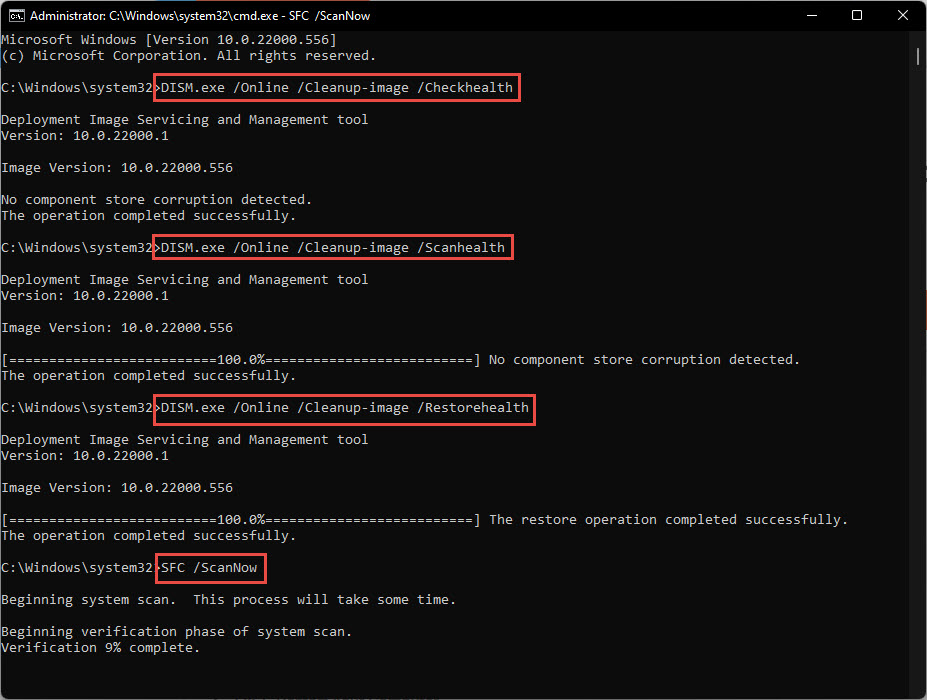
Repair Windows system files to clear lingering warnings.
Troubleshooting
Problem: The warning returns after enabling.
Solution: Ensure you restarted (it only applies after reboot), install the fixing Windows update, and run SFC/DISM to clear a false alert.
Problem: LSA protection will not turn on.
Solution: An incompatible driver can block it; update/remove flagged drivers, or set RunAsPPL via the registry, then restart.
Problem: It is genuinely off and risky.
Solution: Enable it to protect credentials; only leave it off if a critical app is incompatible, and re-enable as soon as possible.
Problem: A dismissed warning keeps reappearing.
Solution: This was a known Windows bug — update Windows fully, which resolves the false notification.
Conclusion
The LSA protection warning is fixed by enabling the feature (and restarting), installing the relevant Windows update, and repairing system files. Keep LSA protection on — it is an important defence for your credentials.
</w:pBdr><w:spacing w:before="220" w:after="40"/></w:pPr><w:r><w:rPr><w:b/><w:bCs/><w:color w:val="0B5394"/><w:sz w:val="21"/><w:szCs w:val="21"/><w:rFonts w:ascii="Calibri" w:cs="Calibri" w:eastAsia="Calibri" w:hAnsi="Calibri"/></w:rPr><w:t xml:space="preserve">About TechHub
This guide is part of the TechHub Knowledge Base. For more step-by-step IT guides and support, visit techhub.com.lk.