How to Fix Right-Click Not Working on the Taskbar and Start Menu
Restore the right-click context menu with Explorer, Registry, and PowerShell fixes.
Overview
When right-click stops working on the taskbar or Start menu, it’s usually an Explorer glitch or a corrupt shell component. This guide covers the fixes from quickest to most thorough.
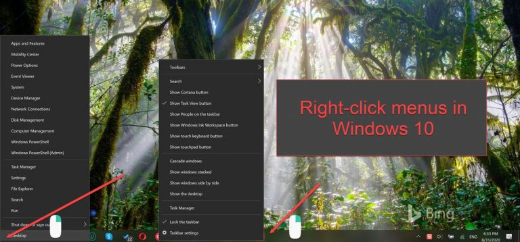
Fixing right-click not working.
Key Takeaways
- Restarting Explorer fixes most transient cases.
- SFC/DISM repairs corrupt system files.
- Re-registering shell packages via PowerShell helps.
- Rebuilding the WinX folder restores the power-user menu.
Fix 1: Restart Windows Explorer
1. Open Task Manager (Ctrl + Shift + Esc).
2. Right-click "Windows Explorer" > Restart.
3. Test right-click again.
Fix 2: Repair System Files
1. Open Command Prompt as administrator.
2. Run: sfc /scannow
3. Then: DISM /Online /Cleanup-Image /RestoreHealth
4. Restart and test.
Fix 3: Re-register Shell Packages (PowerShell)
1. Open PowerShell as administrator.
2. Run: Get-AppxPackage -AllUsers | Foreach {Add-AppxPackage -DisableDevelopmentMode -Register "$($_.InstallLocation)\AppXManifest.xml"}
3. Restart the PC.
4. This re-registers Start/Shell components.
Fix 4: Rebuild the WinX Menu Folder
1. The Win+X menu comes from %LocalAppData%\Microsoft\Windows\WinX.
2. Copy the WinX folder from a healthy profile (or default user) into your profile.
3. Restart Explorer.
Other Checks
- Disable third-party shell extensions with ShellExView (they can block right-click).
- Update Windows and graphics drivers.
- Create a new user profile to rule out profile corruption.
Troubleshooting
Problem: Right-click works elsewhere but not on taskbar.
Solution: Restart Explorer; if it persists, re-register shell packages via PowerShell.
Problem: Context menu appears then vanishes.
Solution: A faulty shell extension is likely — disable non-Microsoft extensions with ShellExView.
Problem: PowerShell command errors on some apps.
Solution: That’s normal; it continues — reboot afterward and re-test.
Problem: Only fixed by new profile.
Solution: Your profile’s shell data is corrupt — migrate to the new profile.
Conclusion
Start by restarting Explorer, then repair system files with SFC/DISM and re-register shell packages via PowerShell. If the Win+X menu is the problem, rebuild its folder — and check shell extensions with ShellExView for stubborn cases.