How to Fix Remote Desktop (RDP) Not Working in Windows
Resolve failed RDP connections with firewall, settings, network, and scaling fixes.
Overview
When Remote Desktop won’t connect, the cause is usually that RDP is disabled, blocked by the firewall, or a network/scaling glitch. This guide works through the common fixes.
Fixing Remote Desktop not working.
Key Takeaways
- Remote Desktop must be enabled on the target PC.
- The firewall must allow RDP.
- Network profile and IPv6 can interfere.
- Home edition can’t host RDP (only connect out).
Fix 1: Enable Remote Desktop
1. On the target PC, open Settings > System > Remote Desktop.
2. Turn Remote Desktop On.
3. Note: Windows Home can’t host RDP — you need Pro/Enterprise to be the remote target.
Fix 2: Allow RDP Through the Firewall
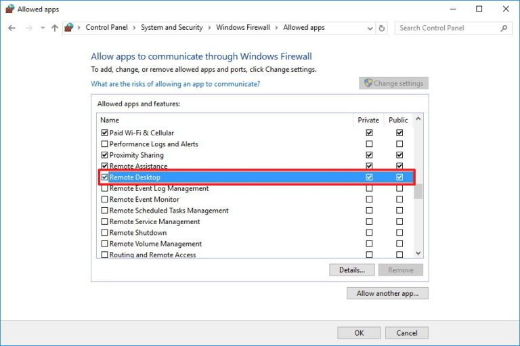
1. Open Windows Defender Firewall > Allow an app through firewall.
2. Enable "Remote Desktop" for the current profile.
3. Ensure the network is set to Private, not Public.
Fix 3: Network and IP Checks
1. Confirm both PCs are on the same network / reachable (ping the host).
2. Use the correct hostname/IP (and port if changed).
3. Try disabling IPv6 on the adapter temporarily to test.
4. Restart the "Remote Desktop Services" if needed.
Fix 4: Turn Off Custom Scaling / Update
1. High custom DPI scaling can break the RDP client display — set scaling to 100% to test.
2. Update Windows on both machines.
3. Update network drivers.
Troubleshooting
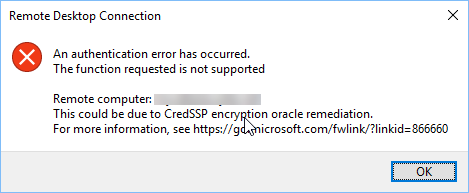
Problem: "Can’t connect to the remote computer".
Solution: Confirm RDP is enabled and allowed through the firewall, and that the host is Pro/Enterprise and reachable.
Problem: Works on LAN, not remotely.
Solution: Use a VPN/RD Gateway; don’t expose RDP directly, and forward the correct port if required.
Problem: Black screen or scaling issues.
Solution: Set display scaling to 100% and update GPU/RDP; toggle "Reconnect if the connection is dropped".
Problem: Home edition can’t be the target.
Solution: RDP hosting requires Pro/Enterprise; use Quick Assist or another tool on Home.
Conclusion
Most RDP failures come down to Remote Desktop being off, the firewall blocking it, or network/scaling issues. Enable RDP (on Pro/Enterprise), allow it through the firewall on a Private network, verify connectivity, and adjust scaling — using a VPN for any remote access.