Overview
Unlike phones, Windows has no single "Screen Time" dashboard — but you can still measure usage. This guide shows how to estimate total on-time and per-app usage using built-in tools and free apps.
Check your screen time on Windows 11.
Key Takeaways
- Windows lacks a built-in screen-time dashboard, but data exists.
- System uptime approximates total on-time.
- Family Safety and third-party apps track per-app usage.
- Battery usage settings reveal app activity on laptops.
Check Total On-Time (Uptime)
1. Open Task Manager (Ctrl + Shift + Esc) > Performance > CPU.
2. Read the "Up time" value for time since last boot.
3. For a precise figure, run in PowerShell: (get-date) - (gcim Win32_OperatingSystem).LastBootUpTime
Estimate Per-App Usage (Battery Settings)
1. On a laptop, open Settings > System > Power & battery > Battery usage.
2. Expand "Battery usage per app" to see active vs background time over 24 hours or 7 days.
3. Use this as a rough per-app screen-time indicator.
Use Microsoft Family Safety
1. Set up Microsoft Family Safety with a child/family account.
2. Sign in at family.microsoft.com or use the app.
3. View detailed screen-time reports and set app/time limits.
Third-Party Wellbeing Apps
Note: Install usage-tracking tools only from reputable, official sources.
- RescueTime and ActivityWatch log time per app and website.
- Digital wellbeing-style apps show daily summaries and limits.
- Choose open-source or well-reviewed tools for privacy.
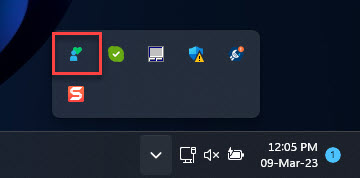
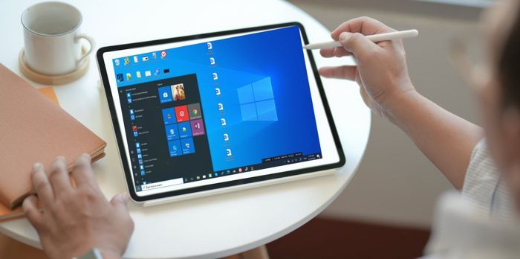
A wellbeing app tracking usage.
Troubleshooting
Problem: Uptime doesn’t reset after shutdown.
Solution: Fast Startup keeps the session — use Restart for a true reboot if you want uptime to reflect a fresh start.
Problem: No battery usage on a desktop.
Solution: Battery usage only appears on battery-powered devices; use Family Safety or a third-party tracker instead.
Problem: Family Safety shows no data.
Solution: Ensure the monitored account is signed in on the PC and activity reporting is enabled.
Problem: Want website-level tracking.
Solution: Use a browser extension or a tool like RescueTime that records active windows and URLs.
Conclusion
Windows doesn’t centralise screen time, but between uptime, battery usage per app, Microsoft Family Safety, and third-party trackers you can build an accurate picture of how you spend time on your PC.
</w:pBdr><w:spacing w:before="220" w:after="40"/></w:pPr><w:r><w:rPr><w:b/><w:bCs/><w:color w:val="0B5394"/><w:sz w:val="21"/><w:szCs w:val="21"/><w:rFonts w:ascii="Calibri" w:cs="Calibri" w:eastAsia="Calibri" w:hAnsi="Calibri"/></w:rPr><w:t xml:space="preserve">About TechHub
This guide is part of the TechHub Knowledge Base. For more step-by-step IT guides and support, visit techhub.com.lk.