Overview
Phones වගේ නෙවෙයි, Windows එකේ single "Screen Time" dashboard එකක් නෑ — ඒත් තවම usage measure කරන්න පුළුවන්. මේ guide එකෙන් built-in tools සහ free apps පාවිච්චි කරලා total on-time එකයි per-app usage එකයි estimate කරන ආකාරය පෙන්නනවා.
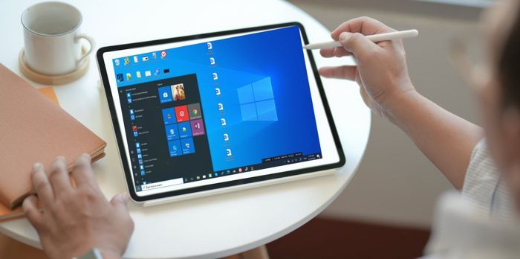
Windows 11 එකේ ඔබේ screen time බලන්න.
Key Takeaways
- Windows එකේ built-in screen-time dashboard එකක් නෑ, ඒත් data තියෙනවා.
- System uptime එකෙන් total on-time approximate කරනවා.
- Family Safety සහ third-party apps per-app usage track කරනවා.
- Battery usage settings වලින් laptops වල app activity reveal කරනවා.
Total On-Time (Uptime) බලන්න
1. Task Manager (Ctrl + Shift + Esc) > Performance > CPU open කරන්න.
2. Last boot එකේ ඉඳලා කාලයට "Up time" value එක කියවන්න.
3. Precise figure එකකට, PowerShell එකේ run කරන්න: (get-date) - (gcim Win32_OperatingSystem).LastBootUpTime
Per-App Usage Estimate කරන්න (Battery Settings)
1. Laptop එකක, Settings > System > Power & battery > Battery usage open කරන්න.
2. පැය 24ක් හෝ දවස් 7ක් හරහා active vs background time බලන්න "Battery usage per app" expand කරන්න.
3. මේක rough per-app screen-time indicator එකක් විදිහට පාවිච්චි කරන්න.
Microsoft Family Safety පාවිච්චි කරන්න
1. Child/family account එකක් එක්ක Microsoft Family Safety set කරන්න.
2. family.microsoft.com එකේ sign in වෙන්න හෝ app එක පාවිච්චි කරන්න.
3. Detailed screen-time reports බලලා app/time limits set කරන්න.
Third-Party Wellbeing Apps
Note: Usage-tracking tools install කරන්නේ reputable, official sources එකෙන් විතරයි.
- RescueTime සහ ActivityWatch එකෙන් app එකකට සහ website එකකට time log කරනවා.
- Digital wellbeing-style apps daily summaries සහ limits පෙන්නනවා.
- Privacy වලට open-source හෝ well-reviewed tools තෝරන්න.
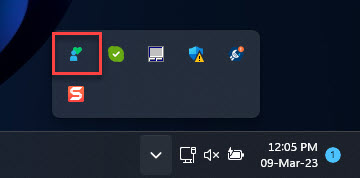
Usage track කරන wellbeing app එකක්.
Troubleshooting
Problem: Shutdown එකට පස්සේ uptime reset වෙන්නේ නෑ.
Solution: Fast Startup session එක තියාගන්නවා — uptime fresh start එකක් reflect කරන්න ඕන නම් true reboot එකකට Restart පාවිච්චි කරන්න.
Problem: Desktop එකක battery usage නෑ.
Solution: Battery usage පෙන්නන්නේ battery-powered devices වල විතරයි; ඒ වෙනුවට Family Safety හෝ third-party tracker එකක් පාවිච්චි කරන්න.
Problem: Family Safety එකේ data නෑ.
Solution: Monitored account එක PC එකේ signed in, activity reporting enabled කියලා බලන්න.
Problem: Website-level tracking ඕන.
Solution: Active windows සහ URLs record කරන browser extension එකක් හෝ RescueTime වගේ tool එකක් පාවිච්චි කරන්න.
Conclusion
Windows එකෙන් screen time centralise කරන්නේ නෑ, ඒත් uptime, battery usage per app, Microsoft Family Safety, සහ third-party trackers අතරින් ඔබ PC එකේ time ගත කරන්නේ කොහොමද කියලා accurate picture එකක් හදන්න පුළුවන්.
About TechHub
මේ guide එක TechHub Knowledge Base එකේ කොටසක්. තව step-by-step IT guides සහ support වලට techhub.com.lk එකට යන්න.