Windows එකේ MBR to GPT Convert කරන්නේ කොහොමද (Data Loss නැතුව)
Disk එකක් MBR වලින් GPT වලට switch කරන්න UEFI/Secure Boot සහ Windows 11 වලට — MBR2GPT එකෙන් safe ව.
Overview
GPT කියන්නෙ UEFI boot, Secure Boot, සහ Windows 11 වලට අවශ්ය modern partition scheme එකයි. Windows ගේ MBR2GPT tool එකෙන් system disk එකක් MBR වලින් GPT වලට data delete කරන්නෙ නැතුව convert කරනවා. මේ guide එකෙන් ඒක සහ disk-wiping alternatives cover කරනවා.
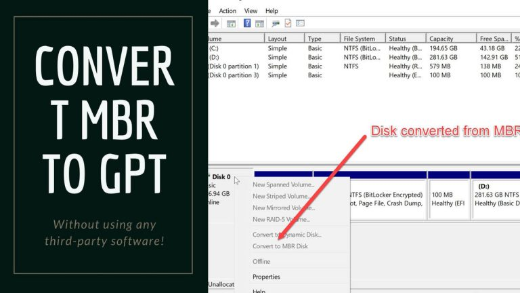
MBR to GPT convert කරමින්.
Warning: Convert කරන්න කලින් හැම වෙලාවෙම back up කරගන්න. MBR2GPT data preserve කරනවා, ඒත් Diskpart/Disk Management conversion එකෙන් disk එක ERASE කරනවා. තව system disk එක convert කරලා පස්සෙ firmware එක Legacy/CSM වලින් UEFI වලට switch කරන්න, නැත්නම් ඒක boot වෙන්නෙ නෑ.
Key Takeaways
- UEFI, Secure Boot, සහ Windows 11 වලට GPT ඕන.
- MBR2GPT, system disk එක data loss නැතුව convert කරනවා.
- Diskpart/Disk Management conversion disk එක erase කරනවා (data drives විතරයි, හෝ back up එකකට පස්සෙ).
- Boot disk එක convert කරලා පස්සෙ BIOS එක UEFI වලට switch කරන්න.
Method 1: MBR2GPT (No Data Loss)
1. මුලින්ම ඔයාගේ data back up කරගන්න.
2. Command Prompt එක administrator විදිහට open කරන්න.
3. Validate: mbr2gpt /validate /allowFullOS
4. Convert: mbr2gpt /convert /allowFullOS
5. Firmware එකට reboot වෙලා boot mode එක Legacy/CSM වලින් UEFI වලට switch කරන්න.
6. Windows වලට boot වෙන්න — දැන් disk එක GPT.
Method 2: Diskpart (Erases the Disk)
Warning: මේකෙන් disk එකේ තියෙන හැම දේම delete කරනවා. හිස්/data disks වල විතරයි හෝ සම්පූර්ණ back up එකකට පස්සෙ විතරයි පාවිච්චි කරන්න.
1. diskpart එක administrator විදිහට run කරන්න.
2. list disk / select disk N (පරිස්සමින් තෝරන්න).
3. clean, ඊට පස්සෙ convert gpt.
4. Partitions ආයෙ create කරලා data restore කරන්න.
Method 3: Disk Management
1. diskmgmt.msc open කරන්න.
2. Disk එක හිස් වෙන්න ඕන — volumes ඔක්කොම delete කරන්න (data erase වෙනවා).
3. Disk එකේ right-click කරලා > "Convert to GPT Disk".
4. Volumes ආයෙ create කරන්න.
Troubleshooting
Problem: mbr2gpt validation fail වෙනවා.
Solution: Disk එක MBR ද, ≤3 primary partitions තියෙනවද, සහ EFI partition එකට ඇති තරම් free space තියෙනවද කියලා confirm කරන්න; elevated prompt එකකින් (හෝ WinRE) run කරන්න.
Problem: Convert කරලා පස්සෙ PC එක boot වෙන්නෙ නෑ.
Solution: Firmware එක UEFI වලට switch කරන්න (Legacy/CSM disable කරන්න); MBR, Legacy වලින් boot වෙනවා, GPT, UEFI වලින් boot වෙනවා.
Problem: "Convert to GPT" greyed out.
Solution: Disk Management වලට හිස් disk එකක් ඕන — volumes delete කරන්න (back up එකකට පස්සෙ) හෝ system disk එකට MBR2GPT පාවිච්චි කරන්න.
Problem: Windows 11 වලට විතරයි ඕන.
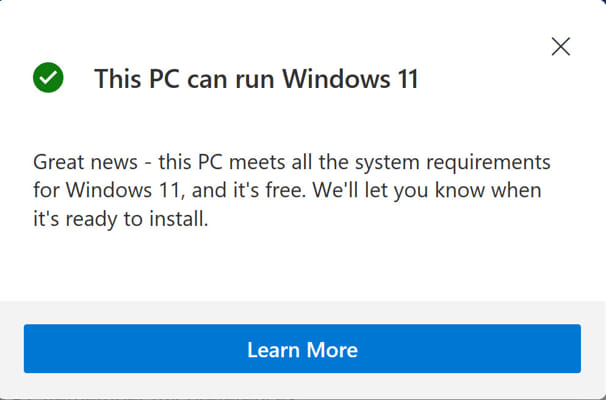
Solution: MBR2GPT එකෙන් convert කරලා requirements සපුරන්න UEFI/Secure Boot + TPM enable කරන්න.
Conclusion
System disk එකකට, MBR2GPT, MBR to GPT data loss නැතුව convert කරනවා — validate කරලා, convert කරලා, ඊට පස්සෙ firmware එක UEFI වලට switch කරන්න. Diskpart/Disk Management conversion disk එක erase කරන නිසා, ඒවා හිස් drives වලට හෝ සම්පූර්ණ back up එකකට පස්සෙ විතරයි තියාගන්න.
About TechHub
මේ guide එක TechHub Knowledge Base එකේ කොටසක්. තව step-by-step IT guides සහ support වලට techhub.com.lk එකට යන්න.