Overview
Windows includes a built-in "Incoming Connection" feature that turns your PC into a simple VPN server, letting you connect back to your home network from anywhere. This guide walks through setting it up, including the network prerequisites.
Windows can act as a simple incoming VPN server.
Warning: Exposing a VPN server to the internet has security implications. Use strong account passwords, keep Windows updated, and consider a dedicated VPN solution for anything sensitive.
Key Takeaways
- Windows’ Incoming Connection feature creates a basic VPN server.
- You need a static local IP, port forwarding, and ideally DDNS.
- Allow the VPN through the firewall and grant users dial-in access.
- For robust security, a dedicated VPN (WireGuard/OpenVPN) is preferable.
Step 1 — Set a Static Local IP
1. Open Network Connections (ncpa.cpl) and your adapter’s Properties.
2. Edit IPv4 and set a static IP, subnet, gateway, and DNS within your router’s range.
3. This keeps the server’s address consistent for port forwarding.
Step 2 — Note Your Public IP and Set Up DDNS
1. Find your public IP (search "what is my IP").
2. If your public IP changes, set up Dynamic DNS (DDNS) on your router so a hostname always points to you.
3. Use the DDNS hostname when connecting.
Step 3 — Configure Port Forwarding
1. Log in to your router.
2. Forward the VPN port (PPTP uses TCP 1723) to your PC’s static IP.
3. Save and reboot the router if required.
Step 4 — Create the VPN Server in Windows
1. Open Network Connections (ncpa.cpl).
2. Press Alt to show the menu, then File > New Incoming Connection.
3. Select the user accounts allowed to connect (or add a dedicated user).
4. Tick "Through the Internet", then configure TCP/IPv4 (optionally assign a client IP range), and click Allow access.
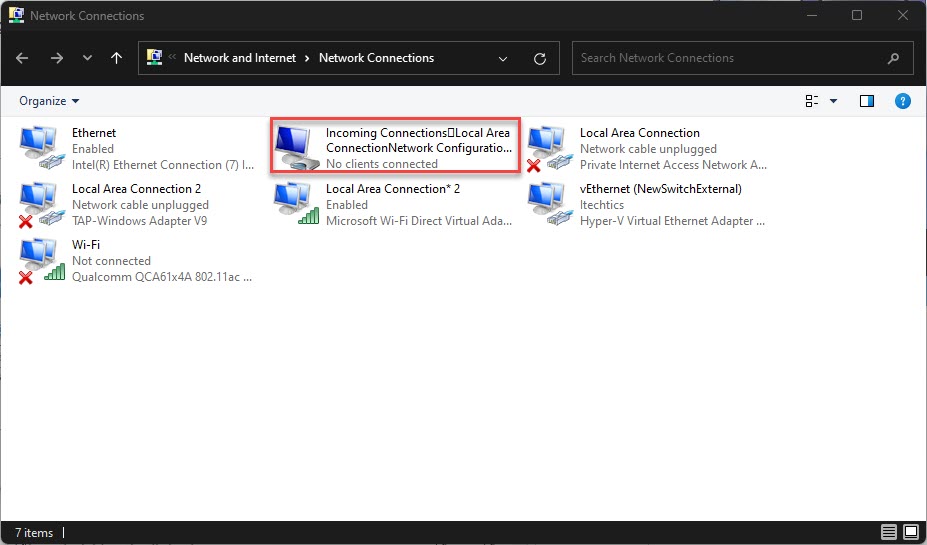
A new incoming VPN adapter created in Windows.
Step 5 — Allow It Through the Firewall and Connect
1. Ensure Windows Firewall allows the incoming VPN (Routing and Remote Access).
2. On the client device, add a VPN connection pointing to your public IP/DDNS hostname.
3. Sign in with the allowed account to connect.
Troubleshooting
Problem: Cannot connect from outside.
Solution: Verify port forwarding to the correct static IP, that your public IP/DDNS is right, and that the ISP does not block the port or use CGNAT.
Problem: Connects but no network access.
Solution: Check the assigned client IP range and that "Allow callers to access my local network" is enabled.
Problem: PPTP is blocked.
Solution: Some networks block PPTP; consider a more secure, modern VPN like WireGuard/OpenVPN via third-party software.
Problem: Behind CGNAT.
Solution: Port forwarding will not work; use a VPN service, a cloud relay, or ask your ISP for a public IP.
Conclusion
Windows can host a basic VPN with the Incoming Connection feature once you set a static IP, port forwarding, and DDNS. For stronger security and easier setup, consider a dedicated VPN solution like WireGuard or OpenVPN.
</w:pBdr><w:spacing w:before="220" w:after="40"/></w:pPr><w:r><w:rPr><w:b/><w:bCs/><w:color w:val="0B5394"/><w:sz w:val="21"/><w:szCs w:val="21"/><w:rFonts w:ascii="Calibri" w:cs="Calibri" w:eastAsia="Calibri" w:hAnsi="Calibri"/></w:rPr><w:t xml:space="preserve">About TechHub
This guide is part of the TechHub Knowledge Base. For more step-by-step IT guides and support, visit techhub.com.lk.