Overview
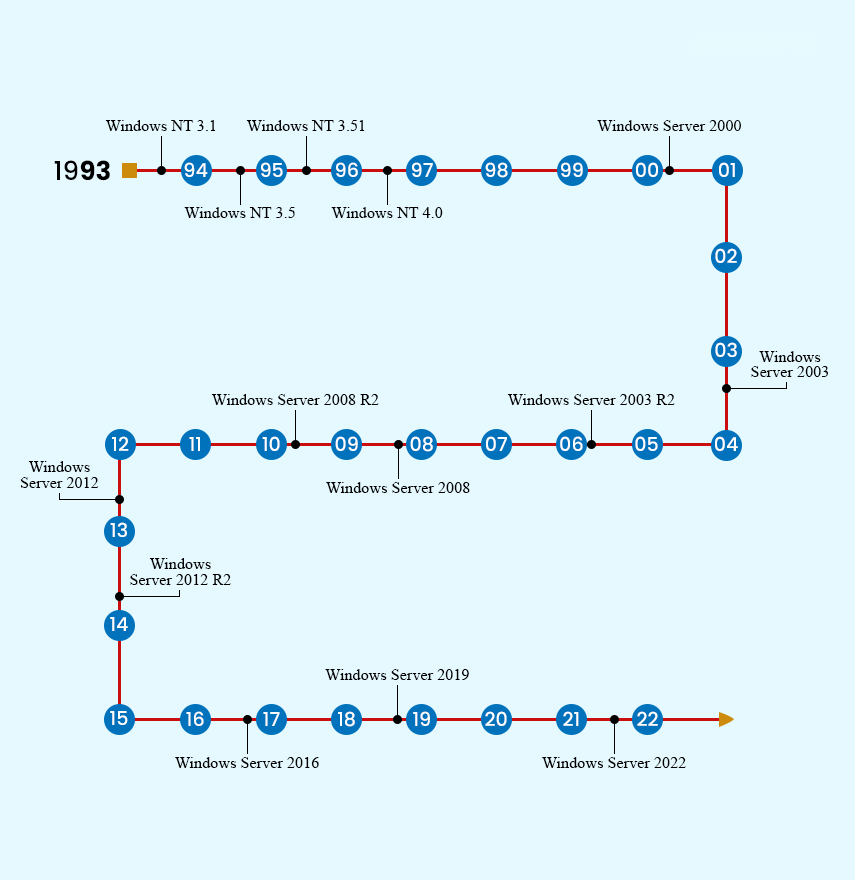
Windows Server powers business networks and services. This guide shows where to download official Windows Server ISO images (2022, 2019, 2016, 2012 R2, and the latest 2025), the system requirements, and how to create installation media.
Download official Windows Server ISO images from Microsoft.
Key Takeaways
- Download evaluation ISOs from the Microsoft Evaluation Center; licensed copies from Volume Licensing.
- Evaluation editions are full-featured but time-limited (typically 180 days).
- Choose the edition (Standard or Datacenter) and installation type (Desktop Experience or Core).
- Create bootable media with Rufus, Ventoy, or by burning the ISO.
System Requirements
- Processor: 1.4 GHz 64-bit, compatible with the x64 instruction set.
- Memory: 512 MB minimum (2 GB+ for Desktop Experience).
- Storage: at least 32 GB.
- Network adapter and firmware supporting UEFI for modern editions.
Where to Download
1. For evaluation: open Microsoft’s Evaluation Center and choose the Windows Server version (2025/2022/2019, etc.).
2. Register and select the ISO download.
3. For licensed media: sign in to the Microsoft Volume Licensing Service Center (VLSC) or your Microsoft 365 admin portal.
4. Older versions (2016/2012 R2) are available as evaluations from the same Evaluation Center.
Warning: Download Windows Server only from Microsoft’s official Evaluation Center or Volume Licensing — not third-party sites.
Editions and Installation Options
- Standard — for physical or lightly virtualised environments.
- Datacenter — for highly virtualised and cloud datacentres.
- Desktop Experience — full GUI; Server Core — minimal, command-line-focused install.
Create Installation Media and Install
1. Insert an 8 GB+ USB drive (contents will be erased).
2. Use Rufus or Ventoy to write the Windows Server ISO to the drive.
3. Boot the target server from the USB.
4. Choose the edition and installation type, select the disk, and follow the prompts.
Troubleshooting
Problem: The evaluation expired.
Solution: Evaluations last ~180 days. You can sometimes rearm with slmgr, but for production you must apply a valid licence.
Problem: Which edition should I pick?
Solution: Standard for most uses; Datacenter for heavy virtualisation and advanced features.
Problem: The server will not boot from USB.
Solution: Enable UEFI/USB boot in firmware and match the boot mode (UEFI vs Legacy) to how the USB was created.
Problem: I need a licence key.
Solution: Obtain it via Volume Licensing or your reseller; evaluation media can later be converted to a licensed edition.
Conclusion
Microsoft’s Evaluation Center and Volume Licensing are the official sources for Windows Server ISOs. Pick your version and edition, create bootable media, and install — using a proper licence for production deployments.
</w:pBdr><w:spacing w:before="220" w:after="40"/></w:pPr><w:r><w:rPr><w:b/><w:bCs/><w:color w:val="0B5394"/><w:sz w:val="21"/><w:szCs w:val="21"/><w:rFonts w:ascii="Calibri" w:cs="Calibri" w:eastAsia="Calibri" w:hAnsi="Calibri"/></w:rPr><w:t xml:space="preserve">About TechHub
This guide is part of the TechHub Knowledge Base. For more step-by-step IT guides and support, visit techhub.com.lk.