Overview
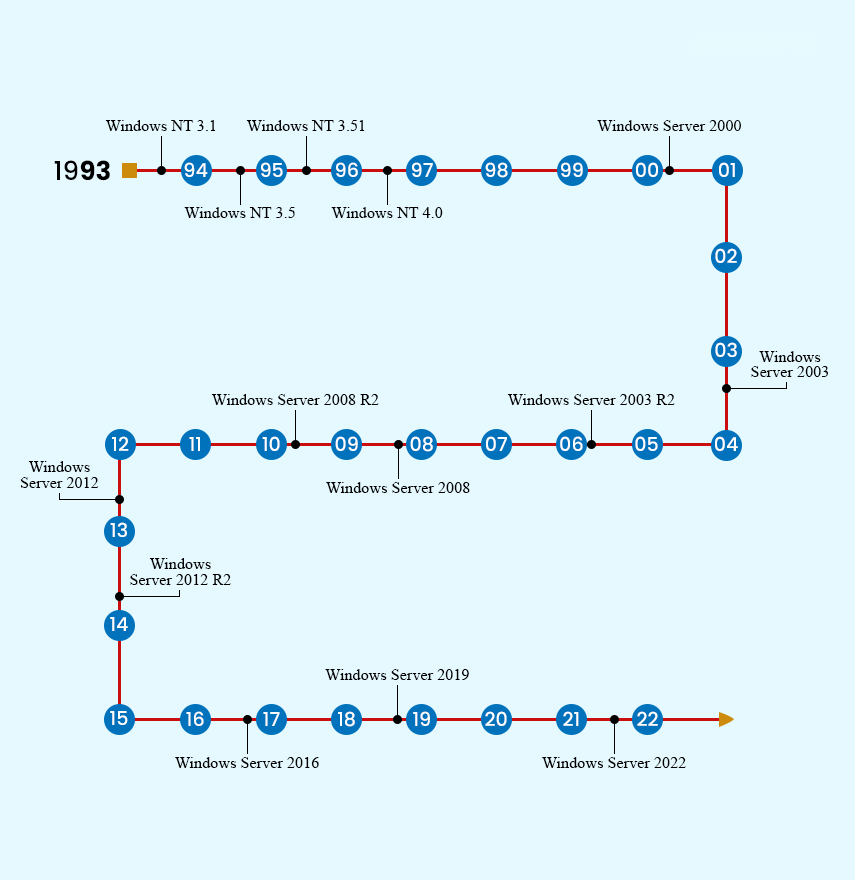
HTTP/3 runs over QUIC (UDP) for faster, more reliable connections than HTTP/2. Windows Server 2022 supports it in IIS. This guide shows how to enable HTTP/3 and TLS 1.3, advertise it, and verify it’s working.
Enabling HTTP/3 for IIS.
Key Takeaways
- HTTP/3 uses QUIC over UDP for lower latency.
- Requires Windows Server 2022 with TLS 1.3.
- Enable via Registry and advertise with an Alt-Svc header.
- Open UDP 443 in the firewall.
Prerequisites
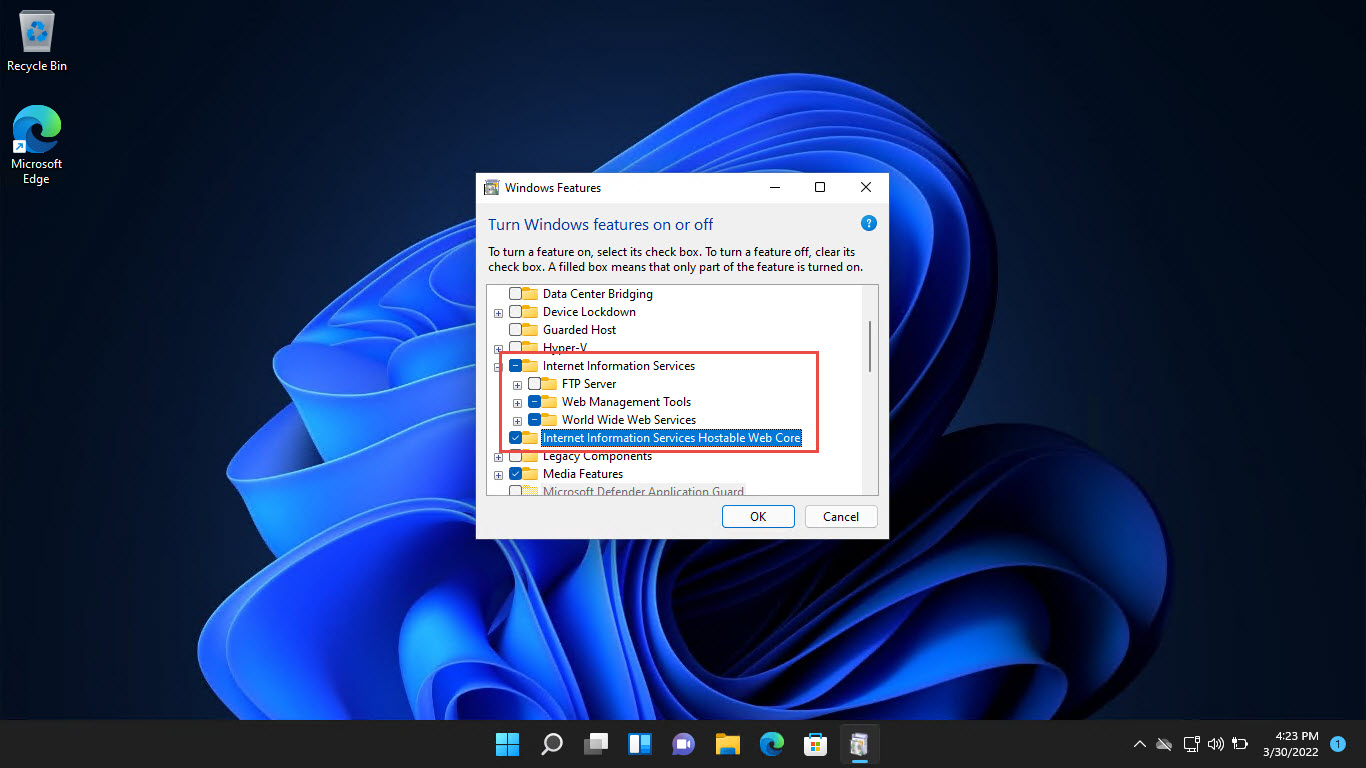
- Windows Server 2022 with the IIS role installed.
- A valid TLS certificate bound to the site (HTTPS).
- TLS 1.3 support enabled.
Step 1: Enable HTTP/3 and TLS 1.3
Warning: Editing the Registry incorrectly can cause problems. Back up the Registry first.
1. Enable HTTP/3 via the Registry (EnableHttp3) and enable QUIC support.
2. Ensure TLS 1.3 is enabled in the SChannel settings.
3. Reboot the server to apply.
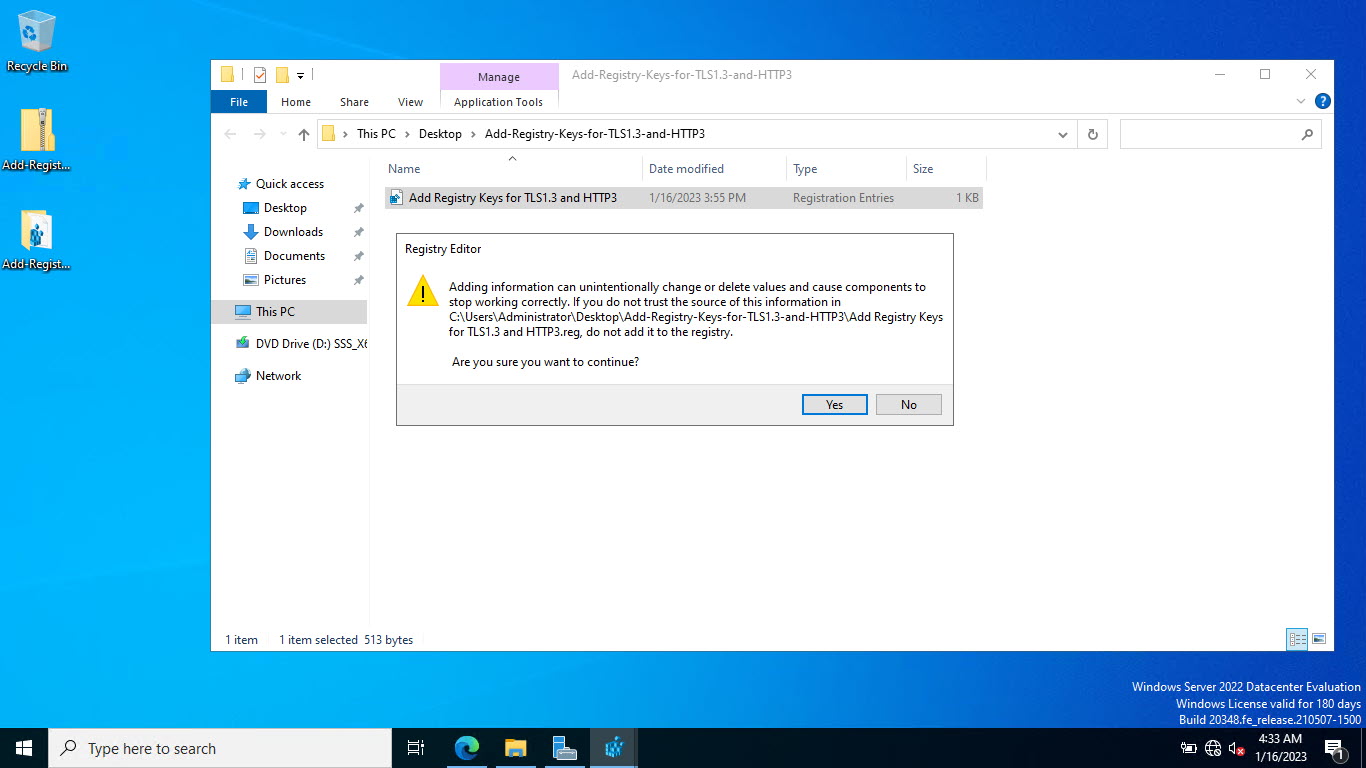
Apply the settings via a .reg file.
Step 2: Add the Required Cipher
1. Ensure the TLS 1.3 cipher suites (e.g., TLS_AES_256_GCM_SHA384) are enabled.
2. Add/verify them in Group Policy or the SSL cipher configuration.
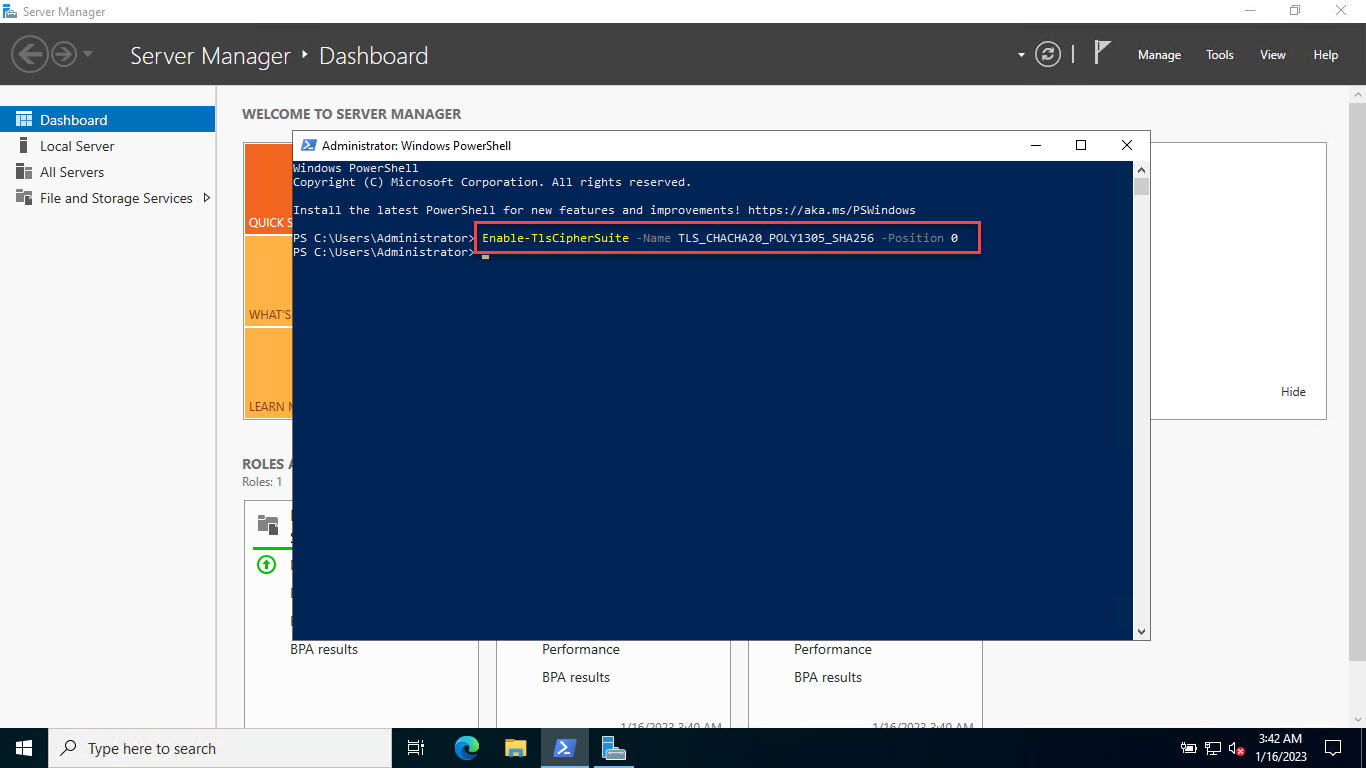
Enable the required cipher.
Step 3: Advertise HTTP/3 (Alt-Svc)
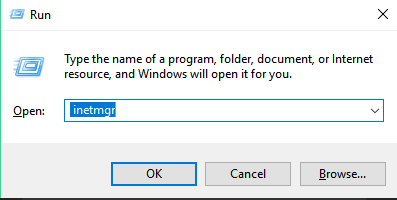
1. In IIS Manager, open the site’s HTTP Response Headers.
2. Add a header: Name = alt-svc, Value = h3=":443"; ma=86400
3. This tells clients HTTP/3 is available.
Step 4: Open the Firewall and Verify
1. Allow UDP port 443 through Windows Firewall (HTTP/3 uses UDP).
2. Browse the site in a modern browser and check DevTools > Network > Protocol shows "h3".
3. Or use an online HTTP/3 test tool.
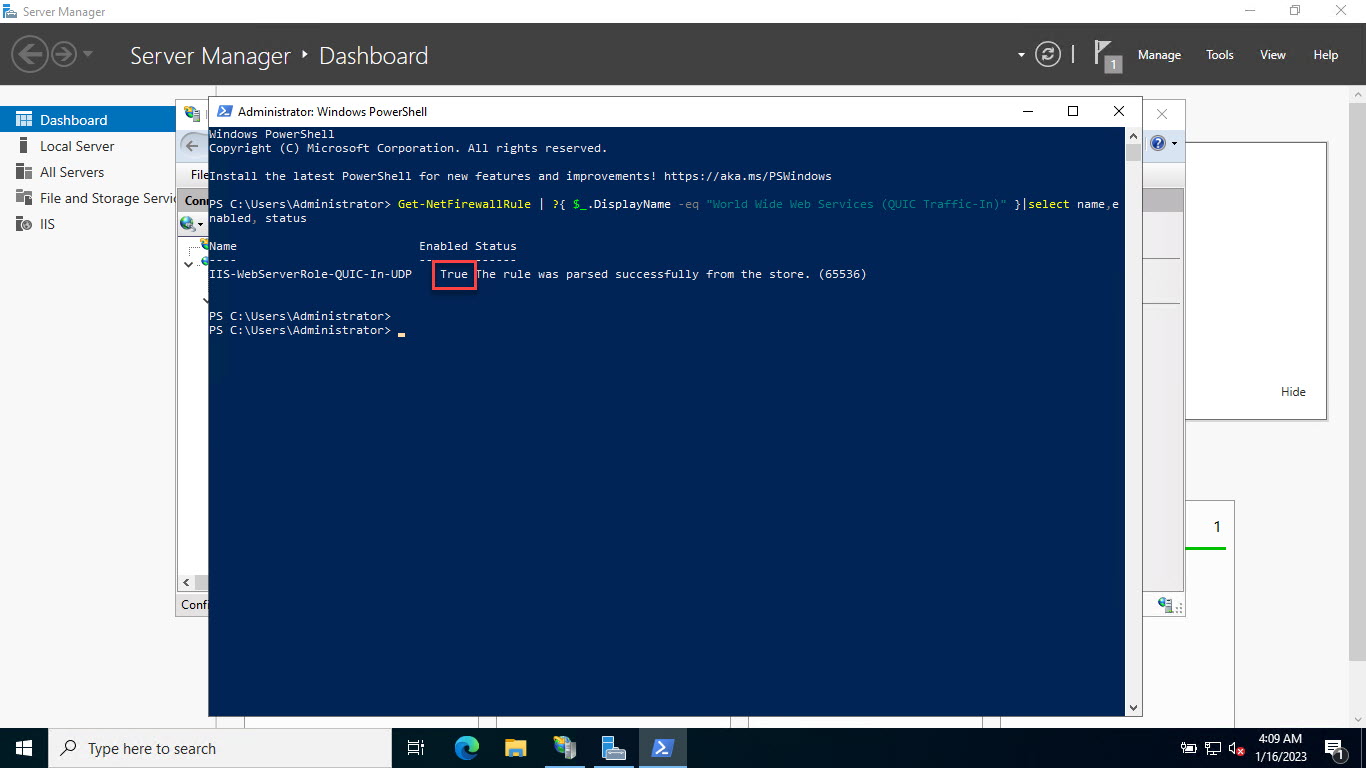
Check firewall status for port 443.
Troubleshooting
Problem: Browser still uses HTTP/2.
Solution: Confirm the alt-svc header is present, UDP 443 is open, and the client supports HTTP/3; the first request upgrades on the next connection.
Problem: HTTP/3 not negotiating.
Solution: Ensure TLS 1.3 and the required ciphers are enabled and the certificate is valid.
Problem: Connections fail on UDP.
Solution: A firewall/NAT may block UDP 443 — open it end-to-end.
Problem: Setting didn’t apply.
Solution: Reboot after the Registry changes; HTTP/3 support initializes at startup.
Conclusion
Enabling HTTP/3 on IIS in Server 2022 involves turning on QUIC/TLS 1.3 via the Registry, advertising it with an Alt-Svc header, and opening UDP 443. Once configured, modern browsers negotiate HTTP/3 automatically for faster, more resilient connections.
</w:pBdr><w:spacing w:before="220" w:after="40"/></w:pPr><w:r><w:rPr><w:b/><w:bCs/><w:color w:val="0B5394"/><w:sz w:val="21"/><w:szCs w:val="21"/><w:rFonts w:ascii="Calibri" w:cs="Calibri" w:eastAsia="Calibri" w:hAnsi="Calibri"/></w:rPr><w:t xml:space="preserve">About TechHub
This guide is part of the TechHub Knowledge Base. For more step-by-step IT guides and support, visit techhub.com.lk.