Overview
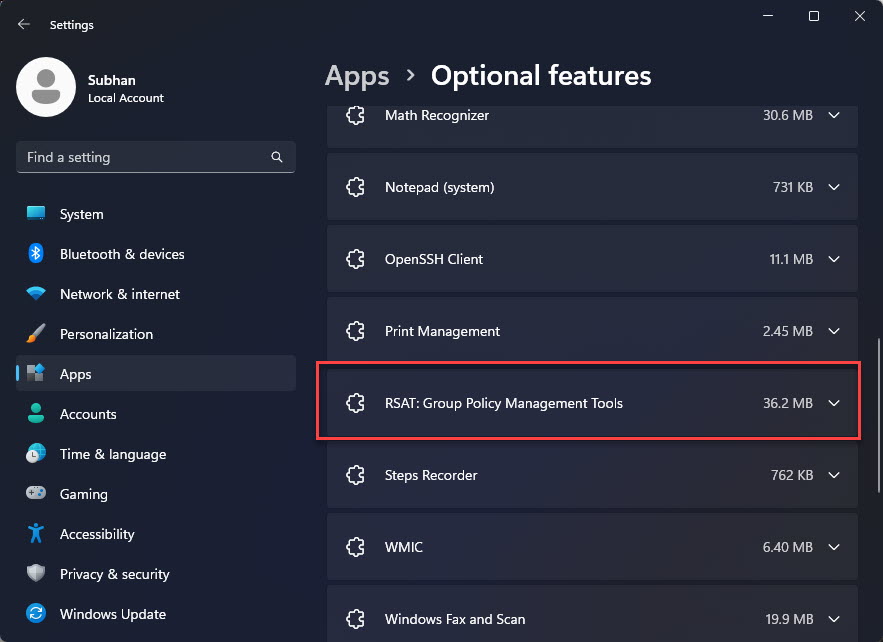
Knowing your IIS version helps with compatibility and troubleshooting. This guide shows five ways to check the installed IIS version in Windows — and how to confirm whether IIS is installed at all.
Checking the installed IIS version.
Key Takeaways
- IIS Manager’s Help > About shows the version.
- The Registry stores the IIS version numbers.
- Command Prompt and PowerShell can query it.
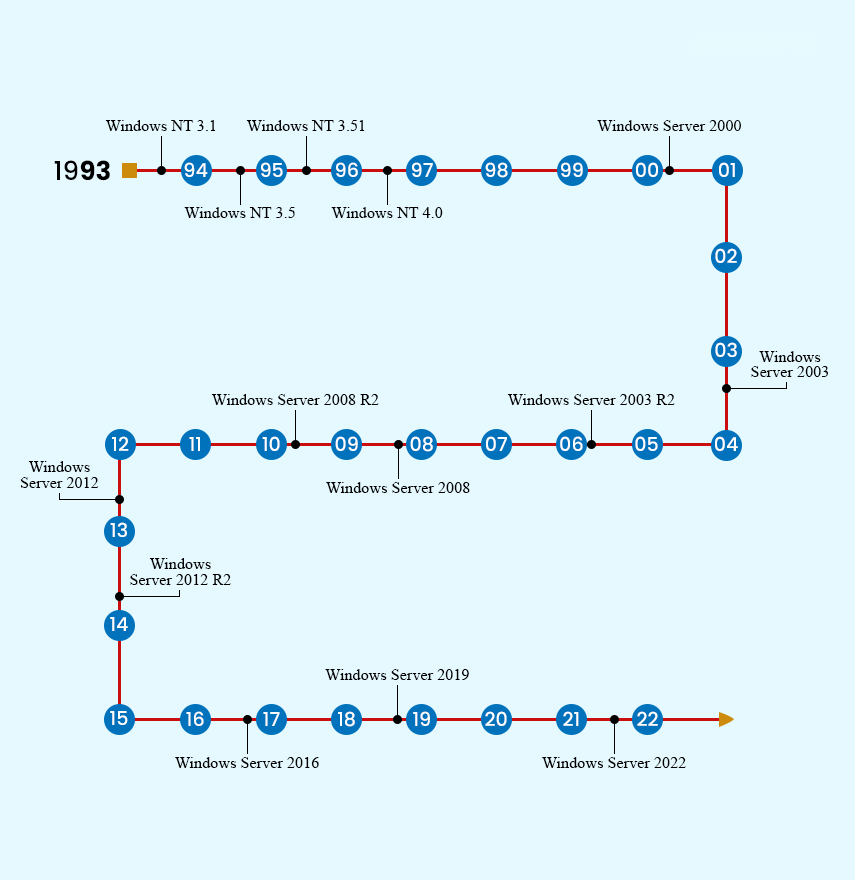
- IIS version corresponds to the Windows version.
Method 1: IIS Manager
1. Press Windows + R, type inetmgr, and press Enter.
2. In IIS Manager, click Help > About Internet Information Services.
3. The version is displayed.
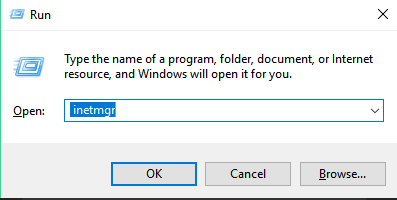
Open the IIS Manager.
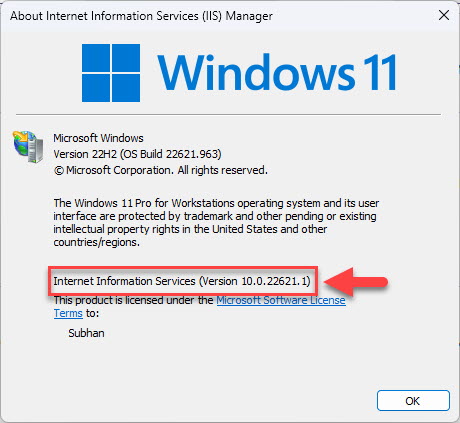
Find the version in IIS Manager.
Method 2: Registry Editor
1. Open regedit.
2. Go to HKEY_LOCAL_MACHINE\SOFTWARE\Microsoft\InetStp.
3. Read VersionString / MajorVersion / MinorVersion.
Method 3: Command Prompt
1. Open Command Prompt.
2. Run: reg query "HKLM\SOFTWARE\Microsoft\InetStp" /v VersionString
3. The IIS version is returned.
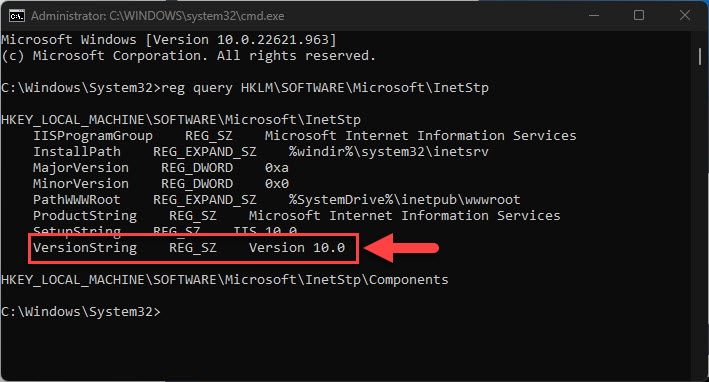
Find the IIS version using Command Prompt.
Method 4: Run Command (version file)
1. You can also check the version of %windir%\system32\inetsrv\InetMgr.exe via its Properties > Details tab.
2. The file version reflects the IIS version.
Method 5: PowerShell
1. Open PowerShell.
2. Run: (Get-ItemProperty "HKLM:\SOFTWARE\Microsoft\InetStp").VersionString
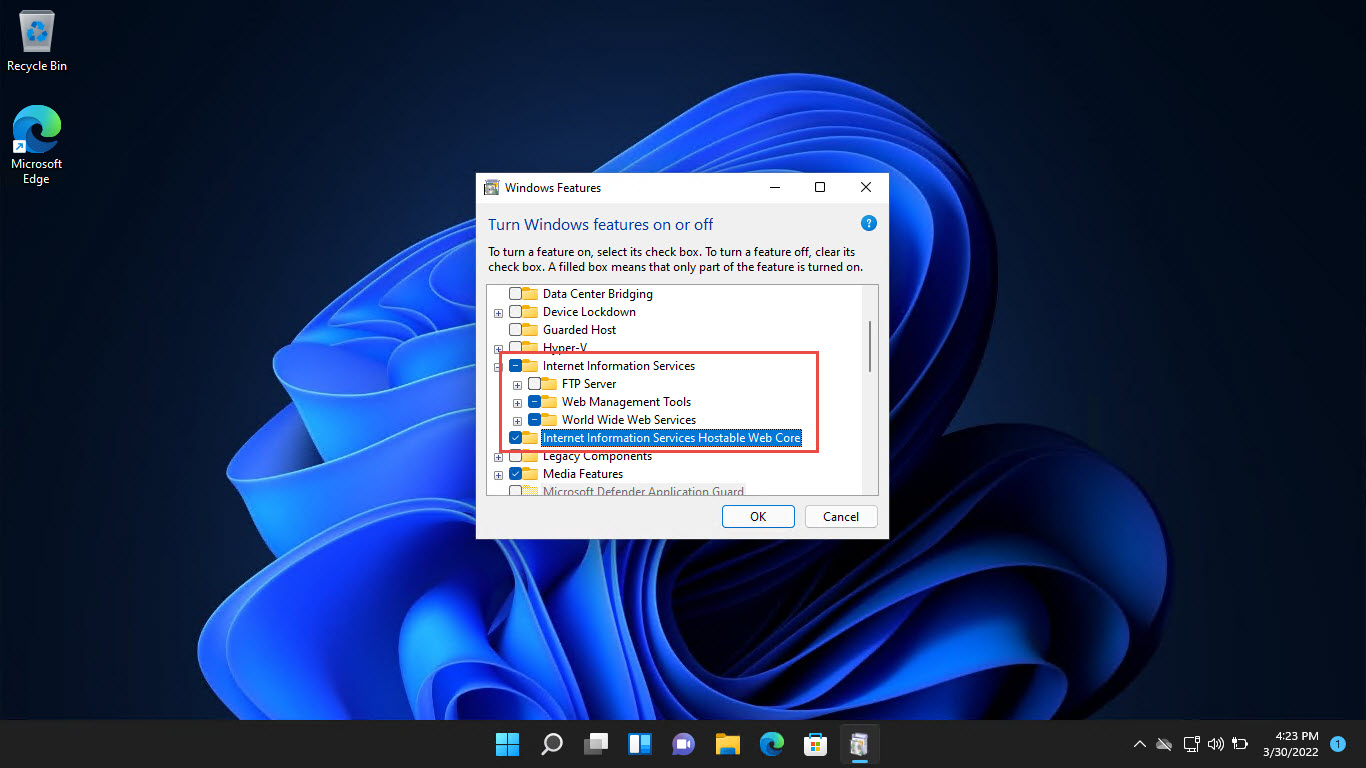
3. To check if IIS is installed: Get-WindowsOptionalFeature -Online -FeatureName IIS-WebServerRole
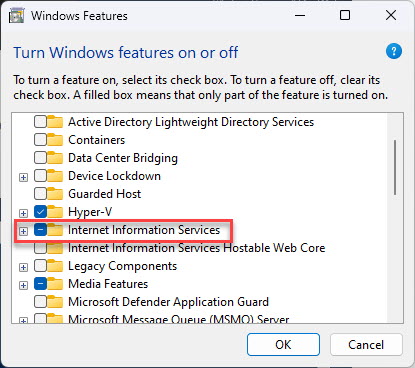
Check if IIS is enabled.
Troubleshooting
Problem: inetmgr not found.
Solution: IIS (or its management console) isn’t installed — enable it via Windows Features.
Problem: InetStp key missing.
Solution: IIS isn’t installed; install the Web Server (IIS) role/feature first.
Problem: Version doesn’t match expectations.
Solution: IIS version is tied to the Windows version — confirm your Windows build.
Problem: Need to know installed modules.
Solution: Use Get-WindowsOptionalFeature -Online | Where FeatureName -like "IIS-*" to list IIS components.
Conclusion
You can check the IIS version quickly through IIS Manager’s About dialog, or programmatically via the InetStp Registry key, Command Prompt, or PowerShell. These same methods also confirm whether IIS is installed on the machine.
</w:pBdr><w:spacing w:before="220" w:after="40"/></w:pPr><w:r><w:rPr><w:b/><w:bCs/><w:color w:val="0B5394"/><w:sz w:val="21"/><w:szCs w:val="21"/><w:rFonts w:ascii="Calibri" w:cs="Calibri" w:eastAsia="Calibri" w:hAnsi="Calibri"/></w:rPr><w:t xml:space="preserve">About TechHub
This guide is part of the TechHub Knowledge Base. For more step-by-step IT guides and support, visit techhub.com.lk.