2 Ways to Search for a Specific Group Policy in the Group Policy Editor
Quickly find the right policy in gpedit.msc using the built-in filter and search tools.
Overview
The Group Policy Editor holds thousands of settings, so finding one by browsing is slow. This guide shows how to search policies using the built-in Filter and free search tools like GPSearch.
Key Takeaways
- Administrative Templates support keyword filtering.
- GPSearch and similar tools index and search all policies.
- Microsoft also publishes a policy reference spreadsheet.
- Searching saves time vs manual browsing.
Method 1: Built-in Filter (Administrative Templates)
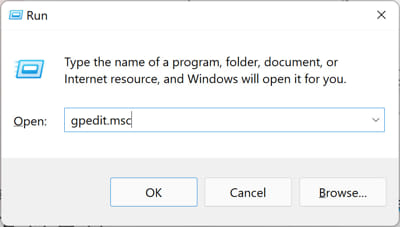
1. Open gpedit.msc.
2. Select Computer (or User) Configuration > Administrative Templates.
3. Right-click Administrative Templates > "Filter Options".
4. Enable keyword filters and enter the term (title/help text).
5. Turn on "Filter On" (Action menu) to show only matching policies.
Method 2: GPSearch / Third-Party Tools
Note: Download policy-search tools only from their official sources.
1. Use a tool like GPSearch or NIT-GPOSearch to index policies.
2. Type a keyword to instantly find matching policies and their paths.
3. Navigate to that path in gpedit.msc to change the setting.
Microsoft Policy Reference
1. Microsoft publishes an official "Group Policy Settings Reference" spreadsheet for each Windows version.
2. Search it to find a policy’s exact name, path, and registry mapping.
3. Great for documentation and locating obscure settings.
Troubleshooting
Problem: Filter shows nothing.
Solution: Ensure "Filter On" is enabled and the keyword matches the policy title/help text; try a broader term.
Problem: Policy exists but no GUI on Home.
Solution: Windows Home lacks gpedit — use the equivalent Registry value (the reference spreadsheet lists it).
Problem: Can’t find a setting.
Solution: Use the Microsoft reference spreadsheet or GPSearch, which cover every policy.
Problem: Change has no effect.
Solution: Run gpupdate /force, and check a domain GPO isn’t overriding your local setting.
Conclusion
To find a policy fast, use the Administrative Templates Filter with a keyword, or a tool like GPSearch to index everything. Microsoft’s policy reference spreadsheet is the definitive way to locate a setting’s exact name, path, and registry equivalent.