Overview
The Remote Desktop Connection client is launched by the mstsc command. Running it from the command line with parameters lets you connect to a specific computer, open a saved connection, or start in full screen — ideal for scripts and shortcuts. This guide covers the key options.
Key Takeaways
- mstsc opens the Remote Desktop Connection client.
- The /v switch specifies the computer to connect to.
- You can open saved .rdp files directly from the command line.
- Switches control full-screen, multi-monitor, and admin-session behavior.
Connect With mstsc
1. Open Command Prompt or the Run dialog.
2. Open the client alone with: mstsc
3. Connect to a specific PC: mstsc /v:computername
4. Add a port if needed: mstsc /v:computername:3389
Useful Switches
- /f — starts the session in full screen.
- /multimon — enables multiple-monitor support.
- /admin — connects to the administrative session on a server.
- "C:\path\file.rdp" — opens a saved connection profile.
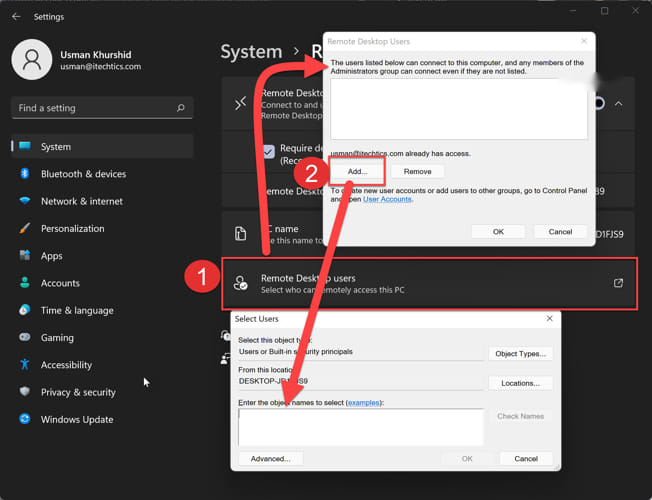
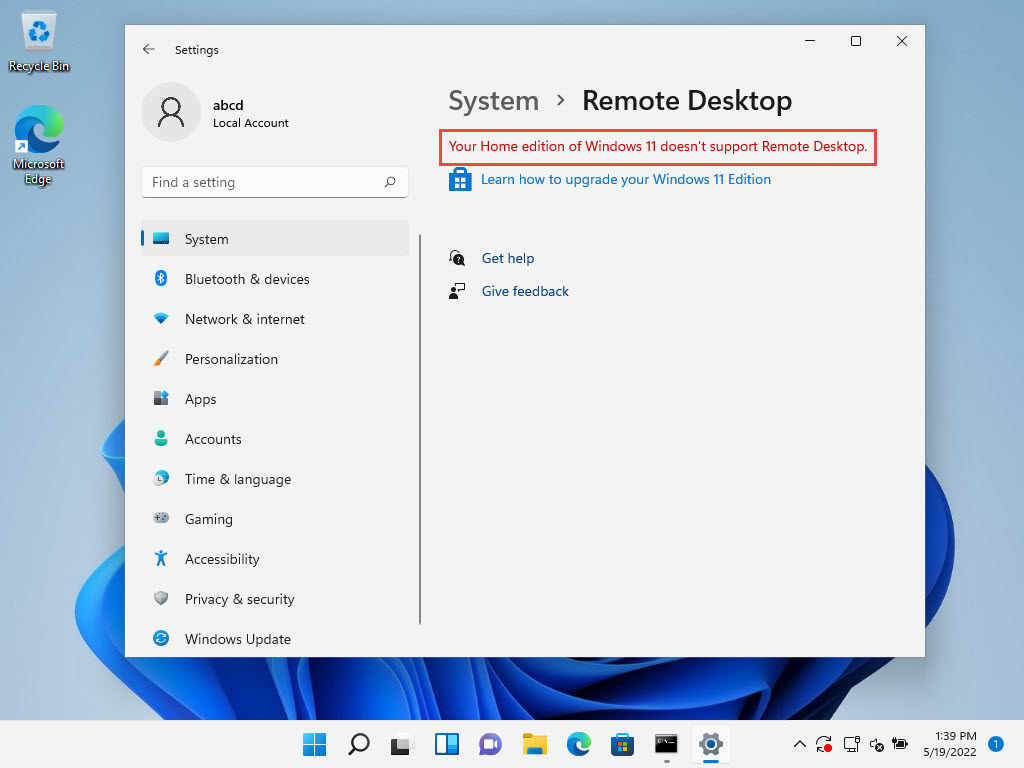
Note: Remote Desktop connections require the target PC to have Remote Desktop enabled and to be reachable on the network.
Troubleshooting
Problem: The connection cannot reach the remote PC.
Solution: Confirm Remote Desktop is enabled on the target, it is powered on, and port 3389 is open through the firewall.
Problem: mstsc is not recognized.
Solution: Use the full path or run it from the Run dialog; the file lives in System32.
Problem: Credentials are rejected.
Solution: Use an account permitted for remote access on the target and include the domain if required.
Problem: A saved .rdp file will not open.
Solution: Check the file path and that the profile references a valid, reachable computer.
Conclusion
Launching mstsc from the command line streamlines remote connections and makes them scriptable. A one-line command with the right switches gets you connected instantly.
About TechHub
This guide is part of the TechHub Knowledge Base. For more step-by-step IT guides and support, visit techhub.com.lk.