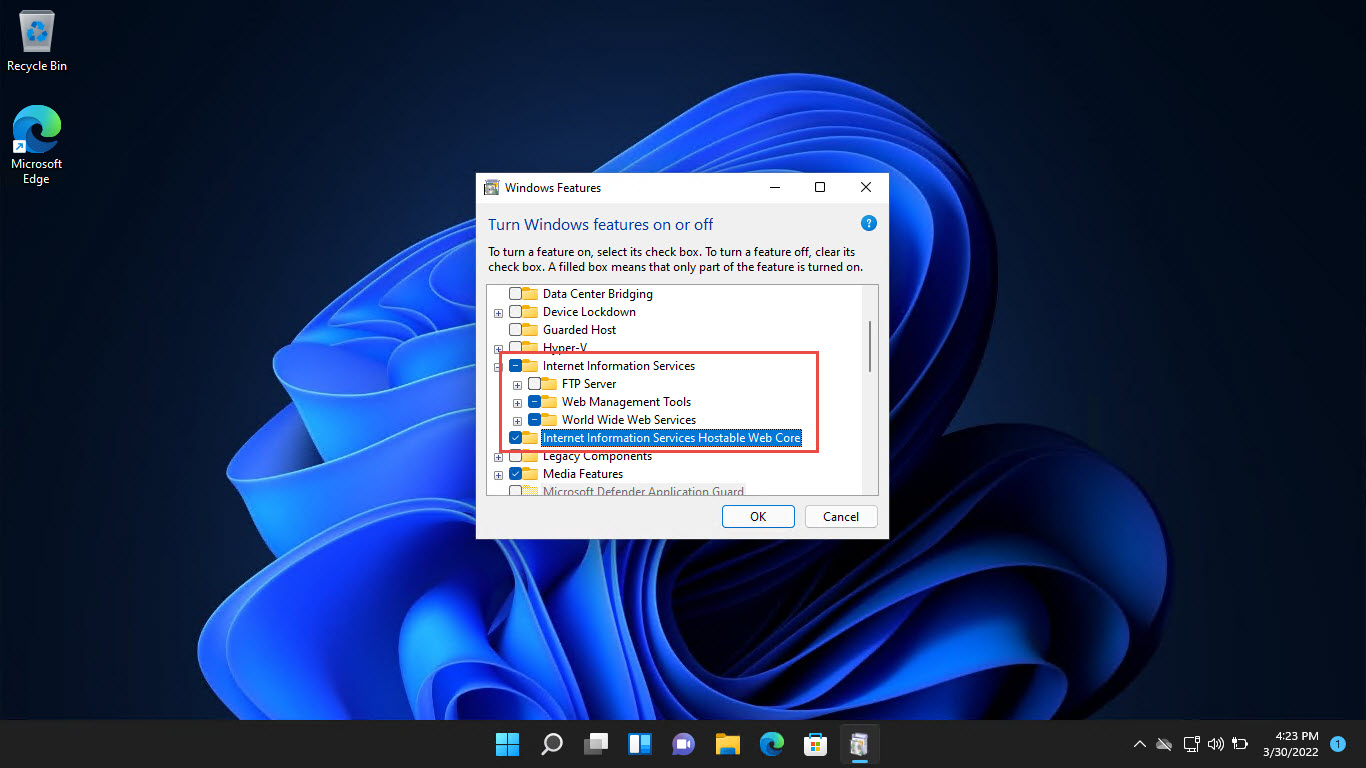
Overview
Remote Server Administration Tools (RSAT) let you manage Windows Server roles and features — like Active Directory, DNS, and DHCP — from a Windows 11 client without logging into each server. On Windows 11, RSAT is built in as Features on Demand. This guide shows how to install and run them.
RSAT lets you manage Windows Servers from your Windows 11 PC.
Key Takeaways
- RSAT is included in Windows 11 as optional Features on Demand — no separate download needed.
- Install only the tools you need, or all of them, via Settings or PowerShell.
- You need an internet connection and administrator rights.
- Run the tools from Windows Tools or the Start menu after installing.
Method 1 — Install via Settings
1. Open Settings > System > Optional features.
2. Click View features next to "Add an optional feature".
3. Search for RSAT and tick the specific tools you need (e.g. RSAT: Active Directory Domain Services).
4. Click Next > Install and wait for them to download.
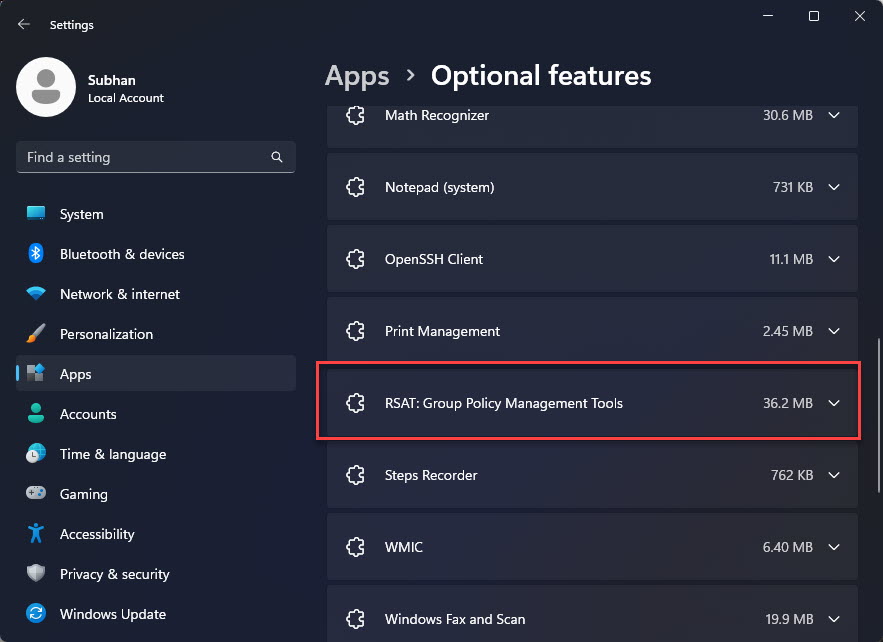
An RSAT tool installed via Optional features.
Method 2 — Install via PowerShell
1. Open PowerShell as administrator.
2. List available RSAT capabilities: Get-WindowsCapability -Online -Name RSAT*
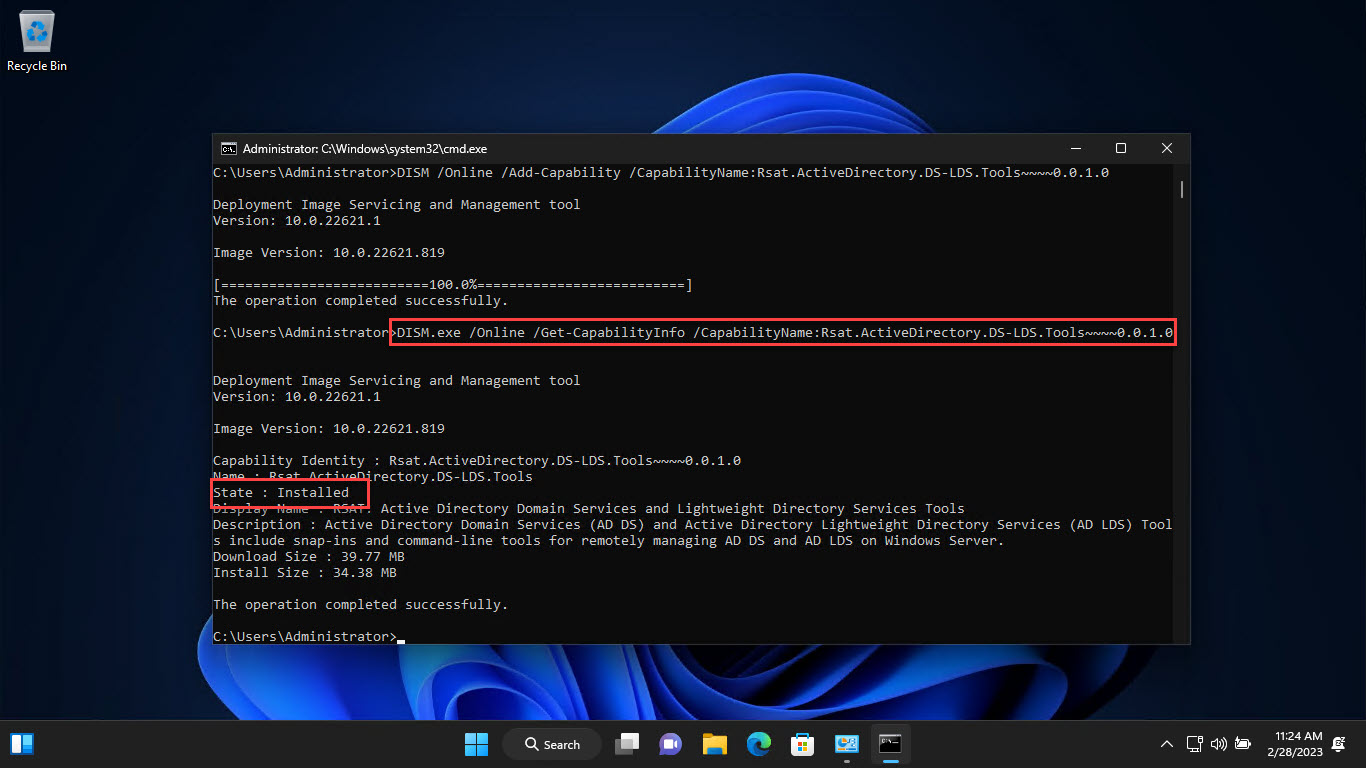
3. Install one: Add-WindowsCapability -Online -Name "Rsat.ActiveDirectory.DS-LDS.Tools~~~~0.0.1.0"
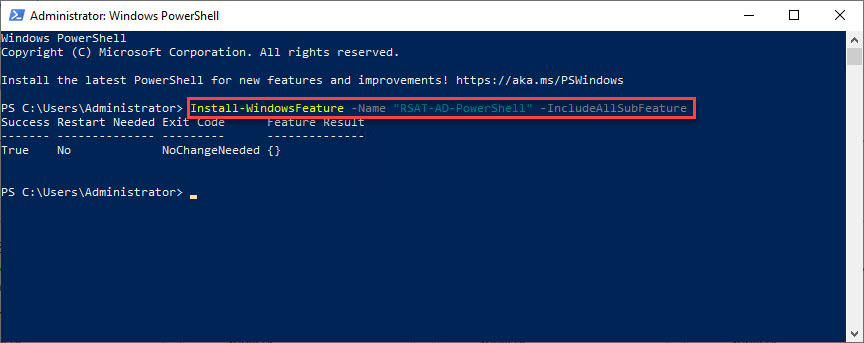
4. Install all at once: Get-WindowsCapability -Online -Name RSAT* | Add-WindowsCapability -Online
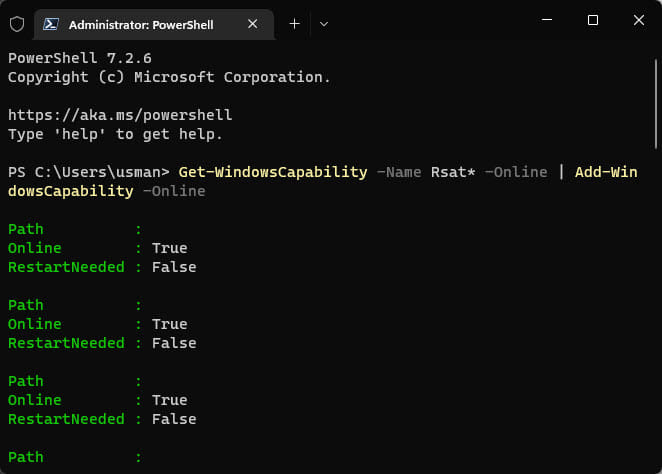
Installing all RSAT tools at once with PowerShell.
How to Run RSAT Tools
1. Open the Start menu and search for the tool (e.g. "Active Directory Users and Computers").
2. Or open Windows Tools (Control Panel > Windows Tools) to find the installed consoles.
3. Launch the tool and connect to your server/domain to manage it.
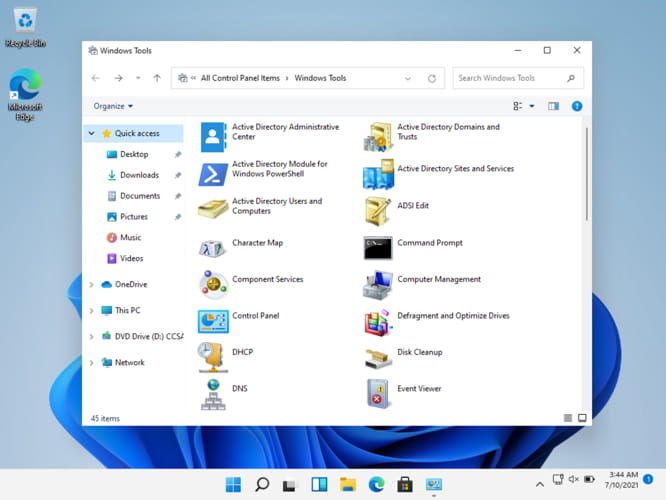
Installed RSAT tools appear in the Windows Tools directory.
Troubleshooting
Problem: RSAT does not appear in Optional features.
Solution: Ensure Windows is up to date and you are online. A Group Policy ("Specify settings for optional component installation") can block downloads from Windows Update — adjust it or use an alternate source.
Problem: Add-WindowsCapability fails.
Solution: Run PowerShell as administrator, confirm internet access, and check the exact capability name with Get-WindowsCapability -Online -Name RSAT*.
Problem: A tool will not connect to the server.
Solution: Verify network connectivity, that you have the right permissions, and that the server role is installed and reachable.
Problem: Tools are missing after a feature update.
Solution: Major Windows updates can remove RSAT; reinstall the needed tools via Settings or PowerShell.
Conclusion
RSAT turns your Windows 11 PC into a remote management console for Windows Server. Install just the tools you need from Optional features or PowerShell, then manage Active Directory, DNS, DHCP, and more without touching the servers directly.
</w:pBdr><w:spacing w:before="220" w:after="40"/></w:pPr><w:r><w:rPr><w:b/><w:bCs/><w:color w:val="0B5394"/><w:sz w:val="21"/><w:szCs w:val="21"/><w:rFonts w:ascii="Calibri" w:cs="Calibri" w:eastAsia="Calibri" w:hAnsi="Calibri"/></w:rPr><w:t xml:space="preserve">About TechHub
This guide is part of the TechHub Knowledge Base. For more step-by-step IT guides and support, visit techhub.com.lk.