Overview
A domain-joined PC normally picks a domain controller (DC) automatically. Sometimes you need it to use a specific DC — for troubleshooting, latency, or maintenance. This guide shows how to find the current DC and switch it temporarily or permanently.
You can direct a PC to a specific domain controller.
Key Takeaways
- Windows selects a DC automatically based on site and availability.
- See the current DC with echo %LOGONSERVER% or nltest.
- A command can force a different DC temporarily.
- A registry value can pin a DC more persistently (use with care).
Find the Current Domain Controller
1. Open Command Prompt.
2. Run: echo %LOGONSERVER% to see the DC that authenticated you.
3. Or run: nltest /dsgetdc:yourdomain.com for detailed DC info.
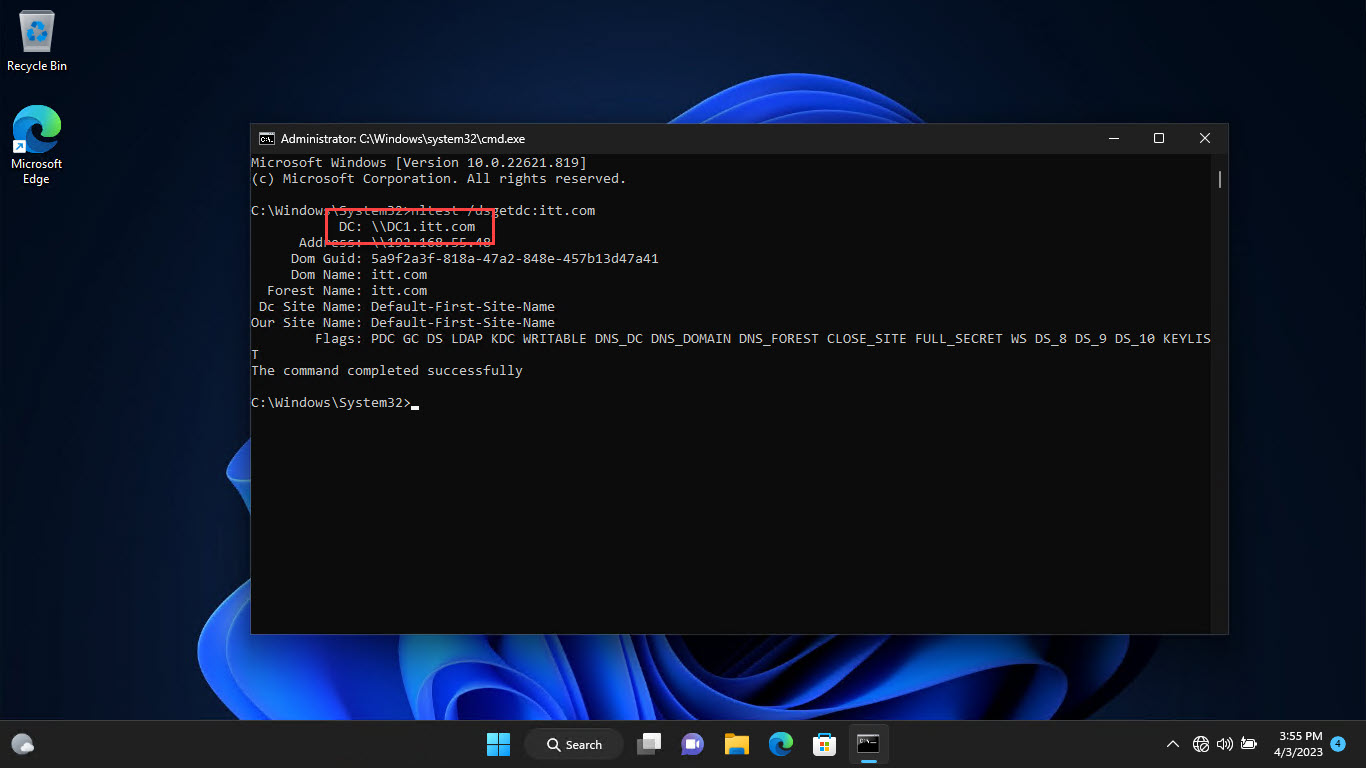
Find the current domain controller name.
Switch DC Temporarily (Command Prompt)
1. Open Command Prompt as administrator.
2. Reset the secure channel to a specific DC: nltest /sc_reset:yourdomain.com\DC-NAME
3. Verify with nltest /sc_query:yourdomain.com.
4. This lasts until the next automatic re-selection.
Switch DC Permanently (Registry)
Warning: Pinning a DC can cause problems if that DC goes offline. Back up the registry and prefer site-based selection in most cases.
1. Open regedit and go to HKEY_LOCAL_MACHINE\SYSTEM\CurrentControlSet\Services\Netlogon\Parameters.
2. Create a string value SiteName (or use the appropriate DC-targeting value for your environment).
3. Set it to direct the PC toward the desired site/DC.
4. Restart the Netlogon service or the PC.
Troubleshooting
Problem: The PC reverts to the old DC.
Solution: Automatic selection re-runs over time; the registry/site approach is more durable, but ensure the target DC stays available.
Problem: nltest is not recognized.
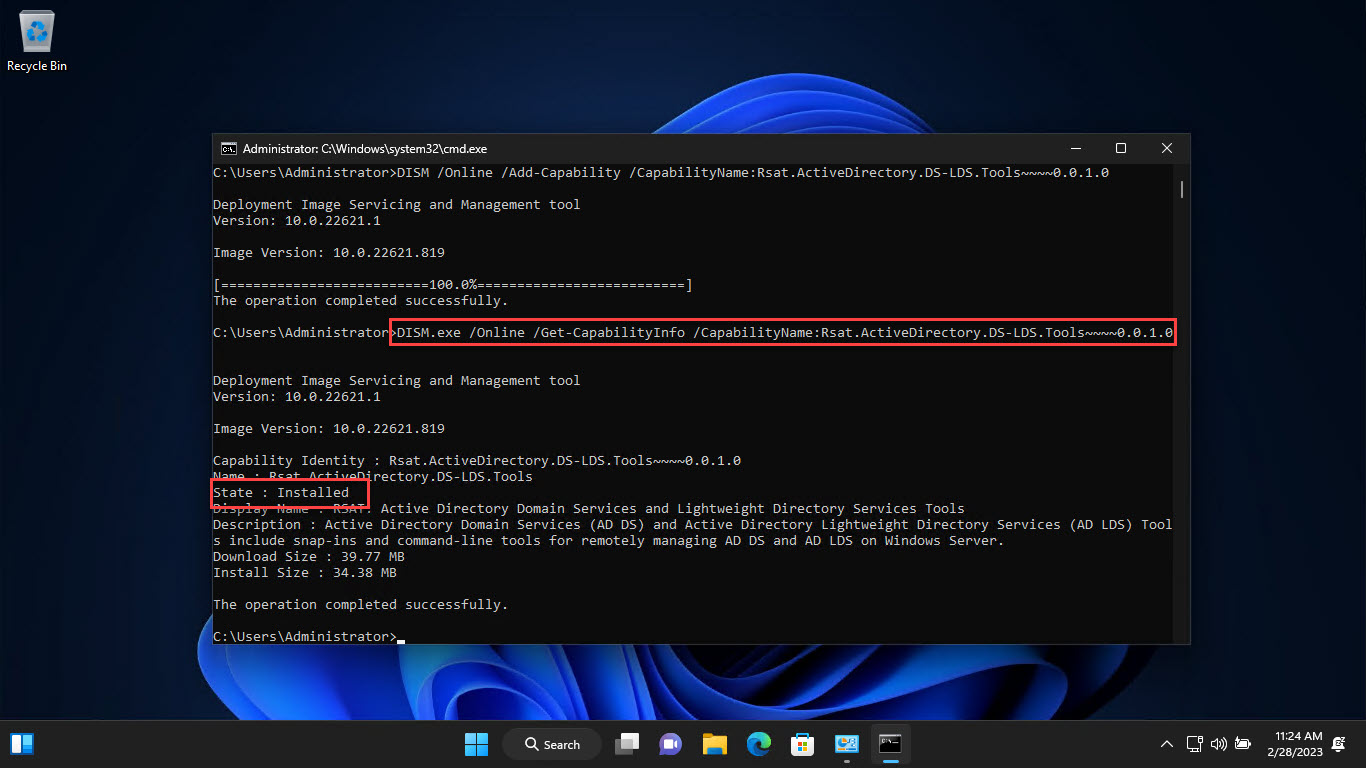
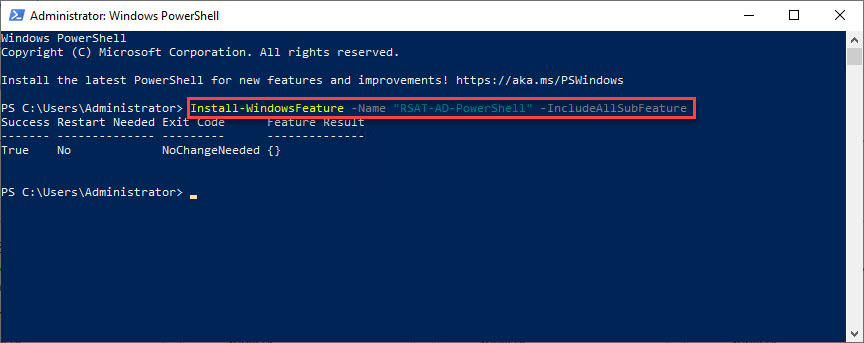
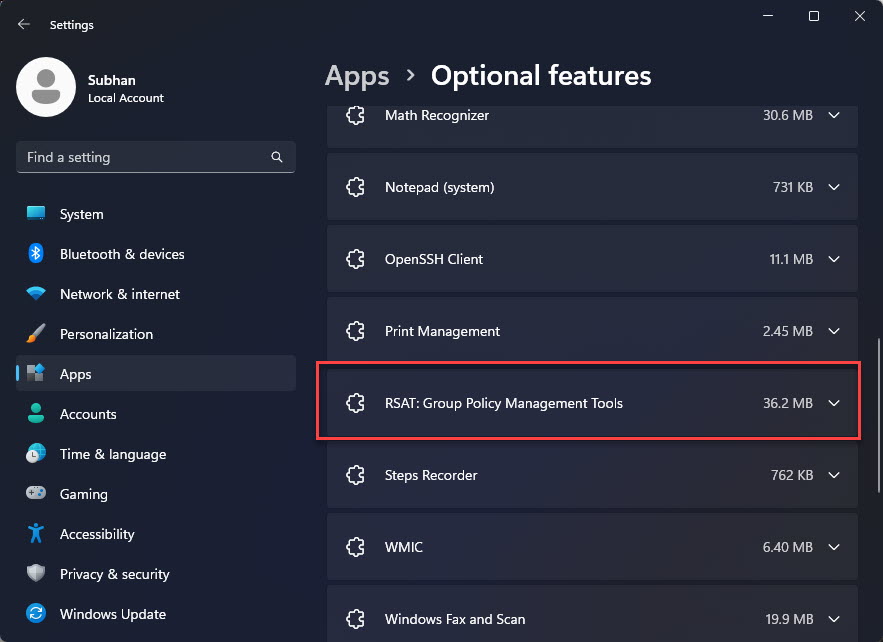
Solution: Install RSAT (the AD tools include nltest), and run Command Prompt as administrator.
Problem: Authentication is slow.
Solution: Confirm the PC is in the correct AD site so it selects a nearby DC; fix site/subnet definitions in AD Sites and Services.
Problem: Pinned DC went offline.
Solution: Remove the pin and let automatic selection choose an available DC, or point to a different online DC.
Conclusion
You can steer a PC to a specific domain controller with nltest for a temporary change or registry/site settings for a lasting one. In most cases, fixing AD site definitions is the better long-term fix so PCs pick the nearest healthy DC automatically.
</w:pBdr><w:spacing w:before="220" w:after="40"/></w:pPr><w:r><w:rPr><w:b/><w:bCs/><w:color w:val="0B5394"/><w:sz w:val="21"/><w:szCs w:val="21"/><w:rFonts w:ascii="Calibri" w:cs="Calibri" w:eastAsia="Calibri" w:hAnsi="Calibri"/></w:rPr><w:t xml:space="preserve">About TechHub
This guide is part of the TechHub Knowledge Base. For more step-by-step IT guides and support, visit techhub.com.lk.