Overview
Active Directory Users and Computers (ADUC, dsa.msc) is the primary tool for managing AD objects — users, computers, groups, and organizational units. This guide shows how to install it via RSAT on Windows and how to use its core features.
RSAT installs Active Directory Users and Computers.
Key Takeaways
- ADUC ships as part of RSAT on Windows 10/11.
- Install it via Optional Features, DISM, or PowerShell.
- Open it with dsa.msc once installed.
- Use it to create and manage users, computers, groups, and OUs.
Install ADUC on Windows
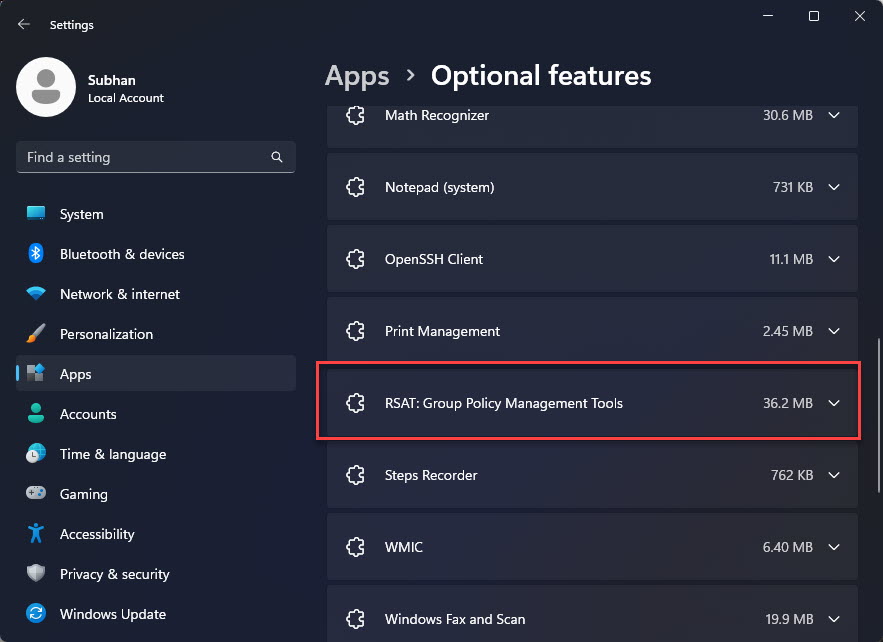
1. Open Settings > Apps > Optional features > Add an optional feature.
2. Search for "RSAT: Active Directory Domain Services and Lightweight Directory Services Tools" and install it.
3. Command Prompt alternative: DISM /Online /Add-Capability /CapabilityName:Rsat.ActiveDirectory.DS-LDS.Tools~~~~0.0.1.0
4. PowerShell alternative: Add-WindowsCapability -Online -Name "Rsat.ActiveDirectory.DS-LDS.Tools~~~~0.0.1.0"
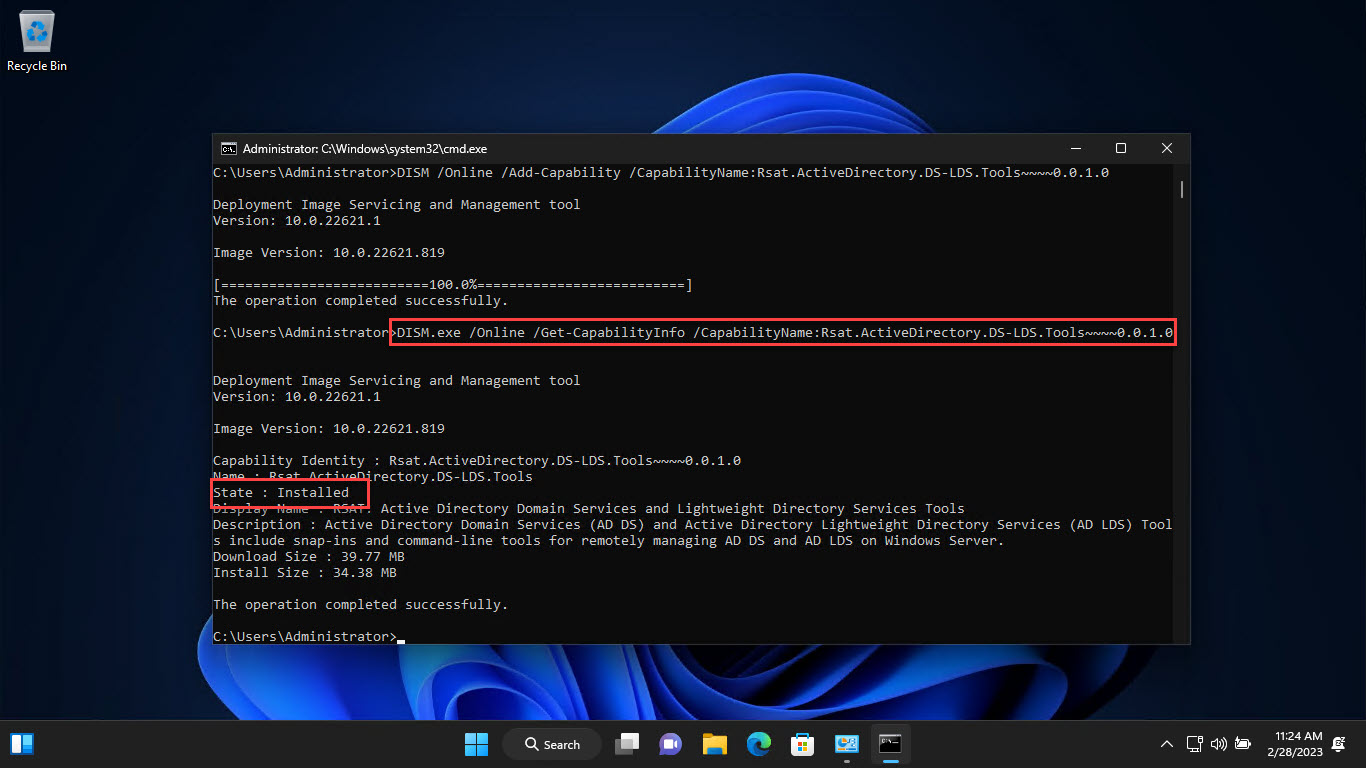
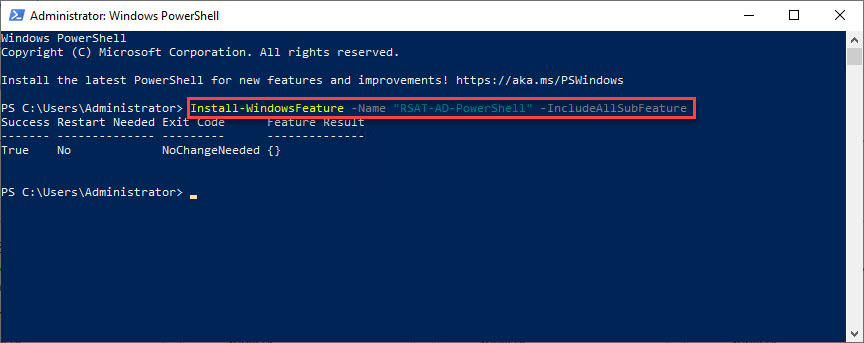
Confirming ADUC installation from Command Prompt.
Open ADUC
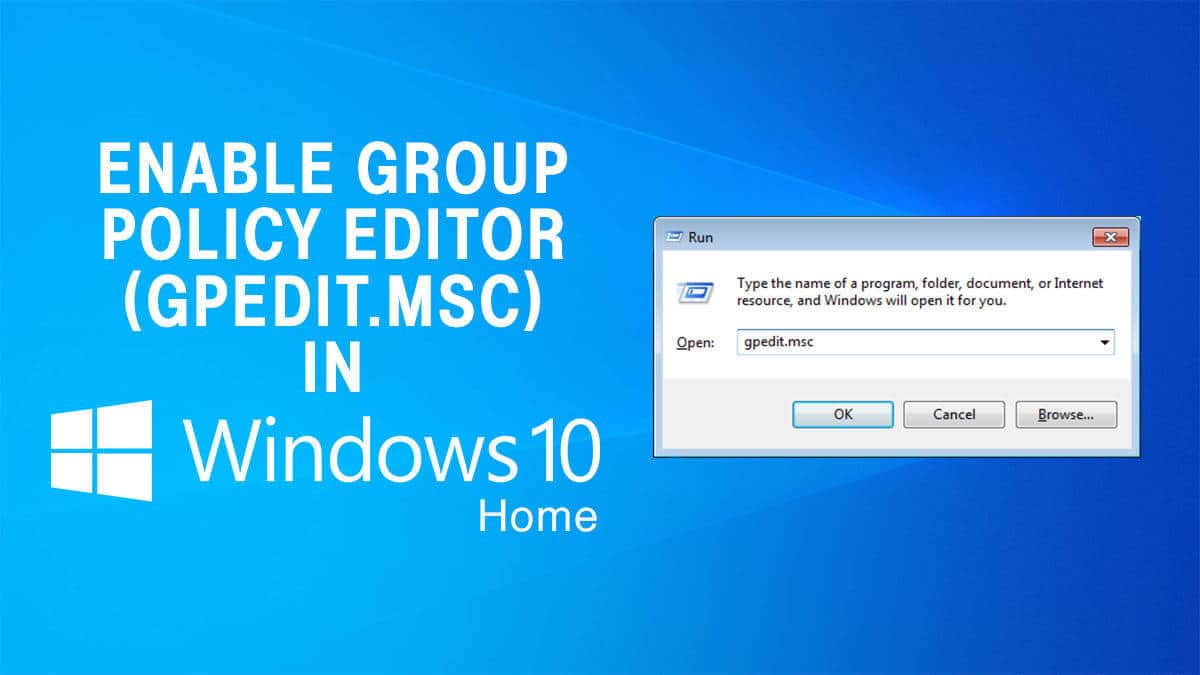
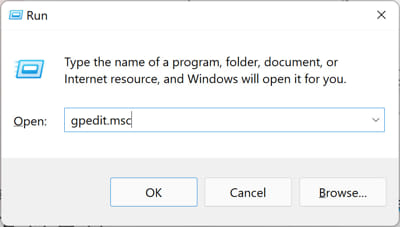
1. Press Windows + R, type dsa.msc, and press Enter.
2. Or find "Active Directory Users and Computers" in the Windows Tools / Administrative Tools.
3. It opens connected to your current domain.
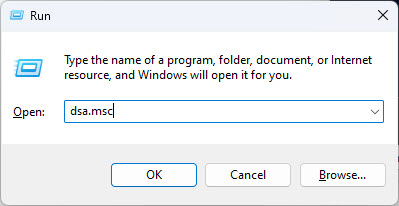
Opening the ADUC snap-in.
Connect to a Domain Controller
1. In ADUC, right-click the root node and choose "Change Domain Controller…".
2. Select or type the DC you want to manage.
3. Confirm to connect.
Manage Users, Computers, and OUs
1. Expand the domain to see containers and OUs.
2. Right-click an OU > New > User/Computer/Group to create objects.
3. Right-click an object for Reset Password, Disable Account, Move, or Properties.
4. Use View > Advanced Features to see additional tabs and attributes.
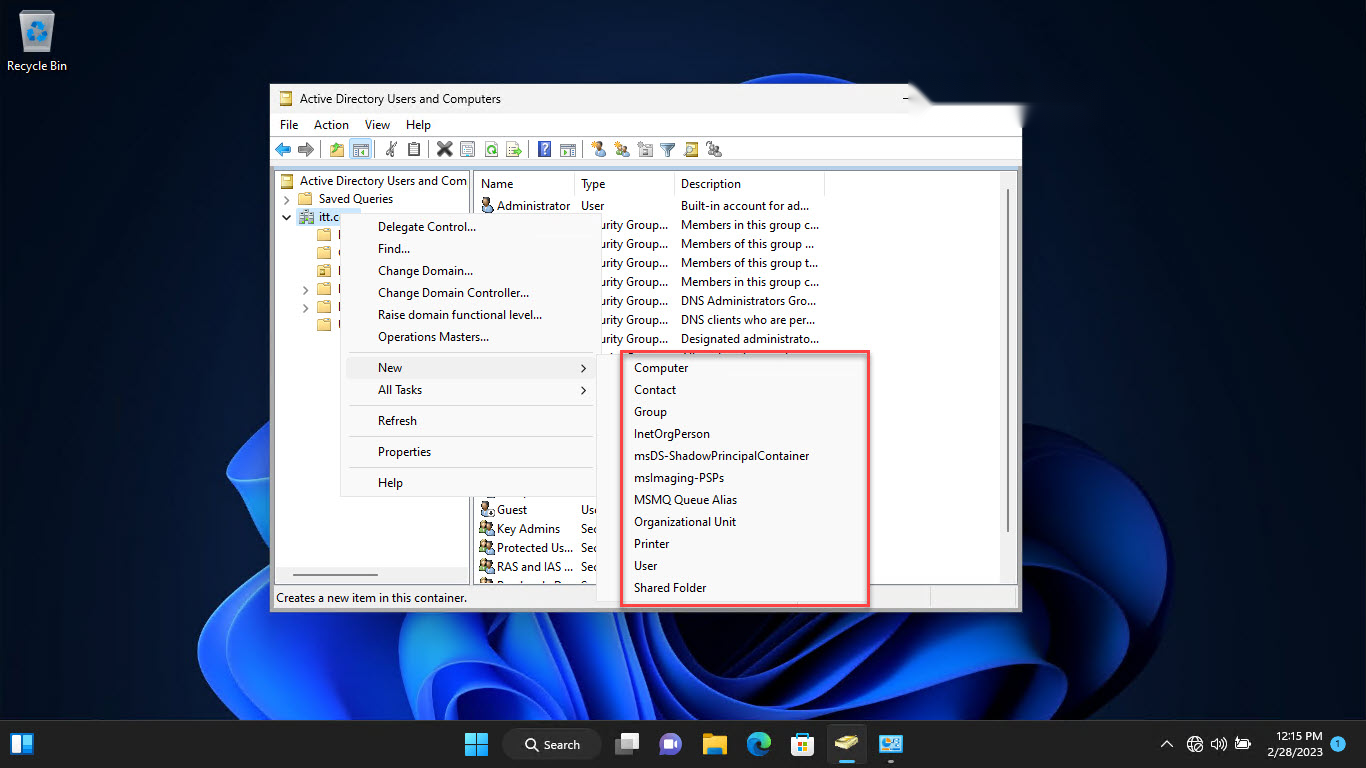
Adding users, computers, and OUs in ADUC.
Troubleshooting
Problem: dsa.msc not found.
Solution: Install RSAT first; ADUC isn’t present until the AD DS tools are added.
Problem: Can’t connect to the domain.
Solution: Ensure the PC is domain-joined or you have network access and credentials for a reachable domain controller.
Problem: Missing attribute tabs.
Solution: Enable View > Advanced Features to reveal extra tabs like Attribute Editor.
Problem: Access denied on changes.
Solution: Use an account with the appropriate delegated or admin rights in AD.
Conclusion
ADUC is the everyday console for Active Directory administration. Install it through RSAT, open it with dsa.msc, connect to the right domain controller, and you can manage users, computers, groups, and OUs from your Windows workstation.
</w:pBdr><w:spacing w:before="220" w:after="40"/></w:pPr><w:r><w:rPr><w:b/><w:bCs/><w:color w:val="0B5394"/><w:sz w:val="21"/><w:szCs w:val="21"/><w:rFonts w:ascii="Calibri" w:cs="Calibri" w:eastAsia="Calibri" w:hAnsi="Calibri"/></w:rPr><w:t xml:space="preserve">About TechHub
This guide is part of the TechHub Knowledge Base. For more step-by-step IT guides and support, visit techhub.com.lk.